
The Ultimate Guide to Disabling or Removing Google Play Store on Android
Are you tired of dealing with issues caused by the Google Play Store on your Android device? Do you want to know how to disable or remove it completely? Look no further! In this comprehensive guide, we will walk you through the steps to troubleshoot common problems and even provide you with alternatives to the Google Play Store.
Preliminary Information
Before we dive into the nitty-gritty details, let’s understand why the Google Play Store is an integral part of the Android operating system. As you may know, the Google Play Store is not just a simple app; it’s deeply integrated with the entire operating system, providing services such as downloading and updating apps, authorizing in-app purchases, and managing subscriptions through your Google account.
Why Disabling or Removing Google Play Store Can Be Challenging
Disabling or removing the Google Play Store can have unexpected consequences on your device. When you try to uninstall it, the operating system may not allow it, as the Play Store is a core part of Android’s functionality. This is why we recommend exercising caution when attempting to disable or remove it.
How to Disable Google Play Store
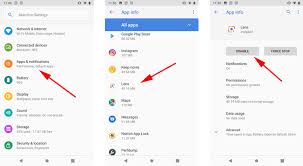
If you’re experiencing issues with the Google Play Store and want to troubleshoot them without completely removing it, follow these steps:
- Clear Cache And Data: Sometimes, clearing cache and data can resolve issues. To do this:
- Go to Settings > Apps > All apps.
- Find the Google Play Store app and tap on it.
- Tap on Storage and cache.
- Clear storage and cache.
- Uninstall Updates: Try uninstalling any updates that may have caused problems.
- Go to Settings > Apps > All apps.
- Find the Google Play Store app and tap on it.
- Tap on the three dots (⋮) in the top-right corner.
- Select Uninstall updates.
How to Remove Google Play Store Completely
If disabling or uninstalling updates didn’t work, you may want to consider removing the Google Play Store completely. However, this should be done with extreme caution, as it can cause instability and require a device reset:
- Root Your Device: To remove the Google Play Store completely, you need to root your device.
- Use an App Like Titanium Backup: Use an app like Titanium Backup to delete system apps, including the Google Play Store.
- Reinstall Android: After removing the Google Play Store, you may need to reinstall Android to restore functionality.
Alternative Marketplaces
If you’re no longer interested in using the Google Play Store, consider alternative marketplaces:
- Amazon Appstore: The Amazon Appstore offers a wide selection of apps and is easy to use.
- Huawei Appgallery: The Huawei AppGallery provides access to a vast library of apps.
Conclusion
While disabling or removing the Google Play Store can be done, it’s essential to understand the potential consequences on your device. Before attempting to disable or remove it, make sure you have a backup and are prepared for any potential issues that may arise. If you’re experiencing problems with the Google Play Store, try troubleshooting methods like clearing cache and data or uninstalling updates.
Frequently Asked Questions
- Q: Why Can’t I Simply Delete The Google Play Store App?
A: The Google Play Store is deeply integrated into Android, making it difficult to delete without causing instability. - Q: What Are The Consequences of Removing The Google Play Store?
A: Removing the Google Play Store may cause instability and require a device reset. - Q: Can I Use Alternative Marketplaces Like Amazon Appstore or Huawei Appgallery?
A: Yes, you can use alternative marketplaces, but be aware that some apps may not be compatible with these platforms. - Q: How do I Root my Device to Remove The Google Play Store Completely?
A: Rooting your device requires advanced knowledge and should be done at your own risk. - Q: What if I Experience Issues After Removing The Google Play Store?
A: In case of any issues, try reinstalling Android or seek professional help. - Q: Can I Use The Google Play Store Again After Removing It?
A: Yes, you can reinstall the Google Play Store, but be aware that some functionality may not be restored. - Q: Are There Any Risks Associated With Using Alternative Marketplaces?
A: Yes, some alternative marketplaces may contain malware or insecure apps.
Remember to exercise caution when dealing with system-level changes on your Android device. If you’re unsure about any of these steps, consult the official Google documentation or seek professional help.


