
Download Microsoft Word Free: A Step-by-step Guide
Are you looking for a way to download Microsoft Word free on your Windows, Mac, Android, iPhone, or iPad? Look no further! In this article, we will guide you through the process of downloading and installing Microsoft Word free on various devices.
Why Do You Need Microsoft Word?
Microsoft Word is one of the most popular word processing software available in the market. It offers a wide range of features, including spell check, grammar check, formatting options, and collaboration tools. Whether you are a student, professional, or simply someone who needs to create documents, Microsoft Word is an essential tool.
Is Microsoft Word Free?
Unfortunately, Microsoft Word is not completely free. The software comes with a 30-day trial period, after which you will need to purchase a subscription or license to continue using it. However, we have found a way to download and use Microsoft Word for free, at least during the trial period.
Download Microsoft Word Free on Windows
To download Microsoft Word free on Windows, follow these steps:
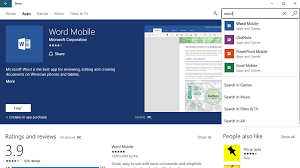
- Open Microsoft Store: Open the Microsoft Store app on your Windows device.
- Search For Microsoft Word: Type “Microsoft Word” in the search bar and press Enter.
- Select Microsoft Word: Select the Microsoft Word app from the search results.
- Click Get: Click the Get button to start the download process.
- Sign In: Sign in with your Microsoft account to continue the installation process.
- Install Office: Install Office, which includes Microsoft Word, and follow the on-screen instructions.
Download Microsoft Word Free on Mac
To download Microsoft Word free on Mac, follow these steps:
- Open App Store: Open the App Store app on your Mac.
- Search For Microsoft Word: Type “Microsoft Word” in the search bar and press Enter.
- Select Microsoft Word: Select the Microsoft Word app from the search results.
- Click Get: Click the Get button to start the download process.
- Sign In: Sign in with your Apple ID to continue the installation process.
Download Microsoft Word Free on Android
To download Microsoft Word free on Android, follow these steps:
- Open Google Play Store: Open the Google Play Store app on your Android device.
- Search For Microsoft Word: Type “Microsoft Word” in the search bar and press Enter.
- Select Microsoft Word: Select the Microsoft Word app from the search results.
- Click Install: Click the Install button to start the download process.
- Sign In: Sign in with your Microsoft account to continue the installation process.
Download Microsoft Word Free on Iphone or Ipad
To download Microsoft Word free on iPhone or iPad, follow these steps:
- Open App Store: Open the App Store app on your device.
- Search For Microsoft Word: Type “Microsoft Word” in the search bar and press Enter.
- Select Microsoft Word: Select the Microsoft Word app from the search results.
- Click Get: Click the Get button to start the download process.
- Sign In: Sign in with your Apple ID to continue the installation process.
Conclusion
Downloading Microsoft Word free on various devices is a straightforward process that requires some basic steps. By following these guides, you can enjoy using Microsoft Word for free during the trial period. Remember to sign out and disable the automatic renewal of your subscription if you don’t plan to use it beyond the trial period.
Frequently Asked Questions (FAQs)
- Is Microsoft Word Completely Free?
No, Microsoft Word comes with a 30-day trial period after which you will need to purchase a subscription or license to continue using it.
- How Can I Download Microsoft Word For Free?
You can download Microsoft Word for free by following the guides provided in this article.
- What Devices Are Compatible With Microsoft Word?
Microsoft Word is compatible with Windows, Mac, Android, iPhone, and iPad devices.
- Do I Need to Sign in to Use Microsoft Word?
Yes, you will need to sign in with your Microsoft account or Apple ID to use Microsoft Word on various devices.
- Can I Use Microsoft Word Offline?
No, Microsoft Word requires an internet connection to function properly.
- How Can I Cancel my Subscription or License?
You can cancel your subscription or license by following the instructions provided by Microsoft in their support center.
- What Happens if I Exceed The Trial Period?
If you exceed the trial period, you will need to purchase a subscription or license to continue using Microsoft Word.
- Can I Use Microsoft Word on Multiple Devices at Once?
Yes, with a subscription or license, you can use Microsoft Word on multiple devices at once.


