
How to Convert Pdf Rows Into Excel: A Step-by-step Guide
Are you tired of dealing with bulky PDF files that refuse to bend? Do you want to unlock the power of spreadsheet magic, but don’t know where to begin? Look no further! This article will guide you through the process of converting PDF rows into Excel using various software and online services.
Understanding Pdf Files
Before we dive into the conversion process, it’s essential to understand what makes a PDF file tick. A Portable Document Format (PDF) is a self-contained file that contains all the necessary information to display a document exactly as it was created. This includes text, images, and even interactive elements like forms and buttons.
However, when dealing with rows of data in a PDF file, things can get tricky. The layout might not be optimized for spreadsheet use, making it difficult to extract or manipulate the data. That’s where our conversion magic comes in!
Adobe Acrobat: A Powerful Tool
If you’re already familiar with Adobe products, you’ll love their flagship software, Acrobat. This tool allows you to create, edit, and convert PDF files with ease.
To convert PDF rows into Excel using Acrobat:
- Download And Install Acrobat: If you don’t have the software installed on your computer, follow the instructions provided in our dedicated guide.
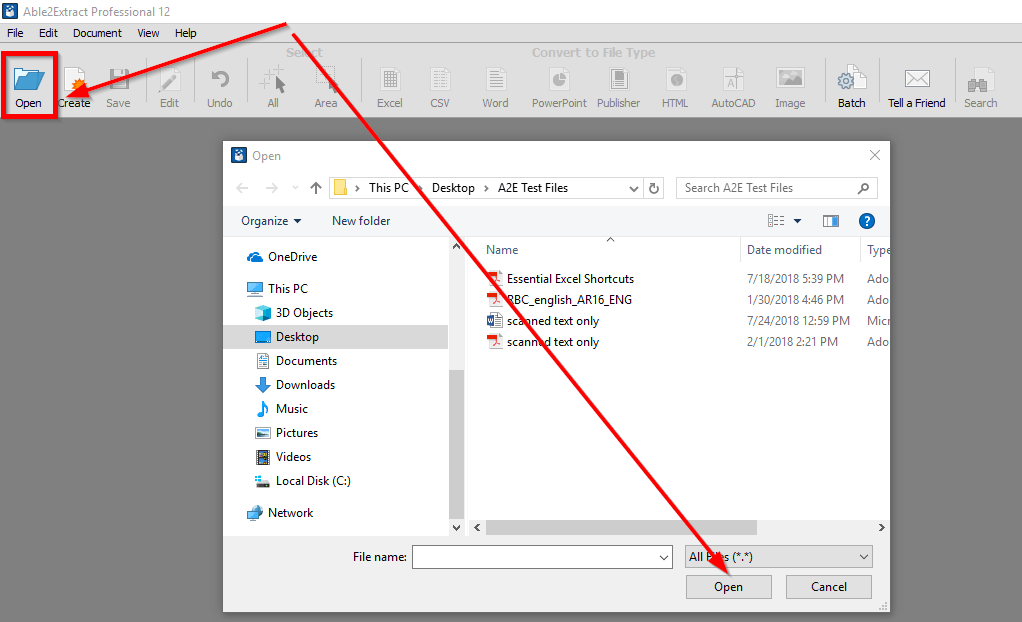
- Launch Acrobat: Open the application and select the PDF file containing the data you want to convert.
- Click on “Open”: Choose the “Open in” option from the top menu bar and select Excel as the output format.
- Export to Excel: Follow the prompts to export your PDF data into an Excel spreadsheet.
Other Solutions For Converting Pdf Rows Into Excel
If Adobe Acrobat isn’t your cup of tea, don’t worry! There are plenty of other software options available that can help you achieve this task.
Here are some alternative solutions:
- Doxillion Document Converter: This free software allows you to convert various document types, including PDFs, into different formats.
- Wondershare Pdfelement: This powerful tool enables you to edit and modify PDF files, add forms, and even transform them into Excel spreadsheets.
Online Services For Converting Pdf Rows Into Excel
Sometimes, you might not have access to software or prefer a cloud-based solution. That’s where online services come in!
Here are some popular options:
- Zamzar: This web-based conversion service allows you to upload your PDF file and choose the output format (in this case, Excel).
- Online2pdf: This free online tool enables you to convert PDF files into various formats, including Excel.
- Pdf2go: Another web-based service that offers a range of features, including PDF editing and conversion.
Mobile Apps For Converting Pdf Rows Into Excel
If you’re on-the-go or prefer using your smartphone or tablet, there are mobile apps available that can help you achieve this task!
Here are some popular options:
- Ilovepdf: This powerful app allows you to edit and convert PDF files on the go.
- Xodo Pdf: A feature-rich app that enables you to view, edit, and convert PDF files.
Conclusion
Converting PDF rows into Excel doesn’t have to be a daunting task. By using software like Adobe Acrobat or online services like Zamzar, you can unlock the power of spreadsheet magic with ease. Remember to explore other solutions and apps if needed, and don’t hesitate to reach out for help when required.
Frequently Asked Questions (FAQs)
- Q: Can I Convert Multiple Pdf Files Into Excel at Once?
A: Yes, some software and online services allow batch conversions. - Q: What is The Maximum File Size Limit For Conversion?
A: It varies depending on the service or software used. - Q: Do I Need to Have Adobe Acrobat Installed on my Computer?
A: No, you can use alternative software or online services. - Q: Can I Convert Pdf Files Into Excel Using a Mobile App?
A: Yes, there are dedicated apps available for Android and iOS devices. - Q: What if The Layout of my Pdf File is Not Optimized For Spreadsheet Use?
A: You can try using software or online services that offer advanced formatting options.
I hope this article has been informative and helpful in your quest to convert PDF rows into Excel!


