
The Ultimate Guide to Capsize Tongue Keyboard: A Step-by-step Solution
Are you tired of struggling with the default keyboard layout on your device? Do you find yourself constantly switching between different languages or layouts? Look no further! In this comprehensive guide, we’ll show you how to capsize tongue keyboard on various devices, including Windows, Mac, Android, Samsung, iPhone, iPad, and WhatsApp.
Why Capsize Tongue Keyboard?
The default keyboard layout can be limiting, especially when working with multiple languages or requiring specific character sets. By capsize tongue keyboard, you can access a wide range of language options, making it easier to communicate in your preferred language. This feature is particularly useful for individuals who work with clients from diverse linguistic backgrounds or those who prefer typing in their native language.
How to Capsize Tongue Keyboard: Windows
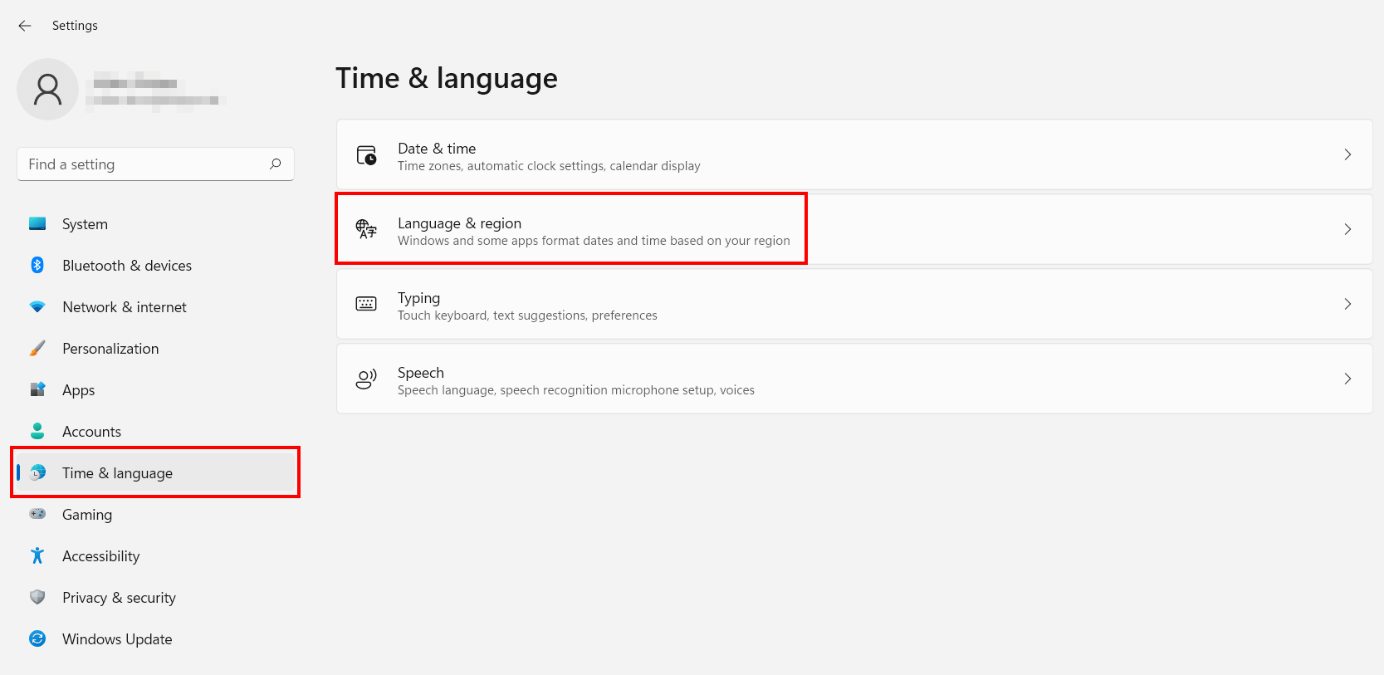
If you’re using a Windows device, follow these steps to capsize tongue keyboard:
- Click on the Start menu and select Settings.
- In the Settings window, click on the Time & Language option.
- From the left-hand menu, select the Languages option.
- Click on the Add a language button.
- Select your preferred language from the list of available options.
- Follow the prompts to download and install the language pack.
How to Capsize Tongue Keyboard: Mac
If you’re using a Mac device, follow these steps to capsize tongue keyboard:
- Click on the Apple menu and select System Preferences.
- In the System Preferences window, click on the Language & Region option.
- From the left-hand menu, select the Keyboard tab.
- Click on the + button to add a new keyboard layout.
- Select your preferred language from the list of available options.
- Follow the prompts to download and install the language pack.
How to Capsize Tongue Keyboard: Android
If you’re using an Android device, follow these steps to capsize tongue keyboard:
- Open the Settings app on your device.
- Scroll down and select the Language & input option.
- From the left-hand menu, select the Virtual keyboard tab.
- Click on the + button to add a new keyboard layout.
- Select your preferred language from the list of available options.
- Follow the prompts to download and install the language pack.
How to Capsize Tongue Keyboard: Samsung
If you’re using a Samsung device, follow these steps to capsize tongue keyboard:
- Open the Settings app on your device.
- Scroll down and select the General management option.
- From the left-hand menu, select the Language & input tab.
- Click on the + button to add a new keyboard layout.
- Select your preferred language from the list of available options.
- Follow the prompts to download and install the language pack.
How to Capsize Tongue Keyboard: Iphone
If you’re using an iPhone device, follow these steps to capsize tongue keyboard:
- Open the Settings app on your device.
- Scroll down and select the General option.
- From the left-hand menu, select the Keyboard tab.
- Click on the Add new keyboard button.
- Select your preferred language from the list of available options.
- Follow the prompts to download and install the language pack.
How to Capsize Tongue Keyboard: Ipad
If you’re using an iPad device, follow these steps to capsize tongue keyboard:
- Open the Settings app on your device.
- Scroll down and select the General option.
- From the left-hand menu, select the Keyboard tab.
- Click on the Add new keyboard button.
- Select your preferred language from the list of available options.
- Follow the prompts to download and install the language pack.
How to Capsize Tongue Keyboard: Whatsapp
If you’re using WhatsApp on Android, iPhone, or PC, follow these steps to capsize tongue keyboard:
- Open the Settings app on your device (or access the settings through the WhatsApp app).
- Scroll down and select the Language & input option.
- From the left-hand menu, select the Virtual keyboard tab.
- Click on the + button to add a new keyboard layout.
- Select your preferred language from the list of available options.
- Follow the prompts to download and install the language pack.
Conclusion
Capsize tongue keyboard is an essential feature for anyone who works with multiple languages or requires specific character sets. By following these step-by-step guides, you can easily add a new keyboard layout to your device and switch between languages with ease. Whether you’re using Windows, Mac, Android, Samsung, iPhone, iPad, or WhatsApp, this guide has got you covered.
Frequently Asked Questions
- Q: Why do I Need to Capsize Tongue Keyboard?
A: Capsize tongue keyboard allows you to access a wide range of language options, making it easier to communicate in your preferred language. - Q: How do I Know if my Device Supports Multiple Languages?
A: Most devices come with built-in support for multiple languages. Check your device’s settings or documentation to confirm. - Q: Can I Add Multiple Keyboard Layouts at Once?
A: Yes, you can add multiple keyboard layouts to your device and switch between them easily. - Q: Will Adding a New Keyboard Layout Affect my Device’s Performance?
A: In most cases, adding a new keyboard layout will not affect your device’s performance. However, if you’re experiencing issues, try restarting your device or checking for software updates. - Q: Can I Use Multiple Languages on Whatsapp?
A: Yes, you can add multiple language keyboards to WhatsApp and switch between them easily. - Q: Will Adding a New Keyboard Layout Affect my Device’s Warranty?
A: No, adding a new keyboard layout will not affect your device’s warranty. This is a standard feature that comes with most devices. - Q: Can I Add Custom Keyboard Layouts to my Device?
A: Yes, you can create and add custom keyboard layouts to your device using third-party software or apps.


