
How to Open .Txt Files on PC And Mac
Are you having trouble opening a .Txt file on your PC or Mac? Don’t worry, this article will guide you through the easy steps to open and read .Txt files on both Windows and macOS.
What is a .Txt File?
A .Txt file is a plain text file that contains unformatted text data. It’s a simple file format that can be opened with any text editor or word processor.
Opening .Txt Files on PC (Windows)
If you’re using a PC, follow these steps to open a .Txt file:
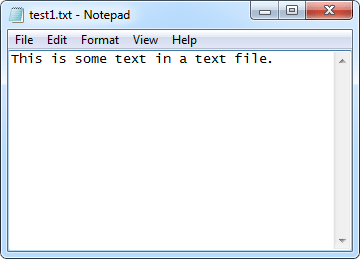
- Double-click The File: Double-clicking on the .Txt file should open it in Notepad.
- Right-click And Select “Open With”: If Notepad doesn’t open, right-click on the .Txt file and select “Open with”. Choose Notepad from the list of available programs.
Opening .Txt Files on Mac (macOS)
If you’re using a Mac, follow these steps to open a .Txt file:
- Double-click The File: Double-clicking on the .Txt file should open it in TextEdit.
- Right-click And Select “Open With”: If TextEdit doesn’t open, right-click on the .Txt file and select “Open with”. Choose TextEdit from the list of available programs.
What if Notepad or Textedit Doesn’t Open?
If neither Notepad nor TextEdit opens your .Txt file, don’t worry! You can try opening it with another text editor or word processor. Here are some alternatives:
- Notepad++ (Windows): Download and install Notepad++, a free text editor that’s more powerful than the built-in Notepad.
- Textmate (macOS): Download and install TextMate, a popular text editor for Mac.
Opening .Txt Files in Excel
If you have a .Txt file with data and want to open it in Excel, follow these steps:
- Open Excel: Open Microsoft Excel on your PC or Mac.
- Click “File” > “Open”: Click the “File” menu and select “Open”.
- Select The .Txt File: Select the .Txt file you want to open.
- Choose The Import Options: Choose how you want to import the data from the .Txt file.
Opening .Txt Files in Pdf
If you have a long .Txt file and want to save it as a PDF, follow these steps:
- Open Notepad or Textedit: Open Notepad on Windows or TextEdit on Mac.
- Select “Print”: Select the “File” menu and click “Print”.
- Choose The Pdf Printer: Choose the PDF printer from the list of available printers.
- Save The Pdf File: Save the PDF file to your desired location.
Opening .Txt Files With Android
If you’re using an Android device, follow these steps to open a .Txt file:
- Download The File: Download the .Txt file from your email or cloud storage service.
- Open The File With an App: Choose an app like Document Google or Visualizer to open the file.
- Edit The File (optional): If you want to edit the file, choose an app like QuickEdit Text Editor.
Opening .Txt Files on Iphone
If you’re using an iPhone, follow these steps to open a .Txt file:
- Download The File: Download the .Txt file from your email or cloud storage service.
- Open The File With Notes: Open the file in the Notes app.
- Edit The File (optional): If you want to edit the file, use an app like Subtext.
Conclusion
Opening a .Txt file is a straightforward process on both PC and Mac. Whether you’re using Notepad, TextEdit, or another text editor, following these steps will get you started. Remember that some files might require additional software or apps to open properly. Happy reading!
Frequently Asked Questions (FAQs)
- Q: How do I Open a .Txt File on Windows?
A: Simply double-click the file, and it should open in Notepad. - Q: How do I Open a .Txt File on Mac?
A: Double-click the file, and it should open in TextEdit. - Q: What if Notepad or Textedit Doesn’t Open my .Txt File?
A: Try opening it with another text editor or word processor like Notepad++ (Windows) or TextMate (macOS). - Q: How do I Open a .Txt File in Excel?
A: Open Excel and select “File” > “Open”, then choose the .Txt file. - Q: How do I Save a .Txt File as a Pdf?
A: Open Notepad or TextEdit, select “Print”, choose the PDF printer, and save the file. - Q: How do I Open a .Txt File on Android?
A: Choose an app like Document Google or Visualizer to open the file. - Q: How do I Open a .Txt File on Iphone?
A: Open the file in Notes, or use an app like Subtext to edit it.


