
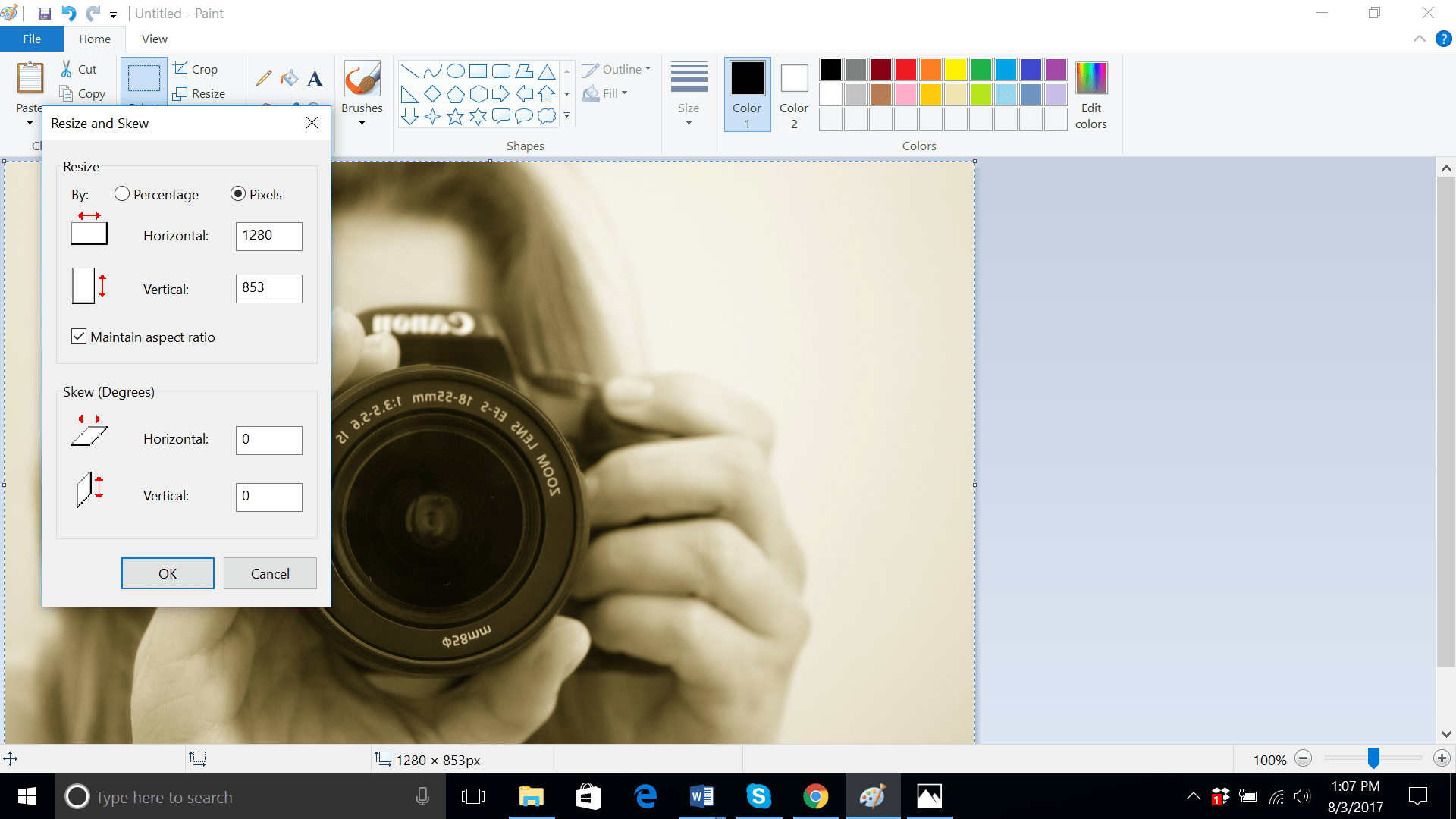
How to Resize an Image: A Comprehensive Guide
Are you struggling to resize an image without compromising its quality? Look no further! In this article, we will guide you through the process of resizing an image using various programs, from Adobe Photoshop to simple online tools.
What is Image Resizing And Why Do I Need It?
Image resizing is the process of changing the size of an image while maintaining its original aspect ratio. This is necessary when you need to upload images to social media platforms, websites, or email them to friends without compromising their quality.
How to Resize an Image Using Adobe Photoshop
Adobe Photoshop is a professional-grade photo editing software that offers advanced features for resizing images. To resize an image using Photoshop:
- Open the image in Photoshop by clicking on “File” > “Open”.
- Select the image and click on “Image” > “Image Size” to open the Image Size dialog box.
- Enter the new dimensions you want for your image, or select a preset size from the dropdown menu.
- Click on “OK” to apply the changes.
How to Resize an Image Using Gimp
GIMP (GNU Image Manipulation Program) is a free and open-source photo editing software that offers many of the same features as Adobe Photoshop. To resize an image using GIMP:
- Open the image in GIMP by clicking on “File” > “Open”.
- Select the image and click on “Image” > “Scale Image” to open the Scale Image dialog box.
- Enter the new dimensions you want for your image, or select a preset size from the dropdown menu.
- Click on “OK” to apply the changes.
How to Resize an Image Using Adobe Illustrator
Adobe Illustrator is a vector graphics editor that can also be used for resizing images. To resize an image using Illustrator:
- Open the image in Illustrator by clicking on “File” > “Open”.
- Select the image and click on “Object” > “Transform” to open the Transform dialog box.
- Enter the new dimensions you want for your image, or select a preset size from the dropdown menu.
- Click on “OK” to apply the changes.
How to Resize an Image in Html
Resizing images in HTML is a simple process that can be done using the img tag and CSS. To resize an image in HTML:
- Open your HTML file and add the following code inside the body tag:
<Img src="your_image.Jpg" width="500" height="300"> - Replace “your_image.Jpg” with the actual path to your image.
- Adjust the width and height values to match your desired dimensions.
How to Resize an Image in Pdf
Resizing images in PDF format requires using a PDF editor or converter software. To resize an image in PDF:
- Open the PDF file in Adobe Acrobat or another PDF editor.
- Select the image you want to resize and click on “Object” > “Image Properties”.
- Adjust the dimensions of the image by entering new values into the Width and Height fields.
How to Resize an Image For Instagram
Resizing images for Instagram requires using a specific aspect ratio and size to ensure they display correctly in the app. To resize an image for Instagram:
- Use Adobe Photoshop or GIMP to resize your image to 1080 x 1350 pixels (or other recommended sizes).
- Save the resized image as a JPEG file.
- Upload the image to Instagram and adjust its size using the built-in editing tools.
How to Resize an Image Using a Mobile App
There are several mobile apps available that allow you to resize images on-the-go. Some popular options include:
- Adobe Lightroom: A powerful photo editing app with advanced features for resizing images.
- Instasize: A user-friendly app specifically designed for resizing and editing images for social media platforms.
- Snapseed: A professional-grade photo editing app that offers advanced features for resizing images.
Conclusion
Resizing an image is a straightforward process that can be accomplished using various software programs or online tools. Whether you’re looking to upload images to social media, websites, or email them to friends, understanding how to resize an image will help you achieve the desired results without compromising its quality.
Frequently Asked Questions (FAQs)
- What is Image Resizing And Why do I Need It?
Image resizing is the process of changing the size of an image while maintaining its original aspect ratio. You may need to resize images for various reasons, including uploading them to social media platforms, websites, or emailing them to friends. - How Can I Resize an Image Using Adobe Photoshop?
To resize an image using Adobe Photoshop, open the image and select “Image” > “Image Size.” Enter the new dimensions you want for your image, or select a preset size from the dropdown menu. Click on “OK” to apply the changes. - How Can I Resize an Image Using Gimp?
To resize an image using GIMP, open the image and select “Image” > “Scale Image.” Enter the new dimensions you want for your image, or select a preset size from the dropdown menu. Click on “OK” to apply the changes. - How Can I Resize an Image in Html?
To resize an image in HTML, use the img tag and CSS. Add the following code inside the body tag:<Img src="your_image.Jpg" width="500" height="300">Replace “your_image.Jpg” with the actual path to your image. - How Can I Resize an Image For Instagram?
To resize an image for Instagram, use Adobe Photoshop or GIMP to resize it to 1080 x 1350 pixels. Save the resized image as a JPEG file and upload it to Instagram.
The Best Apps For Resizing Images
Some of the best apps for resizing images include:
- Adobe Lightroom
- Instasize
- Snapseed
These apps offer advanced features for resizing images and can be used on both desktop and mobile devices.


