
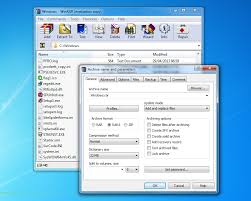
Winrar – Download
Are you looking for a powerful application to manage compressed files on your Windows device? Look no further than WinRAR! This software is an absolute must-have for anyone who frequently works with archives, and we’ll explain why.
What is Winrar?
WinRAR is a file archiver that supports various formats, including ZIP, 7Z, RAR, and more. It’s available for Windows, macOS, and Linux platforms, making it a versatile tool for users across different operating systems.
Key Features of Winrar
Here are some of the key features that make WinRAR stand out:
- Support For Multiple Formats: WinRAR supports a wide range of compressed file formats, including ZIP, 7Z, RAR, and more.
- Multivolume Support: You can create and extract multivolume archives, which is handy when dealing with large files.
- Password Protection: WinRAR allows you to password-protect your archives for added security.
- Integration With Windows Explorer: The software integrates seamlessly with Windows Explorer, making it easy to manage compressed files.
How to Download And Install Winrar
Downloading and installing WinRAR is a straightforward process. Here’s a step-by-step guide:
- Visit The Official Website: Head over to the official WinRAR website and download the software.
- Run The Installer: Run the installer and follow the prompts to install WinRAR on your device.
- Launch Winrar: Once installed, launch WinRAR and explore its features.
Alternatives to Winrar
If you’re looking for alternatives to WinRAR, here are some options:
- 7-Zip: A popular open-source file archiver that supports various formats, including ZIP, 7Z, and more.
- Winzip: A commercial file archiver that offers advanced features and support for multiple formats.
How to Use Winrar
Using WinRAR is a breeze. Here’s a brief guide:
- Open Winrar: Launch WinRAR and explore its interface.
- Create a New Archive: Click on the “New” button to create a new archive.
- Add Files: Select the files you want to add to the archive using the “Add” button.
- Save The Archive: Save the archive with a desired name and location.
Tips And Tricks
Here are some additional tips and tricks for using WinRAR effectively:
- Use Password Protection: Always use password protection when creating archives that contain sensitive data.
- Customize The Interface: Personalize the WinRAR interface to suit your needs.
- Explore Advanced Features: Delve into advanced features like multivolume support and password-protected archives.
Conclusion
WinRAR is an incredibly powerful tool for managing compressed files. With its intuitive interface, robust feature set, and compatibility with multiple formats, it’s an absolute must-have for anyone who frequently works with archives.
Faqs
Here are some frequently asked questions about WinRAR:
- Q: What is The Best Alternative to Winrar?
A: Some popular alternatives include 7-Zip and WinZip. - Q: How do I Password-protect an Archive in Winrar?
A: To password-protect an archive, select the “Add” button, choose the files you want to add, and click on the “Encrypt” button. - Q: Can I Use Winrar on Macos or Linux?
A: Yes, WinRAR is available for macOS and Linux platforms.
Further Reading
For more information on using WinRAR effectively, check out these additional resources:
- Winrar Official Website: Visit the official WinRAR website for tutorials, guides, and FAQs.
- 7-Zip Official Website: Explore the 7-Zip website for alternative file archiving solutions.


