
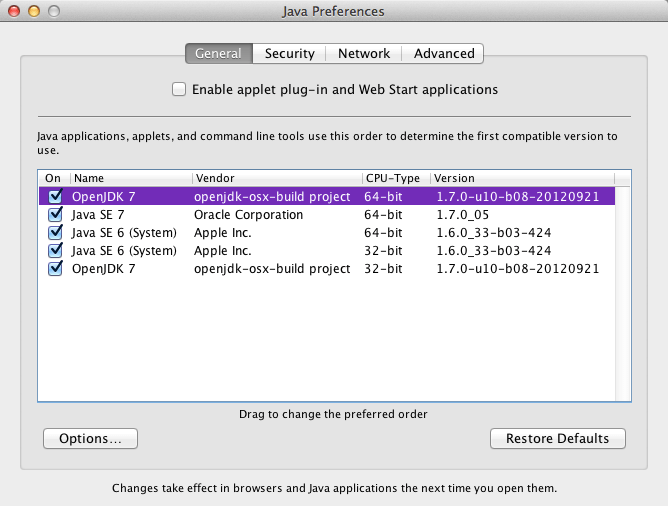
Installing Java on Mac: A Step-by-step Guide
Are you a developer or a hobbyist looking to run Java programs on your Mac? Look no further! In this article, we will guide you through the process of installing Java Runtime Environment (JRE) and Java Development Kit (JDK) on your macOS machine.
Why Do I Need Java?
Java is a popular programming language used for developing various applications, including Android apps, web applications, and desktop software. To run these programs, you need to have the Java Runtime Environment (JRE) installed on your computer. JRE provides the necessary libraries and tools to execute Java programs.
Installing Jre on Mac
To install JRE on your Mac, follow these steps:
- Visit The Official Download Page: Go to the official Oracle website and download the JRE for macOS.
- Click on The “Accept” Button: Accept the terms and conditions of the license agreement.
- Choose The Correct Version: Select the correct version of JRE (32-bit or 64-bit) compatible with your Mac’s architecture.
- Download The Installer: Click on the download button to start the installation process.
- Run The Installer: Once the download is complete, run the installer and follow the prompts to install JRE.
- Complete The Installation: Accept the license agreement and choose the installation location.
Verifying Jre Installation
To verify that JRE has been installed correctly, follow these steps:
- Open Terminal: Open the Terminal app on your Mac.
- Type
java -version: Typejava -versionin the Terminal and press Enter. - Check The Output: The output should indicate that JRE is installed successfully.
Installing Jdk on Mac
To install JDK on your Mac, follow these steps:
- Visit The Official Download Page: Go to the official Oracle website and download the JDK for macOS.
- Click on The “Accept” Button: Accept the terms and conditions of the license agreement.
- Choose The Correct Version: Select the correct version of JDK (32-bit or 64-bit) compatible with your Mac’s architecture.
- Download The Installer: Click on the download button to start the installation process.
- Run The Installer: Once the download is complete, run the installer and follow the prompts to install JDK.
- Complete The Installation: Accept the license agreement and choose the installation location.
Verifying Jdk Installation
To verify that JDK has been installed correctly, follow these steps:
- Open Terminal: Open the Terminal app on your Mac.
- Type
java -version: Typejava -versionin the Terminal and press Enter. - Check The Output: The output should indicate that JDK is installed successfully.
Running Java Programs
To run a Java program, follow these steps:
- Open Terminal: Open the Terminal app on your Mac.
- Navigate to The Program Location: Navigate to the location where the Java program file is stored.
- Type
javaFollowed by The Program Name: Typejavafollowed by the name of the Java program file (e.G.,MyProgram.Jar) and press Enter.
Conclusion
Installing Java on your Mac is a straightforward process that requires minimal technical expertise. By following these steps, you should be able to install JRE and JDK successfully and run Java programs on your macOS machine.
Frequently Asked Questions (FAQs)
- Q: What is The Difference Between Jre And Jdk?
A: JRE provides the necessary libraries and tools to execute Java programs, while JDK includes additional development tools. - Q: Do I Need to Install Jre or Jdk on my Mac?
A: If you only need to run Java programs, installing JRE is sufficient. However, if you want to develop Java programs, you should install JDK. - Q: How do I Verify That Jre or Jdk Has Been Installed Correctly?
A: You can verify the installation by typingjava -versionin Terminal and checking the output. - Q: Can I Run Java Programs on my Mac Without Installing Jre or Jdk?
A: No, you need to install JRE or JDK on your Mac to run Java programs. - Q: What is The Minimum Version of Macos Required For Installing Jre or Jdk?
A: The minimum version of macOS required for installing JRE or JDK is High Sierra (10.13). - Q: Can I Install Jre or Jdk on an Older Version of Macos?
A: No, you should upgrade to a compatible version of macOS before attempting to install JRE or JDK. - Q: How do I Update Jre or Jdk to The Latest Version?
A: You can update JRE or JDK by visiting the official Oracle website and downloading the latest version. - Q: Can I Run Java Programs on Multiple Platforms (e.G., Windows, Linux) Using a Single Installation of Jre or Jdk on my Mac?
A: Yes, you can run Java programs on multiple platforms using a single installation of JRE or JDK on your Mac.
Troubleshooting
If you encounter any issues during the installation process or while running Java programs, refer to the troubleshooting section below:
- Error 1: Unable to download JRE or JDK.
- Solution: Check your internet connection and try downloading again.
- Error 2: Installation fails due to compatibility issues.
- Solution: Check if you are using an older version of macOS that is not compatible with the latest JRE or JDK versions.
- Error 3: Unable to run Java programs.
- Solution: Verify that JRE or JDK has been installed correctly by typing
java -versionin Terminal.
- Solution: Verify that JRE or JDK has been installed correctly by typing
Additional Resources
For more information on installing and running Java programs, visit the following resources:
- Oracle’s Official Website
- Apple’s Official Documentation for macOS
- Stack Overflow (for general programming-related questions)


