
How to Forward a Fax With Gmail: A Step-by-step Guide
Are you tired of using traditional fax machines to send documents? Do you want to save time and effort while still being able to send important documents to others? Look no further! With the rise of online services, it is now possible to forward a fax with Gmail. In this article, we will guide you through the process of sending a fax using your Gmail account.
Understanding The Basics
Before we dive into the step-by-step instructions, let’s understand the basics of forwarding a fax with Gmail. To do this, you need to have an account with a service that allows you to convert an email message into a faxable format. There are several services available online that offer this feature, such as eFax and HelloFax.
Preliminary Operations
Before you can forward a fax with Gmail, there are some preliminary operations that need to be completed:
- You need to sign up for a service that allows you to send faxes using your email account.
- You need to have an email address with a service such as Gmail or Yahoo Mail.
Step-by-step Instructions
Here’s how to forward a fax with Gmail:
PC Version
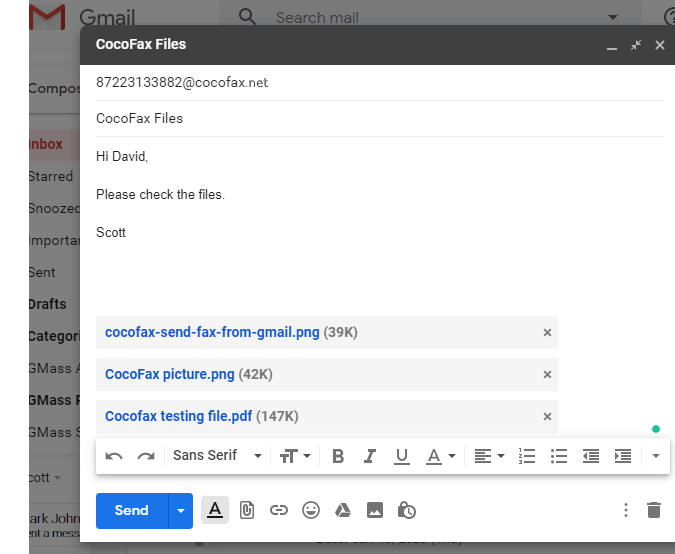
- Log in to your Gmail account and navigate to the inbox.
- Click on the compose button to create a new message.
- Enter the recipient’s email address, including their national prefix (e.G., +1 For US numbers).
- Attach the document you want to send as a fax.
- Fill out the subject line and body of the message as desired.
- Click the “Send” button to forward the fax.
Smartphone/ Tablet Version
If you’re using a smartphone or tablet, follow these steps:
- Open the Gmail app on your device.
- Tap the compose icon to start a new email.
- Enter the recipient’s email address and add any necessary prefixes (e.G., +44 For UK numbers).
- Attach the document you want to send as a fax.
- Fill out the subject line and body of the message as desired.
- Tap the “Send” button to forward the fax.
Tips And Variations
- Make sure to check the compatibility of your document format with the service you’re using.
- You can attach multiple documents if needed, but be aware that there may be size limitations.
- If you need to send a large number of pages, consider upgrading to a paid plan.
Troubleshooting Common Issues
If you encounter any issues while trying to forward a fax with Gmail, here are some common problems and solutions:
- Failed Delivery: Check your email account for any errors or notifications from the service provider.
- Document Size Limitations: Try compressing your document or breaking it up into smaller sections.
Conclusion
Forwarding a fax with Gmail is a simple process that can save you time and effort. By following these step-by-step instructions, you can easily send important documents to others using your email account. Don’t forget to check the compatibility of your document format and consider upgrading to a paid plan if needed. Happy emailing!
Frequently Asked Questions (FAQs)
- Q: What Services Allow me to Forward Faxes With Gmail?
A: There are several services available online that offer this feature, such as eFax and HelloFax. - Q: Do I Need a Special Account or Software to Send Faxes Using Gmail?
A: Yes, you need to sign up for a service that allows you to convert an email message into a faxable format. - Q: Can I Attach Multiple Documents When Sending a Fax With Gmail?
A: Yes, but be aware that there may be size limitations and compatibility issues. - Q: How do I Troubleshoot Common Issues When Trying to Forward a Fax With Gmail?
A: Check your email account for any errors or notifications from the service provider, and try compressing your document or breaking it up into smaller sections.
Additional Resources
For more information on sending faxes using Gmail, check out these additional resources:


