
How to Recover Password Wifi: A Step-by-step Guide
Are you having trouble accessing your Wi-Fi network because you’ve forgotten the password? Don’t panic! This guide will walk you through a simple process to recover your password WiFi on various devices and platforms.
Understanding The Basics
Before we dive into the step-by-step instructions, it’s essential to understand that recovering your Wi-Fi password is a legitimate practice. However, accessing someone else’s network without permission is a serious breach of privacy and can be considered an offense.
Recovering Password Wifi on PC (Windows)
If you’re using a Windows 11 PC, follow these steps:
- Click on the Start button and type “Network and Sharing Center” in the search bar.
- Open the Network and Sharing Center.
- Click on “Manage network connections.”
- Look for your Wi-Fi network name (SSID) in the list of available networks.
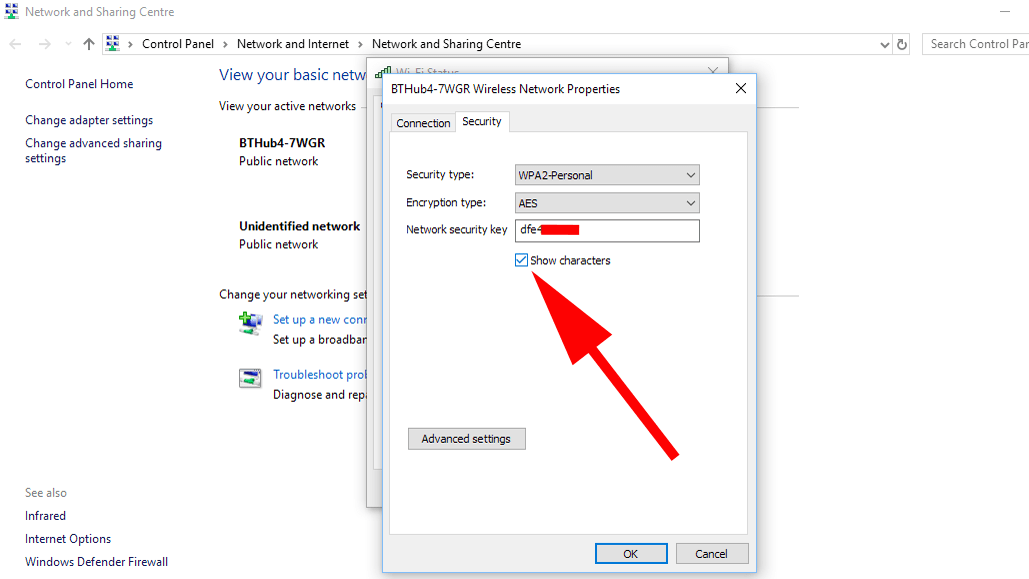
- Right-click on the network name and select “Properties.”
- In the Properties window, click on the “Security” tab.
- Check the box next to “Show characters” to reveal your password.
Alternative Method: Using Netsh Command
You can also use the netsh command to display your Wi-Fi password. Follow these steps:
- Open the Command Prompt as an administrator.
- Type
netsh wlan show profileand press Enter. - Look for your network name in the list of profiles displayed.
- Right-click on the profile and select “Properties.”
- In the Properties window, click on the “Security” tab.
- Check the box next to “Show characters” to reveal your password.
Recovering Password Wifi on Mac
If you’re using a Mac, follow these steps:
- Open the Keychain Access application (located in Applications/Utilities).
- Select “Passwords” from the list of available categories.
- Look for your Wi-Fi network name (SSID) in the list of passwords displayed.
- Double-click on the password to reveal it.
Recovering Password Wifi on Android
If you’re using an Android device, follow these steps:
- Go to Settings > Wireless and Networks > Wi-Fi.
- Tap on the three dots (⋯) next to your network name.
- Select “Share” from the drop-down menu.
- A QR code will be displayed; tap on it to reveal your password.
Recovering Password Wifi on Iphone
If you’re using an iPhone, follow these steps:
- Go to Settings > Wi-Fi.
- Tap on the “i” icon next to your network name.
- Select “Password” from the list of available options.
- Your password will be displayed.
Recovering Password Wifi on Router
If you’ve forgotten your Wi-Fi password and it’s not stored on any device, try the following:
- Check the label on the back or bottom of your router for the default network name (SSID) and password.
- Consult the user manual that came with your router for instructions on how to access the admin panel and reset your password.
Tips And Precautions
- Always remember to update your Wi-Fi password regularly to maintain security.
- Be cautious when accessing public Wi-Fi networks, as they may be compromised or insecure.
- Never share your Wi-Fi password with others without their consent.
Conclusion
Recovering your Wi-Fi password is a relatively simple process that can be accomplished on various devices and platforms. Remember to always prioritize security and update your password regularly to maintain the integrity of your network.
Frequently Asked Questions (FAQs)
- Q: What if I Forget my Wi-fi Password?
A: Follow the step-by-step guide provided in this article to recover your password. - Q: Can Someone Else Access my Wi-fi Network Without Permission?
A: Yes, accessing someone else’s network without permission is a serious breach of privacy and can be considered an offense. - Q: How Often Should I Update my Wi-fi Password?
A: It’s recommended to update your password regularly (every 3-6 months) to maintain security. - Q: Can I Recover my Wi-fi Password if It’s Not Stored on Any Device?
A: Yes, try accessing the admin panel of your router or consult the user manual for instructions. - Q: Is it Safe to Access Public Wi-fi Networks?
A: No, public Wi-Fi networks may be compromised or insecure; always use a VPN when accessing public networks. - Q: Can I Share my Wi-fi Password With Others?
A: Only share your password with trusted individuals who have been given permission to access your network. - Q: How do I Protect my Wi-fi Network From Unauthorized Access?
A: Use strong passwords, enable WPA2 encryption, and limit access to authorized devices only. - Q: Can I Recover my Wi-fi Password if I’ve Changed it Recently?
A: Yes, try accessing the admin panel of your router or consult the user manual for instructions.


