
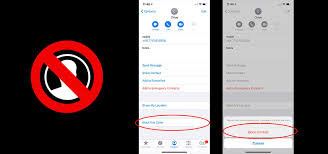
How to Block Contacts on Iphone: A Step-by-step Guide
Are you tired of receiving unwanted calls from pesky contacts on your iPhone? Do you wish there was a way to block them without having to go through the hassle of ignoring or deleting their numbers? Well, you’re in luck! In this article, we’ll show you how to block contacts on iPhone using various methods, including the built-in function “Contacts blocked” and third-party apps.
Why Block Contacts on Iphone?
Before we dive into the nitty-gritty of blocking contacts on iPhone, let’s talk about why you might want to do so. Perhaps you have a friend or acquaintance who insists on calling you at inconvenient times, or maybe you’re dealing with telemarketers and scammers who won’t leave you alone. Whatever the reason, blocking unwanted contacts can be a great way to reclaim your peace of mind and reduce stress.
Method 1: Using The Contacts Blocked Function
One simple way to block contacts on iPhone is by using the built-in function “Contacts blocked”. Here’s how:
Step 1: Access The Settings App
- Go to the home screen of your iPhone.
- Tap on the icon that looks like a cogwheel (Settings).
Step 2: Select Phone And Then Contacts Blocked
- In the settings menu, tap on “Phone”.
- Scroll down and select “Contacts blocked”.
Step 3: Add The Contact You Want to Block
- Tap on the option to add a contact.
- Select the contact you want to block from your iPhone’s contacts list.
That’s it! The contact will now be added to your blocked list, and they won’t be able to reach you via phone or message.
Method 2: Using The No Disturb Feature
Another way to block unwanted contacts on iPhone is by using the “No Disturb” feature. Here’s how:
Step 1: Access The Settings App Again
- Go back to the settings menu.
- Tap on “Phone”.
Step 2: Select Not Disturb And Then Scheduled
- Scroll down and select “Not Disturbing”.
- Choose a schedule for when you don’t want to be disturbed.
Step 3: Add Contacts You Want to Allow Calls From
- Tap on the option to add contacts.
- Select the contacts you want to allow calls from during your chosen schedule.
Using the No Disturb feature will silence all incoming calls and notifications during the scheduled time, unless it’s a contact you’ve specifically allowed. This can be super helpful if you’re trying to focus or get some rest.
Method 3: Using Third-party Apps
If the built-in methods don’t cut it for you, there are several third-party apps available that can help block unwanted contacts on iPhone. Here are some popular ones:
Truecaller – Block Annoying Calls And Messages
- Truecaller is a popular app that allows you to identify and block annoying calls and messages.
- It has a vast database of blocked numbers and can also help you identify unknown callers.
Should I Answer – Block Telemarketers And Scammers
- This app helps you identify telemarketers and scammers, allowing you to block their numbers.
- It also provides a feature to report unwanted calls to the authorities.
Whooming – Block Annoying Calls With Anonymous Numbers
- Whooming is an app specifically designed to block annoying calls from anonymous numbers.
- It can help you identify and block these calls, making your life easier.
These apps are available for download on the App Store, and most of them offer a free version that you can try before committing to a paid subscription.
Conclusion
Blocking unwanted contacts on iPhone is easier than ever with the methods outlined above. Whether you use the built-in Contacts blocked function or third-party apps like Truecaller, Should I Answer, or Whooming, you’ll be able to reclaim your peace of mind and reduce stress caused by pesky contacts.


