
How to Masterfully Use The Calendar App on Your Iphone
As an iPhone user, you’ve likely invested a significant amount of time in choosing the perfect device, but have you explored its full potential? In this article, we’ll dive into the world of the Calendar app and uncover its secrets. By the end of this guide, you’ll be able to masterfully use the Calendar app on your iPhone.
The Ultimate Guide to Using The Calendar App
Are you tired of feeling like you’re not getting the most out of your iPhone? Do you want to learn how to use the Calendar app like a pro? Look no further! This comprehensive guide will walk you through the process of using the Calendar app, from creating events to sharing calendars.
Understanding The Basics
Before we dive into the nitty-gritty details, let’s cover the basics. The Calendar app is a built-in feature on your iPhone that allows you to manage your schedule, create reminders, and share calendars with others. To access the Calendar app, simply swipe left from the home screen or search for “Calendar” in the App Library.
Creating Events
Creating events is one of the most fundamental tasks in the Calendar app. To do so:
- Open the Calendar app
- Tap on the “+” button in the top-right corner
- Enter the event title, location, and date/time
- Add any additional details, such as reminders or notes
Sharing Calendars
Want to share your calendar with a friend or family member? It’s easier than you think!
- Open the Calendar app
- Tap on the “Calendars” tab
- Select the calendar you want to share
- Tap on the “Share” button
- Choose how you want to share the calendar (e.G., Via email, messaging, or AirDrop)
Tips And Tricks
Here are some additional tips and tricks to help you master the Calendar app:
- Use Siri to create events by voice command
- Add recurring events for repeating appointments or meetings
- Set reminders for upcoming events or deadlines
- Customize your calendar’s appearance with different colors and views
Alternative Calendars Apps
While the built-in Calendar app is great, there are other apps available that offer additional features and functionalities. Some popular alternatives include:
- Google Calendar (free)
- Calendars by Readdle (free with in-app purchases)
- Timepage (trial version)
These apps offer a range of features, from creating events to sharing calendars, and can be used alongside the built-in Calendar app.
Conclusion
Mastering the Calendar app on your iPhone is easier than you think! With this guide, you’ve learned how to create events, share calendars, and use Siri to manage your schedule. Whether you’re a seasoned iPhone user or just starting out, this comprehensive guide has provided you with the knowledge and confidence to take your Calendar game to the next level.
Frequently Asked Questions
Q: How do I add a new event to my calendar?
A: To add a new event, tap on the “+” button in the top-right corner of the Calendar app.
Q: Can I share my calendar with others?
A: Yes! Simply tap on the “Calendars” tab and select the calendar you want to share. Then, choose how you want to share it (e.G., Via email, messaging, or AirDrop).
Q: How do I customize my calendar’s appearance?
A: You can customize your calendar’s appearance by tapping on the “Calendars” tab and selecting the calendar you want to modify. From there, you can change the color, view, or other settings.
Q: What are some alternative calendars apps available?
A: Some popular alternatives include Google Calendar (free), Calendars by Readdle (free with in-app purchases), and Timepage (trial version).
Q: Can I use Siri to create events?
A: Yes! To create an event using Siri, simply say something like “Hey Siri, create an event for [event title] on [date/time].”
Q: How do I delete a recurring event?
A: To delete a recurring event, tap on the event and select the “Edit” option. From there, you can choose to delete just this instance or all future instances.
Q: Can I add multiple calendars to my iPhone?
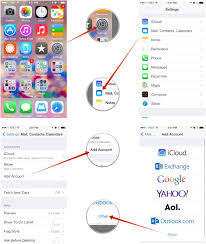
A: Yes! You can add multiple calendars to your iPhone by going to Settings > Calendar > Accounts > Add Account.


