
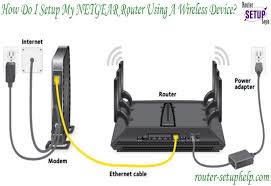
Configuring Your Netgear Modem: A Step-by-step Guide
Are you struggling to configure your Netgear modem? Do you want to unlock its full potential and enjoy a seamless internet experience? Look no further! In this article, we’ll walk you through the process of setting up your Netgear modem, from initial configuration to advanced settings.
What You Need to Know Before We Begin
Before we dive into the technical details, it’s essential to understand that the steps outlined in this guide are for a Netgear DGN1000v3 modem. However, the procedures may vary slightly depending on your specific device model. Always refer to your modem’s manual or manufacturer’s website for specific instructions.
Initial Configuration of Your Netgear Modem
To configure your Netgear modem, follow these steps:
- Power On Your Modem: Connect your modem to a power source and ensure it’s turned on.
- Connect Your Computer: Use an Ethernet cable to connect your computer to the modem. If you’re using Wi-Fi, make sure your device is connected to the correct network.
- Open a Web Browser: Open a web browser (e.G., Chrome, Firefox, or Safari) and navigate to one of the following addresses:
- 192.168.0.1
- 192.168.1.1
- Enter Your Login Credentials: You’ll be prompted to enter a username and password. Default credentials are often admin/password or admin/admin; check your modem’s manual for specific instructions.
- Configure Your Modem: Select your preferred language and country, and choose your internet service provider (ISP) from the provided list.
Configuring Advanced Settings on Your Netgear Modem
Now that you’ve completed the initial configuration, let’s move on to some advanced settings:
Opening The Doors of Your Netgear Modem
To allow certain software (e.G., P2P programs like eMule and uTorrent) or devices to communicate with your modem, follow these steps:
- Access The Advanced Menu: Navigate to the Advanced menu in your modem’s panel.
- Select The “Inoltro/activation of The Doors” Option: Choose this option from the dropdown menu.
- Add a New Service: Click on the Add service button and enter a name for the rule that will be created for opening the doors (e.G., EMule).
- Configure Your Service: Enter the initial external address, final external address, and IP inner address of your computer.
Configuring Upnp on Your Netgear Modem
To enable UPnP (Universal Plug and Play) on your modem:
- Access The Advanced Menu: Navigate to the Advanced menu in your modem’s panel.
- Select The “UPnP” Option: Choose this option from the dropdown menu.
- Enable Upnp: Select the Active voice next to UPnP.
Configuring Your Wi-fi Network
To configure your Wi-Fi network:
- Access The Advanced Menu: Navigate to the Advanced menu in your modem’s panel.
- Select The “Wireless” Option: Choose this option from the dropdown menu.
- Configure Your Wireless Settings: Enter a name for your wireless network (SSID), choose WPA2-PSK [AES] as the encryption method, and enter a strong password.
Configuring Parental Controls on Your Netgear Modem
To configure parental controls:
- Access The Advanced Menu: Navigate to the Advanced menu in your modem’s panel.
- Select The “Parental Controls” Option: Choose this option from the dropdown menu.
- Configure Parental Control Settings: Set up time limits, block specific websites or applications, and set allowed devices.
Conclusion
Configuring your Netgear modem may seem daunting at first, but with these step-by-step instructions, you’ll be able to unlock its full potential and enjoy a seamless internet experience. Remember to always refer to your modem’s manual or manufacturer’s website for specific instructions, and don’t hesitate to reach out if you have any questions.
Frequently Asked Questions
- Q: What is The Default Username And Password For my Netgear Modem?
A: The default credentials are often admin/password or admin/admin; check your modem’s manual for specific instructions. - Q: How do I Configure Upnp on my Netgear Modem?
A: Access the Advanced menu, select the “UPnP” option, and enable UPnP by selecting the Active voice next to UPnP. - Q: Can I Change The Wireless Channel on my Netgear Modem?
A: Yes, access the Advanced menu, select the “Wireless” option, and choose a different wireless channel. - Q: How do I Configure Parental Controls on my Netgear Modem?
A: Access the Advanced menu, select the “Parental controls” option, and set up time limits, block specific websites or applications, and set allowed devices. - Q: What is Upnp, And Why Should I Enable It?
A: UPnP (Universal Plug and Play) allows certain software or devices to communicate with your modem. Enabling UPnP can improve the performance of P2P programs like eMule and uTorrent. - Q: How do I Update my Netgear Modem’s Firmware?
A: Access the Advanced menu, select the “Update firmware” option, and follow the instructions to download and install a new version of the software. - Q: Can I Reset my Netgear Modem to Its Factory Settings?
A: Yes, access the Advanced menu, select the “Reset” option, and follow the instructions to reset your modem to its factory settings.
Important
Remember to always refer to your modem’s manual or manufacturer’s website for specific instructions, as procedures may vary depending on your device model.


