
Are you tired of receiving unwanted calls or messages from unknown numbers? Do you want to remove your private number from your mobile device? You’re not alone! In this article, we’ll guide you through the steps to remove your private number on various devices and platforms.
Why Do I Want to Remove My Private Number?
There are several reasons why you might want to remove your private number. Perhaps you’ve experienced unwanted calls or messages from unknown numbers, or maybe you simply prefer not to share your phone number with others. Whatever the reason, we’re here to help!
Removing Private Number on Android Devices
If you have an Android device and want to remove your private number, follow these steps:
- Open the Phone app on your Android device.
- Tap on the three vertical dots in the top-right corner of the screen.
- Select Settings from the menu.
- Choose Account settings from the list of options.
- Advanced settings: Scroll down and select “Advanced settings.”
- ID Caller: Tap on “ID caller.”
- Predefined Net or Display Number: Choose either “Predefined net” or “Display number.” Your private number will be removed.
Removing Private Number on Iphone Devices
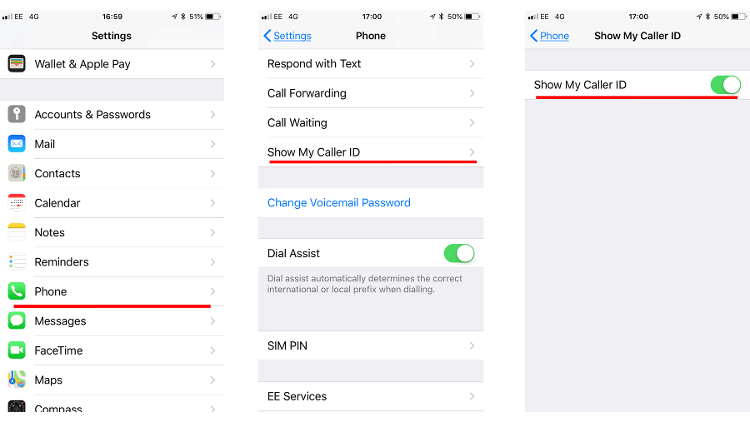
If you have an iPhone device and want to remove your private number, follow these steps:
- Open the Settings app on your iPhone.
- Tap on Phone from the list of options.
- Display ID Caller: Select “Display ID caller.”
- Toggle ON: Toggle the switch to the right to turn it ON.
Removing Private Number on Other Devices And Platforms
If you have a different device or platform, such as a Huawei phone or an operator-specific network, follow these steps:
- On Huawei phones: Follow the same procedure as for Android devices.
- On other operator networks: Check with your operator’s customer support to remove your private number.
Removing Private Number on Fixed Phone Devices
If you have a fixed phone device and want to remove your private number, follow these steps:
- Check if BIC is active by composing #67# and calling.
- Disable BIC by composing #67# and calling again.
Common Issues And Troubleshooting
If you encounter any issues while removing your private number, follow these troubleshooting steps:
- Check if the device has been properly configured to remove the private number.
- Contact your operator’s customer support for further assistance.
- Check online forums or official documentation for specific instructions on your device or platform.
Conclusion
Removing your private number can be a simple process, but it requires attention to detail and the correct steps. In this article, we’ve provided a comprehensive guide to help you remove your private number on various devices and platforms. Remember to always check with your operator’s customer support if you need further assistance.
Frequently Asked Questions (FAQs)
- Q: Why do I want to remove my private number?
A: There are several reasons why you might want to remove your private number, including unwanted calls or messages from unknown numbers. - Q: How can I remove my private number on Android devices?
A: To remove your private number on Android devices, follow the steps outlined in this article. - Q: Can I remove my private number on iPhone devices?
A: Yes, you can remove your private number on iPhone devices by following the steps outlined in this article. - Q: What is BIC and how do I disable it on fixed phone devices?
A: BIC (Block Identificativo of the Chiamante) is a feature that blocks caller ID information. To disable it, follow the steps outlined in this article.


