
How to Unblock Your Phone With Voice Commands: A Step-by-step Guide
Are you tired of fumbling with your phone while it’s blocked? Do you wish you could use voice commands to control your device without having to physically interact with it? Look no further! In this article, we’ll show you how to unblock your phone with voice commands using Google Assistant and Siri.
Table 1: Comparison of Voice Assistants
| Feature | Google Assistant (Android) | Siri (iOS) |
|---|---|---|
| Can unblock device? | No | No |
| Can perform tasks while blocked | Yes, with limitations | Yes |
| Can read notifications | Yes | Yes |
Unblocking Your Phone With Google Assistant on Android
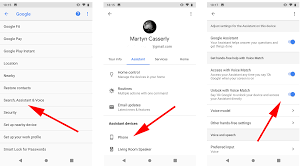
If you’re an Android user, you can use Google Assistant to control your phone even when it’s blocked. To do this:
- Open the Settings app on your device.
- Tap on the icon that looks like a gear (Settings) and select “Google” from the menu.
- Tap on “Services” and then select “Voice Match”.
- Make sure the switch next to “Hey Google” is turned on.
- Set up your voice pattern by tapping on “Vocal Pattern” and following the prompts.
Using Google Assistant With a Blocked Screen
Once you’ve set up your voice pattern, you can use Google Assistant to perform various tasks even when your screen is blocked. For example:
- Ask Google Assistant to read your notifications
- Initiate a phone call or send a message
- Forward a WhatsApp message
- Get information about upcoming events or appointments
Limitations of Using Google Assistant With a Blocked Screen
While Google Assistant can be used with a blocked screen, there are some limitations. For example:
- You can’t ask Google Assistant to unblock your device.
- Some features may not work when the screen is blocked.
Unblocking Your Phone With Siri on Ios
If you’re an iOS user, you can use Siri to control your phone even when it’s blocked. To do this:
- Open the Settings app on your device.
- Tap on the icon that looks like a gear (Settings) and select “Siri & Search”.
- Make sure the switch next to “Press Home for Siri” is turned off.
- Set up your voice pattern by tapping on “Set Up Siri” and following the prompts.
Using Siri With a Blocked Screen
Once you’ve set up your voice pattern, you can use Siri to perform various tasks even when your screen is blocked. For example:
- Ask Siri for directions or information about upcoming events
- Initiate a phone call or send a message
- Forward a WhatsApp message
- Get information about the weather or news
Limitations of Using Siri With a Blocked Screen
While Siri can be used with a blocked screen, there are some limitations. For example:
- You can’t ask Siri to unblock your device.
- Some features may not work when the screen is blocked.
Conclusion
In conclusion, both Google Assistant and Siri can be used to control your phone even when it’s blocked. While there are some limitations to using these voice assistants with a blocked screen, they can still perform various tasks and provide useful information. By following the steps outlined in this article, you can learn how to use these features and take advantage of the convenience they offer.
Faqs
- Can I Use Google Assistant or Siri to Unblock my Device?
No, neither Google Assistant nor Siri can be used to unblock your device. - What Are The Limitations of Using Google Assistant With a Blocked Screen?
Google Assistant cannot be used to unblock your device, and some features may not work when the screen is blocked. - Can I Use Siri to Read my Notifications?
Yes, you can ask Siri to read your notifications even when your screen is blocked. - What Are The Limitations of Using Siri With a Blocked Screen?
Siri cannot be used to unblock your device, and some features may not work when the screen is blocked. - How do I Set up my Voice Pattern For Google Assistant or Siri?
To set up your voice pattern, follow the prompts in the Settings app on your device. - Can I Use Google Assistant or Siri With a Pair of Airpods?
Yes, you can use Google Assistant or Siri with a pair of AirPods to control your phone even when it’s blocked. - What Are Some Other Features That Can be Used With a Blocked Screen?
Other features that can be used with a blocked screen include asking for directions or information about upcoming events, initiating a phone call or sending a message, and getting information about the weather or news.
References
- Google Assistant: Www.Google.Com/assistant
- Siri: Www.Apple.Com/siri


