
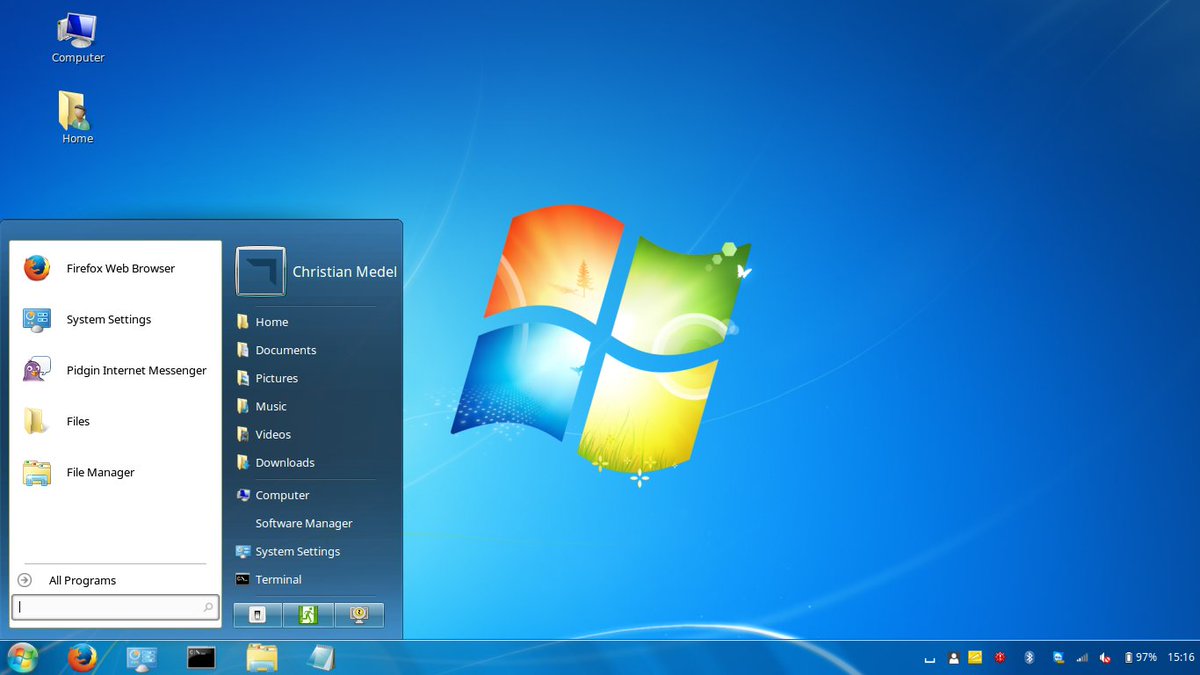
Windows 7: A Comprehensive Guide to Customizing Your Operating System
Are you tired of the same old look on your Windows 7 computer? Do you want to give it a fresh new appearance without compromising its functionality? Look no further! In this article, we will guide you through the process of customizing your Windows 7 operating system with official and unofficial themes.
What Are Themes in Windows 7?
Themes in Windows 7 refer to the pre-designed sets of visual styles that can be applied to the operating system. These themes include desktop backgrounds, window colors, and sounds. They can be used to personalize your computer’s appearance and make it stand out from others.
Official Themes in Windows 7
Microsoft provides a range of official themes for Windows 7, which can be downloaded directly from their website. These themes are free and easy to install. To access them, follow these steps:
- Open the Start menu and click on “Personalize.”
- In the Personalization window, click on “Desktop Background” in the left-hand menu.
- Select a theme from the list of available options.
How to Download Official Themes
To download official themes for Windows 7, follow these steps:
- Open your preferred web browser and navigate to the Microsoft website.
- Click on the “Windows 7” tab and select the “Themes” option.
- Browse through the various categories of themes (e.G., Animals, cars, games) and select a theme that interests you.
- Click on the “Download” button to download the theme file.
How to Install Official Themes
To install an official theme, follow these steps:
- Save the downloaded theme file to your computer’s desktop or downloads folder.
- Double-click on the theme file to launch the installation process.
- Follow the prompts to complete the installation.
Modifying Official Themes
Once you have installed an official theme, you can modify its settings to suit your preferences. To do this:
- Right-click on a blank area of the desktop and select “Personalize.”
- In the Personalization window, click on the theme’s name in the left-hand menu.
- Adjust the settings as desired (e.G., Change the desktop background image, adjust the window colors).
Unofficial Themes For Windows 7
If you’re looking for more advanced customization options, unofficial themes might be the way to go. These themes can be downloaded from various websites and offer a wider range of visual styles and personalization options.
How to Install Unofficial Themes
To install an unofficial theme, follow these steps:
- Download the theme file from a reputable website.
- Extract the theme files from the compressed folder.
- Copy the theme files into the Windows 7 themes folder (located at C:\Windows\Resources\Themes).
- Double-click on the theme file to launch the installation process.
Tips And Tricks For Customizing Your Windows 7 Theme
Here are some additional tips and tricks for customizing your Windows 7 theme:
- Use the “Personalize” window to adjust settings such as desktop background images, window colors, and sounds.
- Experiment with different themes to find one that suits your style.
- Consider creating a new user account to test out different themes without affecting your primary account.
Conclusion
Customizing your Windows 7 operating system is easier than you think! With official and unofficial themes available, you can give your computer a fresh new look without compromising its functionality. Remember to follow the steps outlined in this article to ensure a smooth installation process.
Frequently Asked Questions (FAQs)
- What Are The Benefits of Using Official Themes?
Official themes are free, easy to install, and come directly from Microsoft, ensuring compatibility with your operating system. - Can I Customize Official Themes?
Yes, you can modify official themes by adjusting settings such as desktop background images, window colors, and sounds. - How do I Uninstall a Theme?
To uninstall a theme, go to the Control Panel > Personalization > Themes and click on the “Theme Settings” button next to the theme name. Then, click on the “Remove” button. - Can I Use Unofficial Themes With Windows 7?
Yes, but be cautious when downloading files from unknown sources to avoid security risks. - How do I Restore my Default Theme?
To restore your default theme, go to the Control Panel > Personalization > Themes and click on the “Theme Settings” button next to the theme name. Then, select the “Restore Default Theme” option. - Can I Share my Customized Theme With Others?
Yes, but be sure to follow Microsoft’s guidelines for sharing themes to ensure compatibility and safety. - How do I Troubleshoot Issues With my Custom Theme?
If you experience issues with your custom theme, try resetting the theme settings or reinstalling the theme file.
Conclusion
Customizing your Windows 7 operating system is a fun and creative way to personalize your computer’s appearance. With official and unofficial themes available, you can experiment with different styles and settings to find one that suits your taste. Remember to follow the steps outlined in this article to ensure a smooth installation process, and don’t hesitate to reach out if you have any further questions!


