
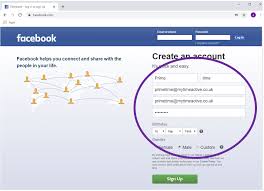
How to Create a New Email Address For Facebook: A Step-by-step Guide
Are you looking to create a new email address for Facebook? With so many people using the platform, it’s easy to feel left out if you don’t have an account. But fear not! In this guide, we’ll show you how to create a new email address for Facebook using some of the leading services of electronic mail.
Why Create a New Email Address For Facebook?
Creating a new email address for Facebook can be useful for several reasons. Firstly, it allows you to separate your personal and professional life by creating a unique email address just for Facebook. Secondly, it can help you avoid spam emails from friends and family who may have access to your primary email account.
Step 1: Choose Your Email Service
To create a new email address for Facebook, you’ll need to choose an email service provider such as Gmail, Outlook, Yahoo, or iCloud. Each of these services has its own unique features and advantages, so let’s take a closer look at each one.
Gmail
One of the best services to use when creating a new email address is Gmail. With Gmail, you can create a free email account with a suffix @gmail.Com, which gives you access to 15GB of free storage space in Google Drive and YouTube. To create a Gmail account, simply follow these steps:
- Go to the Gmail website and click on the “Create account” button.
- Fill out the required information including your name, surname, username, password, and recovery email address.
- Click on the “Next” button and select the verification method (e.G., Text message or Google Authenticator).
- Enter the verification code sent to your phone number and click “Next”.
- Set up your account security questions and answers.
Outlook
If you prefer using Outlook, you can create a new email address with a suffix @outlook.Com, @outlook.It, or @hotmail.Com. To do this:
- Go to the Outlook website and click on the “Sign up” button.
- Fill out the required information including your name, surname, username, password, and recovery email address.
- Click on the “Next” button and select the verification method (e.G., Text message or Google Authenticator).
- Enter the verification code sent to your phone number and click “Next”.
- Set up your account security questions and answers.
Yahoo
If you’re using Yahoo, you can create a new email address with a suffix @yahoo.Com. To do this:
- Go to the Yahoo website and click on the “Create an account” button.
- Fill out the required information including your name, surname, username, password, and recovery email address.
- Click on the “Continue” button and select the verification method (e.G., Text message or Google Authenticator).
- Enter the verification code sent to your phone number and click “Check”, then “Continuous”.
- Review the terms of service and agree to them.
Icloud
If you’re using iCloud, you can create a new email address with a suffix @icloud.Com. To do this:
- Go to the iCloud website and click on the “Create ID” button.
- Fill out the required information including your name, surname, username, password, and recovery email address.
- Choose three security questions and answers.
- Enter the verification code sent to your phone number and click “Accept”.
Step 2: Verify Your Email Address
Once you’ve created a new email address using one of the services mentioned above, you’ll need to verify it by clicking on the confirmation link sent to your email address.
Tips For Creating a New Email Address
- Make sure to choose an email service that suits your needs.
- Use a unique and memorable username.
- Set up account security questions and answers.
- Review the terms of service before agreeing to them.
By following these steps, you should be able to create a new email address for Facebook using one of the leading services of electronic mail.


