
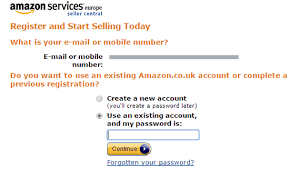
Actuating Amazon Pay For Vendors: A Step-by-step Guide
As a vendor looking to optimize your online shop, integrating Amazon Pay can be a game-changer. This payment service allows customers to use their Amazon account information to make purchases without having to create a new account or go through the hassle of entering payment details.
Why Choose Amazon Pay?
Amazon Pay offers several advantages for vendors and buyers alike. With this service, you can:
- Increase sales and revenue by providing a seamless checkout experience
- Reduce cart abandonment rates by making it easy for customers to complete their purchases
- Enhance the overall shopping experience with features like one-click payments and automatic address completion
How to Implement Amazon Pay in Your Shop
To get started, follow these steps:
- Create an Amazon Payments Account: This is a separate account from your existing Amazon Seller Central account.
- Complete The Onboarding Process: Provide required documentation and information about your business.
- Integrate Amazon Pay Into Your Shop: Use the provided plugins or APIs to connect Amazon Pay to your online store.
- Configure Payment Settings: Set up commission rates, payment thresholds, and other preferences.
Understanding Amazon Pay Fees
Amazon Pay charges fees for each transaction processed through their service. These fees include:
- A fixed fee per transaction
- A percentage-based fee on the transaction amount
You can review the complete fee schedule in your Seller Central account.
Using Seller Central to Manage Your Account
Seller Central is a powerful tool that allows you to manage your Amazon Pay account, view transactions, and generate reports. To access Seller Central:
- Log in to your Amazon Seller Central account.
- Click on the “Performance” tab.
- Select “Reports” from the drop-down menu.
Managing Claims And Chargebacks
If a customer disputes a transaction or requests a refund, you can use Seller Central to manage claims and chargebacks. To do this:
- Log in to your Amazon Seller Central account.
- Click on the “Performance” tab.
- Select “Claims” from the drop-down menu.
Closing an Amazon Payments Account
If you need to close your Amazon Pay account for any reason, follow these steps:
- Log in to your Amazon Seller Central account.
- Click on the “Help” tab.
- Select “Contact Us” from the drop-down menu.
Faqs
Q: What is Amazon Pay?
A: Amazon Pay is a payment service that allows customers to use their Amazon account information to make purchases without having to create a new account or go through the hassle of entering payment details.
Q: How do I Implement Amazon Pay in my Shop?
A: To get started, follow these steps:
- Create an Amazon Payments account.
- Complete the onboarding process.
- Integrate Amazon Pay into your shop using provided plugins or APIs.
- Configure payment settings.
Q: What Fees Are Associated With Amazon Pay?
A: Amazon Pay charges fees for each transaction processed through their service, including a fixed fee per transaction and a percentage-based fee on the transaction amount.
Q: How do I Manage Claims And Chargebacks in Seller Central?
A: To manage claims and chargebacks:
- Log in to your Amazon Seller Central account.
- Click on the “Performance” tab.
- Select “Claims” from the drop-down menu.
Q: Can I Close my Amazon Pay Account?
A: Yes, you can close your Amazon Pay account by following these steps:
- Log in to your Amazon Seller Central account.
- Click on the “Help” tab.
- Select “Contact Us” from the drop-down menu.


