
How to Speak on Fortnite Pc: A Step-by-step Guide
Are you a gamer looking to communicate with your friends while playing Fortnite on your PC? Look no further! In this article, we’ll guide you through the process of setting up voice chat in Fortnite, as well as alternative solutions like cloud gaming and third-party programs.
Understanding Fortnite’s Voice Chat Feature
Fortnite’s voice chat feature allows players to communicate with each other during matches. This feature is accessible from within the game itself and provides a convenient way to coordinate strategies and discuss gameplay with teammates.
Setting Up Voice Chat in Fortnite on PC
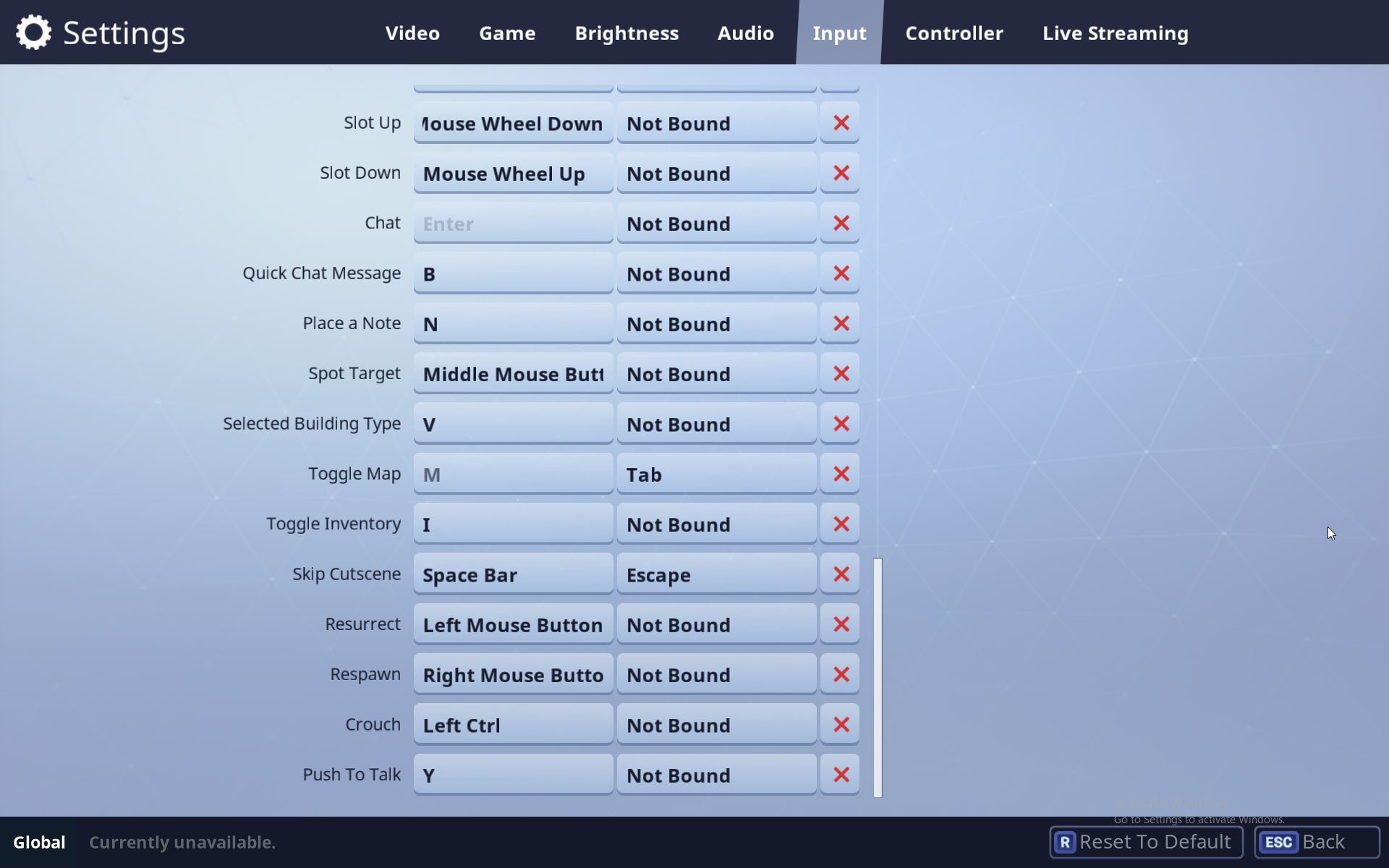
To set up voice chat in Fortnite on your PC, follow these steps:
- Launch Fortnite on your PC.
- Click on the “Settings” icon (represented by a gear) at the top-right corner of the game window.
- In the Settings menu, select “Audio” and then click on the “Voice Chat” tab.
- Ensure that the microphone is enabled and set to the correct input device.
Understanding Fortnite’s Voice Chat Options
Fortnite offers various voice chat options, including:
- Open Microphone: This option allows you to keep your microphone always active during gameplay.
- Push-to-talk (PTT): This feature enables you to activate the microphone only when needed, typically by pressing a designated key.
- Disable Audio: This option disables voice chat altogether.
Choosing Your Voice Chat Settings
When selecting your voice chat settings, consider the following:
- Device in Ingresso *chat Vocal: Choose the correct headset or microphone for optimal audio quality.
- Device of Output *chat Vocal: Select the appropriate device for listening to other players’ voices.
Alternative Solutions: Cloud Gaming And Third-party Programs
If you’re not satisfied with Fortnite’s voice chat feature, consider exploring alternative solutions:
Settings *cloud
- Launch Fortnite on your PC using a cloud gaming service.
- Access the game settings menu by clicking on the three dots at the top-right corner of the window.
- Select the “Audio” option and then click on the “Voice Chat” tab.
- Follow the prompts to set up voice chat using the cloud gaming service’s built-in features.
Discord
If you prefer a separate voice chat program, consider using Discord:
- Download and install Discord from their official website.
- Create a new server or join an existing one with your friends.
- Configure the voice settings to ensure seamless communication during Fortnite gameplay.
Conclusion
Setting up voice chat in Fortnite on PC is a straightforward process that can enhance your gaming experience. By following these steps and considering alternative solutions, you’ll be able to communicate effectively with your teammates and enjoy a more immersive gaming experience. So why not give it a try?
Frequently Asked Questions (FAQs)
- Q: How do I Set up Voice Chat in Fortnite on Pc?
A: To set up voice chat in Fortnite, follow the steps outlined above. - Q: What Are The Different Voice Chat Options Available in Fortnite?
A: Fortnite offers various voice chat options, including Open Microphone, Push-to-Talk (PTT), and Disable Audio. - Q: Can I Use a Third-party Program For Voice Chat Instead of Fortnite’s Built-in Feature?
A: Yes, you can explore alternative solutions like cloud gaming services or separate voice chat programs like Discord. - Q: How do I Configure The Voice Settings in Cloud Gaming Services?
A: To configure voice settings in cloud gaming services, follow the prompts within the game settings menu. - Q: What Are The Benefits of Using a Separate Voice Chat Program Like Discord?
A: Using a separate voice chat program like Discord allows for more flexibility and customization options compared to Fortnite’s built-in feature. - Q: Can I Use Multiple Voice Chat Programs Simultaneously?
A: Yes, you can use multiple voice chat programs simultaneously, but ensure that they are compatible with each other. - Q: How do I Troubleshoot Voice Chat Issues in Fortnite or Cloud Gaming Services?
A: If you experience voice chat issues, try restarting the game or service, checking your audio settings, and ensuring that your microphone is properly configured. - Q: Are There Any System Requirements For Using Voice Chat Programs Like Discord?
A: Yes, Discord requires a stable internet connection and compatible hardware to function smoothly.
I hope this article helped you understand how to set up voice chat in Fortnite on PC!


