
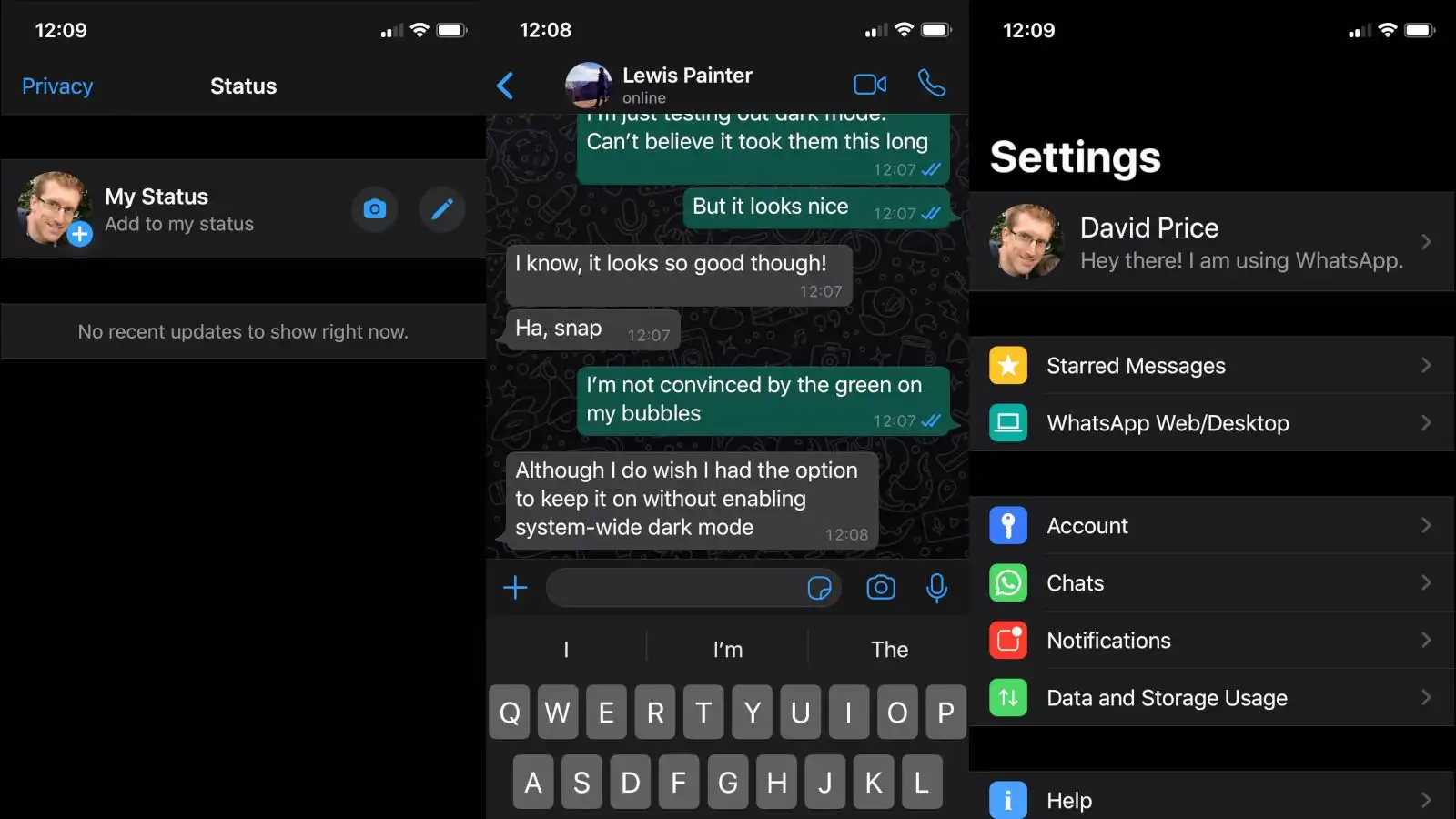
How to Get Whatsapp Black on Iphone: A Step-by-step Guide
Are you tired of the bright white screen of your iPhone? Do you want to know how to get WhatsApp black on your iPhone? Look no further! In this article, we will guide you through the simple steps to change the color scheme of WhatsApp to a sleek and modern dark theme.
Why Get Whatsapp Black on Iphone?
Before we dive into the tutorial, let’s talk about why you might want to get WhatsApp black on your iPhone. The dark mode, also known as “dark fashions,” can enhance the visual experience of using your phone, especially in low-light environments. It can also help reduce eye strain and save battery life.
System Requirements
Before we start, make sure that your iPhone is running iOS 13 or later. This feature was introduced with iOS 13, and it’s not available on earlier versions.
Step 1: Access The Settings App
To get WhatsApp black on your iPhone, you’ll need to access the Settings app. Tap on the “Settings” icon, which looks like a wheel of gears.
Step 2: Go to Display & Brightness
In the Settings app, scroll down and tap on “Display & Brightness.”
Step 3: Select Dark Mode
Tap on “Dark Mode.” This will turn on dark mode for your entire iPhone, including WhatsApp.
Step 4: Open Whatsapp
Once you’ve enabled dark mode, open WhatsApp. You should see the new dark theme applied to the app.
Using The Control Center
You can also access dark mode from the Control Center. To do this:
- Swipe down from the top-right corner of your screen (on iPhone X and later) or up from the bottom of the screen (on earlier iPhones).
- Tap on “Dark Mode.”
That’s it! You should now have WhatsApp black on your iPhone.
Alternative Methods
If you’re running an older version of iOS, there are alternative methods to get a dark mode-like experience. For example:
- On iOS 11 and later, you can enable the “Invert Colors” feature in Accessibility settings.
- On earlier versions of iOS, you can use third-party apps that offer dark mode functionality.
Troubleshooting
If you’re having trouble getting WhatsApp black on your iPhone, try restarting your device or checking for software updates. If none of these solutions work, feel free to reach out to us in the comments below!
Conclusion
Getting WhatsApp black on your iPhone is a simple process that can enhance your user experience. By following these steps, you should be able to get the dark theme applied to your favorite messaging app.
Frequently Asked Questions (FAQs)
Here are some frequently asked questions about getting WhatsApp black on iPhone:
- Q: Why Doesn’t my Iphone Have Dark Mode?
A: Dark mode was introduced with iOS 13, so you’ll need to update to the latest version of iOS to access it. - Q: Can I Get Whatsapp Black on an Iphone 6?
A: Unfortunately, no. The iPhone 6 and earlier models can’t be updated to iOS 13 or later, which means they won’t have dark mode functionality. - Q: How do I Turn Off Dark Mode?
A: To turn off dark mode, go back to the Settings app > Display & Brightness, and select “Light Mode” instead. - Q: Does Dark Mode Save Battery Life?
A: Yes! Dark mode can help reduce eye strain and save battery life by reducing the amount of light emitted from your screen. - Q: Can I Get a Similar Look to Whatsapp Black on Other Apps?
A: Yes, many apps offer their own dark theme or alternative color schemes. Experiment with different settings to find what works best for you!


