
How to Capsize Block Monitor on Huawei: A Step-by-step Guide
Are you tired of seeing the block monitor on your Huawei smartphone or tablet? Do you want to customize it according to your preferences? Look no further! In this article, we will guide you through the process of capsizing the block monitor on Huawei, making it a breeze for you to modify its settings.
Why Capsize The Block Monitor?
Before we dive into the step-by-step guide, let’s understand why capsize the block monitor is essential. The block monitor is designed to protect your device from unauthorized access. However, by customizing its settings, you can ensure that it doesn’t hinder your usage experience.
Step 1: Accessing The Settings
To begin with, navigate to the “Settings” app on your Huawei device. Tap on the icon to open it.
Step 2: Selecting Safety And Privacy
Once inside the Settings app, scroll down and tap on “Safety and privacy.”
Step 3: Choosing Block Monitor
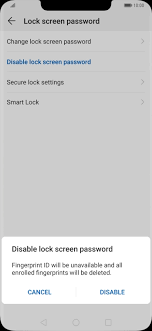
In the Safety and privacy menu, select “Block monitor.” This will take you to a new screen where you can customize the block monitor settings.
Step 4: Modifying Password
To modify the password of the block monitor, tap on the option that says “Modify password of block monitor.” Enter your current password, followed by the new one. Confirm the changes by tapping on “OK.”
Step 5: Choosing Unblock Method
If you’ve forgotten your password or want to change the unblock method, you can do so here. Tap on the option that says “Change unblock method” and choose from PIN, password, sequence, or digital footprint.
Step 6: Customizing Background Image
To customize the background image of the block monitor, navigate to Settings > Display > Background. Select an image from your gallery or use a pre-defined one.
Step 7: Changing Color Scheme
To change the color scheme of the clock on the block monitor, you can do so by selecting a different topic using the Topics app.
Why Capsize Weather Block Monitor?
The block monitor’s automatic shutdown feature might seem convenient, but it can be frustrating at times. By customizing its settings, you can ensure that your device doesn’t shut down automatically when you’re in the middle of something important.
Step 8: Modifying Shutdown Timer
To modify the shutdown timer, navigate to Settings > Display > Suspension. Select a new shutdown timer that suits your needs.
How to Capsize Sfondo on Huawei?
Customizing the background image of the block monitor is essential for those who want to personalize their device’s look and feel. To do so, follow these steps:
- Navigate to Settings > Display > Background.
- Select an image from your gallery or use a pre-defined one.
Step 9: Customizing Sfondo
By customizing the background image of the block monitor, you can ensure that it doesn’t hinder your usage experience.
How to Capsize Colour Clock on Huawei?
Customizing the color scheme of the clock on the block monitor is essential for those who want to personalize their device’s look and feel. To do so, follow these steps:
- Navigate to Settings > Display > Background.
- Select a new background image that suits your needs.
Why Use The PC Decrapifier?
The PC Decrapifier is an excellent tool for removing unnecessary programs from your computer. By using it, you can ensure that your device runs smoothly and efficiently.
Step 10: Analyzing Your Computer
To use the PC Decrapifier, navigate to its website and click on the download link. Install the software and run a scan on your computer. The program will analyze your device and provide you with a list of programs that can be removed.
How to Use The PC Decrapifier?
Once you’ve installed the PC Decrapifier, follow these steps:
- Run a scan on your computer using the software.
- Select the programs that you want to remove from the list provided by the PC Decrapifier.
- Click on the “Remove Selected” button to initiate the removal process.
Conclusion
In conclusion, customizing the block monitor settings on Huawei can be done easily by following these steps. By doing so, you can ensure that your device doesn’t hinder your usage experience and that it runs smoothly and efficiently.


