
How to Use Google Maps Like a Browser: A Step-by-step Guide
Are you tired of using your browser to navigate through unfamiliar territories? Do you want to use Google Maps like a browser, but don’t know where to start? Look no further! In this article, we’ll guide you through the process of using Google Maps like a browser, and show you how to get the most out of this powerful tool.
Why Use Google Maps Like a Browser?
Using Google Maps like a browser can be incredibly convenient. You can use it to navigate through unfamiliar territories, get directions to your favorite restaurants or shops, and even plan road trips with ease. But what makes it so special?
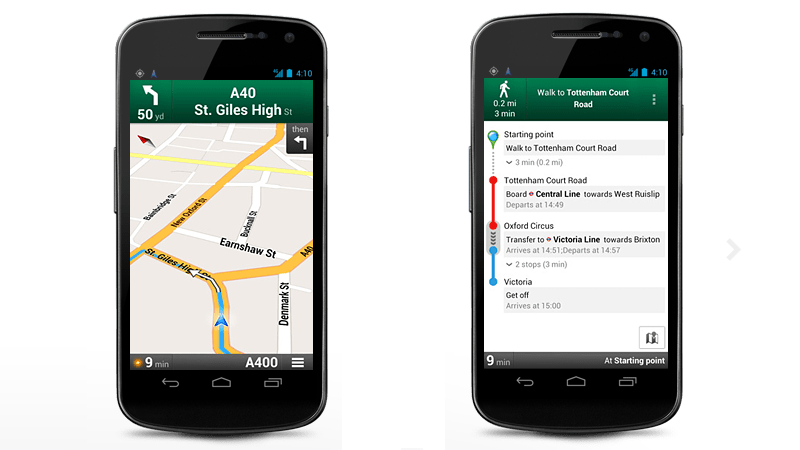
For one, Google Maps is a powerful tool that provides you with real-time traffic updates, GPS navigation, and even street views. This means you can see exactly where you are on the map, and get turn-by-turn directions to your destination.
Getting Started With Google Maps
To use Google Maps like a browser, you’ll need to download and install the official application on your Android or iOS device. If you’re using an iPhone or iPad, you may already have it installed – just check your Home screen for the Google Maps icon!
Once you’ve got the app installed, open it up and let’s get started.
Step 1: Downloading And Installing Google Maps
To download Google Maps on your Android device:
- Go to the Google Play Store
- Search for “Google Maps”
- Click the install button
- Wait for the app to download and install
On an iPhone or iPad, you can find Google Maps pre-installed. If not, follow these steps:
- Go to the App Store
- Search for “Google Maps”
- Click the Get button
- Wait for the app to download and install
Step 2: Initiating Navigation
Once you’ve got Google Maps installed, it’s time to initiate navigation.
- Open up the Google Maps app on your device
- Tap the navigation icon (it looks like a blue dot)
- Choose your starting point by tapping “Your Position”
- Enter your destination address or choose a location from the map
Step 3: Choosing Your Destination
To choose your destination:
- Type in the address of the place you want to go to
- Select an option from the list that appears
- Tap the “OK” button to confirm your choice
Step 4: Customizing Your Route
Now it’s time to customize your route.
- Tap the icon for the means of transportation you prefer (car, train, bus, etc.)
- Choose a specific route or mode of transport if available
Step 5: Activating Navigation
Finally, it’s time to activate navigation!
- Tap the “Start” button
- Google Maps will provide you with turn-by-turn directions and real-time traffic updates
Using Google Maps Offline
One of the most useful features of Google Maps is its ability to work offline.
- Download a map of your area on your device before heading out
- Open up Google Maps and tap the “Download Map” button
- Select the area you want to download and wait for it to complete
Using Google Maps Like a Browser
To use Google Maps like a browser, follow these simple steps:
- Open up Google Maps on your device
- Tap the navigation icon (it looks like a blue dot)
- Choose your starting point by tapping “Your Position”
- Enter your destination address or choose a location from the map
Tips And Tricks For Using Google Maps
Here are some additional tips and tricks to get the most out of Google Maps:
- Use vocal commands to navigate through unfamiliar territories
- Customize your route by choosing specific means of transportation
- Download maps offline to save data and battery life
- Use street view to see exactly where you are on the map
Conclusion
Using Google Maps like a browser can be incredibly convenient. With this step-by-step guide, you should now know how to use Google Maps like a pro.
Whether you’re planning a road trip or just need directions to your favorite restaurant, Google Maps has got you covered. So next time you’re on the go, try using Google Maps like a browser – you won’t regret it!
Faqs
- Q: How do I Download Google Maps?
A: To download Google Maps, simply search for “Google Maps” in your device’s app store and follow the installation instructions. - Q: Can I Use Google Maps Offline?
A: Yes! You can download maps offline on your device to save data and battery life. - Q: How do I Customize my Route?
A: To customize your route, tap the icon for the means of transportation you prefer (car, train, bus, etc.) And choose a specific route or mode of transport if available. - Q: Can I Use Vocal Commands With Google Maps?
A: Yes! You can use vocal commands to navigate through unfamiliar territories – just tap the microphone icon on your device’s screen. - Q: Is it Possible to Download Maps For Offline Use?
A: Yes, you can download maps offline by following the steps outlined in this article. - Q: Can I Get Turn-by-turn Directions With Google Maps?
A: Yes! You can get turn-by-turn directions and real-time traffic updates using Google Maps. - Q: Is it Possible to Use Google Maps Like a Browser?
A: Yes! With this step-by-step guide, you should now know how to use Google Maps like a pro – just tap the navigation icon on your device’s screen. - Q: Can I Save Data And Battery Life by Using Google Maps Offline?
A: Yes, you can save data and battery life by downloading maps offline before heading out.
[THE End]


