
How to Transfer Data From Android to Iphone: A Step-by-step Guide
Are you an Android user who has finally decided to switch to the world of iOS? Congratulations on taking this exciting step! Transferring data from your old device to the new one can be a bit overwhelming, but don’t worry, we’ve got you covered. In this article, we’ll guide you through the process of transferring all your important data, including contacts, photos, music, and more.
Why Transfer Data From Android to Iphone?
Before we dive into the nitty-gritty of data transfer, let’s quickly discuss why it’s essential to transfer your data from your old device to the new one. Transferring data ensures that you don’t lose any important information, such as:
- Contacts: Transfer all your contacts, including phone numbers and email addresses.
- Photos: Share your favorite memories with family and friends on your new iPhone.
- Music: Take your music library with you to enjoy on your new device.
- Documents: Transfer important documents, such as PDFs, Word files, and more.
Method 1: Using The Official Solution – Move to Ios
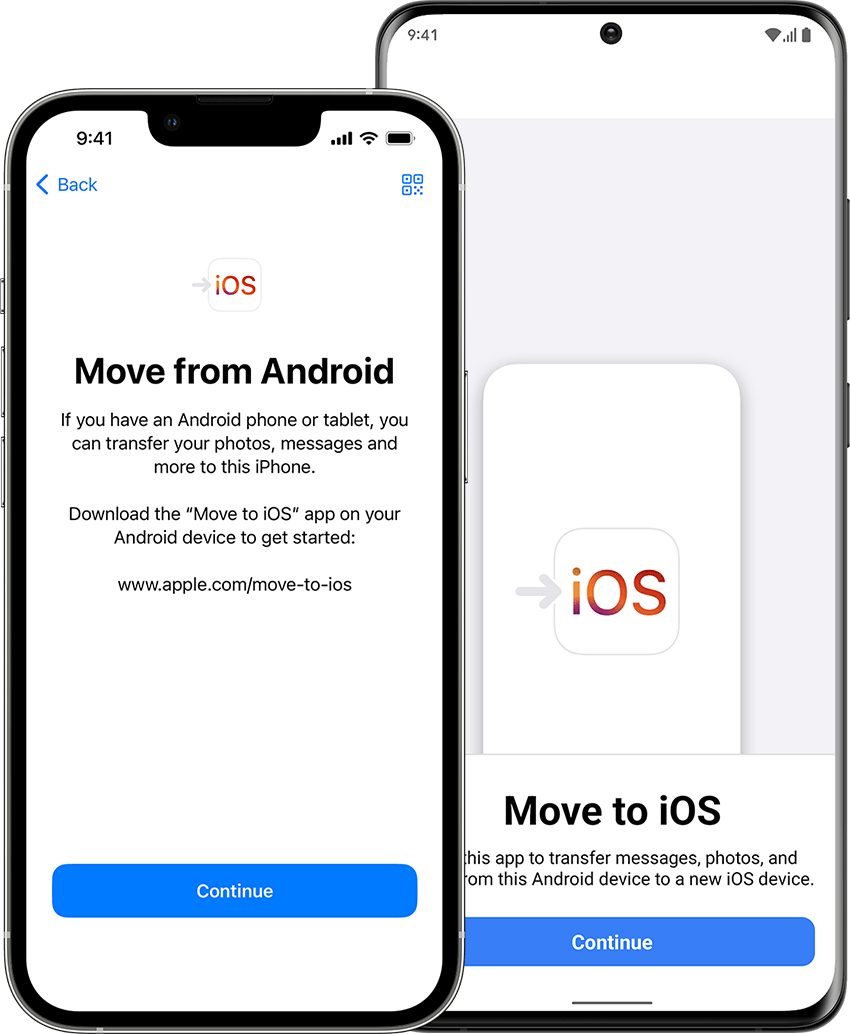
The official solution provided by Apple is called “Move to iOS.” This app is specifically designed for Android users who want to transfer their data to an iPhone. Here’s how it works:
- Download And Install Move to Ios: Download the Move to iOS app on your Android device from the Google Play Store.
- Initialize Your Iphone: Initialize your new iPhone by going through the setup process. You’ll be prompted to choose a language, country or region, and Wi-Fi network.
- Transfer Data: Tap “Continue” and then select “Restore from iCloud Backup,” “Restore from iTunes Backup,” or “Move Data from Android.” Choose the latter option.
- Connect Your Devices: Connect your Android device to your iPhone using a USB cable. You’ll see an animation on both devices indicating that they’re connected.
- Transfer Data: Follow the on-screen instructions to transfer data, including contacts, photos, and more.
Method 2: Using Google Photos
If you want to transfer your photos and videos from Android to iPhone without using Move to iOS, you can use Google Photos. Here’s how:
- Download Google Photos: Download Google Photos on both devices.
- Backup Your Data: Backup your data by going to the “Settings” menu in Google Photos.
- Restore Your Data: Restore your data on your new iPhone.
Method 3: Using Whatsapp
If you want to transfer your WhatsApp conversations from Android to iPhone, follow these steps:
- Open Whatsapp: Open WhatsApp on both devices and go to Settings.
- Backup Your Conversations: Backup your conversations on the Android device by going to Chats > Settings > Chat backup.
- Restore Your Conversations: Restore your conversations on the new iPhone.
Method 4: Using a Computer
If you want to transfer data from Android to iPhone using a computer, follow these steps:
- Connect Both Devices: Connect both devices to a computer using USB cables.
- Transfer Data: Transfer data, including contacts, photos, and more, by copying files from the Android device to the computer and then transferring them to the iPhone.
Conclusion
Transferring data from Android to iPhone is easier than you think! With these methods, you can transfer all your important data, including contacts, photos, music, and more. Remember to use Move to iOS for a seamless transfer or opt for other methods if needed.
Faqs
- Q: Can I Transfer my Whatsapp Conversations From Android to Iphone?
A: Yes, you can transfer your WhatsApp conversations using the “Move to iOS” app or by using services like Google Drive. - Q: How do I Transfer Photos And Videos From Android to Iphone?
A: You can use Google Photos or Snapdrop to transfer photos and videos. - Q: Can I Transfer Music From Android to Iphone?
A: Yes, you can transfer music using services like Spotify or Apple Music. - Q: How do I Transfer Documents From Android to Iphone?
A: You can use services like Google Drive or Dropbox to transfer documents. - Q: Can I Use Move to Ios on an Older Android Device?
A: Yes, you can use Move to iOS on devices running Android 9 and later versions.


