
How to Export Messages From Messenger: A Step-by-step Guide
Are you tired of worrying that your conversations on Facebook’s Messenger might go missing or irretrievable? Do you want to save a copy of your messages for peace of mind? Look no further! In this article, we’ll show you how to export messages from Messenger using the built-in function provided by Facebook.
Smartphone And Tablet
To start exporting messages from Messenger on your smartphone or tablet, follow these steps:
- Open the Messenger app on your device.
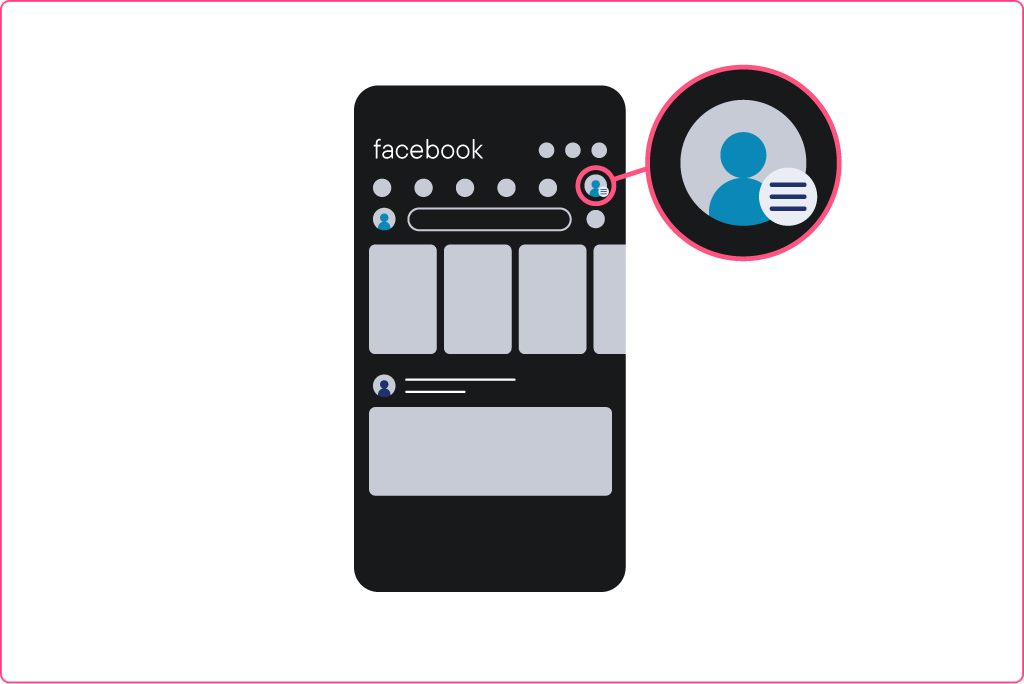
- Tap on the icon ☰ in the top right corner and select “Settings and Privacy” from the menu.
- Scroll down to the section “Your Information” and tap on “Download Your Information.”
- Select the option to download a copy of your messages, and make sure to include all dates, HTML format, and high-quality multimedia content.
- Tap on the “Create Rows” button, and Facebook will start processing your request. You’ll receive an email notification when the file is ready for download.
Computer
If you prefer to use your computer to export messages from Messenger, follow these steps:
- Open a web browser (such as Chrome or Safari) and navigate to messenger.Com.
- Log in to your Facebook account.
- Click on the “Settings” icon ☰ in the top right corner and select “Settings and Privacy.”
- Scroll down to the section “Your Information” and click on the link “Download Your Information.”
- Select the option to download a copy of your messages, and make sure to include all dates, HTML format, and high-quality multimedia content.
- Click on the “Request a Download” button, and Facebook will start processing your request. You’ll receive an email notification when the file is ready for download.
Exporting Messages as Screenshots
If you’d rather export messages from Messenger as screenshots, follow these steps:
- Open the Messenger app on your device.
- Select the conversation you want to capture.
- Press and hold the Volume Down button + Home button (or Power button) simultaneously to take a screenshot.
- If you’re using an Android device, tap on the miniature that appears after taking the screenshot and select “Screenshot to Scroll” from the menu.
Exporting Videos From Messenger
Want to download a video from Messenger? Here’s how:
- Open the conversation containing the video.
- Tap on the video icon (or three dots) in the top right corner.
- Select “Media” from the menu.
- Choose the video you want to download and tap on it.
- Select “Save” or “Download” from the menu.
Exporting Vocal Messages From Messenger
If you’d like to export vocal messages from Messenger, follow these steps:
- Open the conversation containing the audio clip.
- Tap on the audio icon (or three dots) in the top right corner.
- Select “Audio Files” from the menu.
- Choose the audio file you want to download and tap on it.
Conclusion
Exporting messages from Messenger is a straightforward process that can be completed using either your smartphone or computer. By following these steps, you’ll have a backup of your conversations in no time. Remember to keep your data safe by regularly downloading a copy of your messages!
Frequently Asked Questions (FAQs)
- Can I Export Messages From Messenger on my Iphone/ipad?
- Yes! The process is similar to exporting messages on Android devices.
- How do I Export Audio Files From Messenger?
- You can follow the steps outlined in this article or consult our separate guide on saving audio files from Messenger.
- Can I Save Videos From Messenger as Screenshots?
- No, videos cannot be saved as screenshots. However, you can download them using the method described in this article.
- How do I Know if my Messages Have Been Exported Successfully?
- You’ll receive an email notification when your file is ready for download. Make sure to check your spam folder if you don’t see it in your inbox!
- Can I Export Messages From Messenger on a Windows or Mac Computer?
- Yes! The process is similar to exporting messages on Android devices.
- How do I Ensure That All my Messages Are Exported, Including Audio Files And Videos?
- Make sure to select the “All my data” option when downloading your information, and include multimedia content in high-quality format.
- Can I Export Messages From Messenger if I Don’t Have a Facebook Account?
- Unfortunately, no. You’ll need to be logged in to your Facebook account to access this feature.
Important Note
Please note that exporting messages from Messenger may not include all conversations or media content, especially those that have been deleted or expired. It’s always best to consult our separate guides for specific instructions on saving audio files and videos.


