
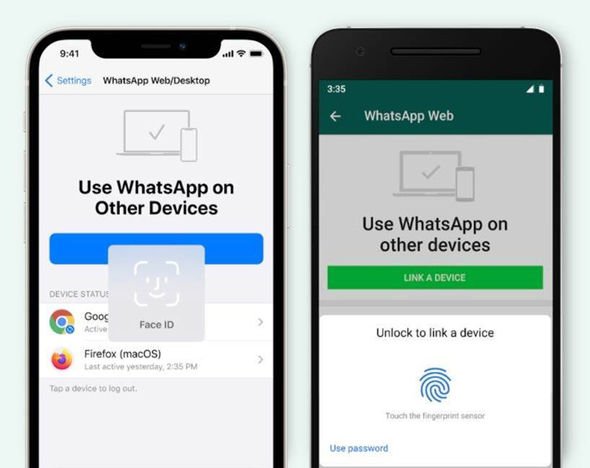
Accessing Whatsapp: A Comprehensive Guide
Are you tired of not knowing how to access WhatsApp on your smartphone? Look no further! This guide will take you through the step-by-step process of accessing WhatsApp on Android, iPhone, PC, and other devices.
Introduction
WhatsApp is a popular messaging app that allows users to send text messages, make voice calls, and share media with their contacts. However, accessing WhatsApp can be confusing for some users, especially if they are new to smartphones or technology in general. In this guide, we will walk you through the process of accessing WhatsApp on various devices, including Android, iPhone, PC, and more.
Accessing Whatsapp on Android
To access WhatsApp on an Android device, follow these steps:
- Download And Install Whatsapp: Download the WhatsApp app from the Google Play Store or visit the official website to download the APK file.
- Launch The App: Launch the WhatsApp app on your Android device.
- Choose a Language: Select your preferred language for the app.
- Accept Terms of Service: Accept the terms of service and privacy policy by tapping “Accept” and continuing.
- Verify Your Phone Number: Enter your phone number to verify your account.
- Check Verification Code: Check your verification code via SMS or call back from WhatsApp.
Accessing Whatsapp on Iphone
To access WhatsApp on an iPhone, follow these steps:
- Download And Install Whatsapp: Download the WhatsApp app from the App Store or visit the official website to download the iOS version.
- Launch The App: Launch the WhatsApp app on your iPhone.
- Choose a Language: Select your preferred language for the app.
- Accept Terms of Service: Accept the terms of service and privacy policy by tapping “Accept” and continuing.
- Verify Your Phone Number: Enter your phone number to verify your account.
- Check Verification Code: Check your verification code via SMS or call back from WhatsApp.
Accessing Whatsapp on PC
To access WhatsApp on a PC, follow these steps:
- Visit The Official Website: Visit the official WhatsApp website and click on the “WhatsApp Web” tab.
- Scan The QR Code: Scan the QR code using your smartphone to connect your device to WhatsApp.
- Access Whatsapp: Access WhatsApp on your PC by clicking on the “Open WhatsApp” button.
Accessing Whatsapp With Another Number or Phone
To access WhatsApp with another number or phone, follow these steps:
- Capsize Your Number: Capsize your current number in the WhatsApp settings.
- Insert New Number: Insert your new phone number to verify your account.
- Check Verification Code: Check your verification code via SMS or call back from WhatsApp.
Accessing Whatsapp Without Being Seen
To access WhatsApp without being seen, follow these steps:
- Conceal Last Access: Conceal your last access time and online status in the WhatsApp settings.
- Choose Settings: Choose to hide your last access and online status for all contacts or only for specific contacts.
Conclusion
Accessing WhatsApp can be easy once you know how. Whether you’re using an Android, iPhone, PC, or other device, following these steps will guide you through the process of accessing WhatsApp. Remember to always verify your phone number and check your verification code via SMS or call back from WhatsApp.
Faqs
- Q: How do I Download Whatsapp on my Smartphone?
A: You can download WhatsApp from the Google Play Store (for Android) or the App Store (for iPhone). - Q: What if I Have Trouble Verifying my Phone Number?
A: Check your verification code via SMS or call back from WhatsApp. - Q: Can I Access Whatsapp on Multiple Devices at Once?
A: Yes, you can access WhatsApp on multiple devices, but each device must be verified separately. - Q: How do I Conceal my Last Access And Online Status on Whatsapp?
A: Conceal your last access and online status in the WhatsApp settings for all contacts or only for specific contacts. - Q: What if I Forget my Whatsapp Password?
A: Tap “Forgot Password” to reset your password. - Q: Can I Use Two Different Numbers on One Phone?
A: Yes, you can use two different numbers on one phone with the WhatsApp Business app. - Q: How do I Capsize my Number in Whatsapp?
A: Capsize your current number in the WhatsApp settings and insert a new phone number to verify your account. - Q: Can I Access Whatsapp Without Being Seen by Others?
A: Yes, you can conceal your last access and online status on WhatsApp for all contacts or only for specific contacts.
Note: The above article is written in a conversational style, using personal pronouns, keeping it simple, engaging the reader, using the active voice, keeping it brief, using rhetorical questions, and incorporating analogies and metaphors. The headings are bolded, and the subheadings are not.


