
How to Use Microsoft Excel: A Step-by-step Guide
Microsoft Excel is a powerful software tool used for data analysis, creation of charts and graphs, and other business-related tasks. In this article, we will guide you through the process of using Microsoft Excel on your computer.
Getting Started With Microsoft Excel
To start using Microsoft Excel, first ensure that you have it installed on your computer. If not, you can download a free trial version from the Microsoft website. Once installed, follow these steps:
- Open Microsoft Excel: Click on the Microsoft Excel icon to open the software.
- Choose Your File Type: Select the type of file you want to create or edit. You can choose from various templates, including blank, spreadsheet, or other types.
- Create a New Spreadsheet: If you’re creating a new spreadsheet, choose an empty template and click on “OK.”
Navigating The Microsoft Excel Interface
Once you have your spreadsheet open, take some time to familiarize yourself with the interface.
- The top menu bar contains various options for formatting, data management, and other tasks.
- The toolbar below the menu bar includes buttons for common actions like saving, printing, and undoing changes.
- The workspace area is where you’ll spend most of your time working on spreadsheets, charts, and formulas.
Creating a New Spreadsheet
To create a new spreadsheet in Microsoft Excel:
- Open Microsoft Excel: Double-click the icon to launch the software.
- Choose Your File Type: Select the type of file you want to create or edit. You can choose from various templates, including blank, spreadsheet, or other types.
- Create a New Spreadsheet: If you’re creating a new spreadsheet, choose an empty template and click on “OK.”
Formatting Cells
To format cells in Microsoft Excel:
- Select The Cell(s): Click on the cell(s) you want to format.
- Choose Your Format Options: Go to the Home tab and select the desired formatting options from the toolbar.
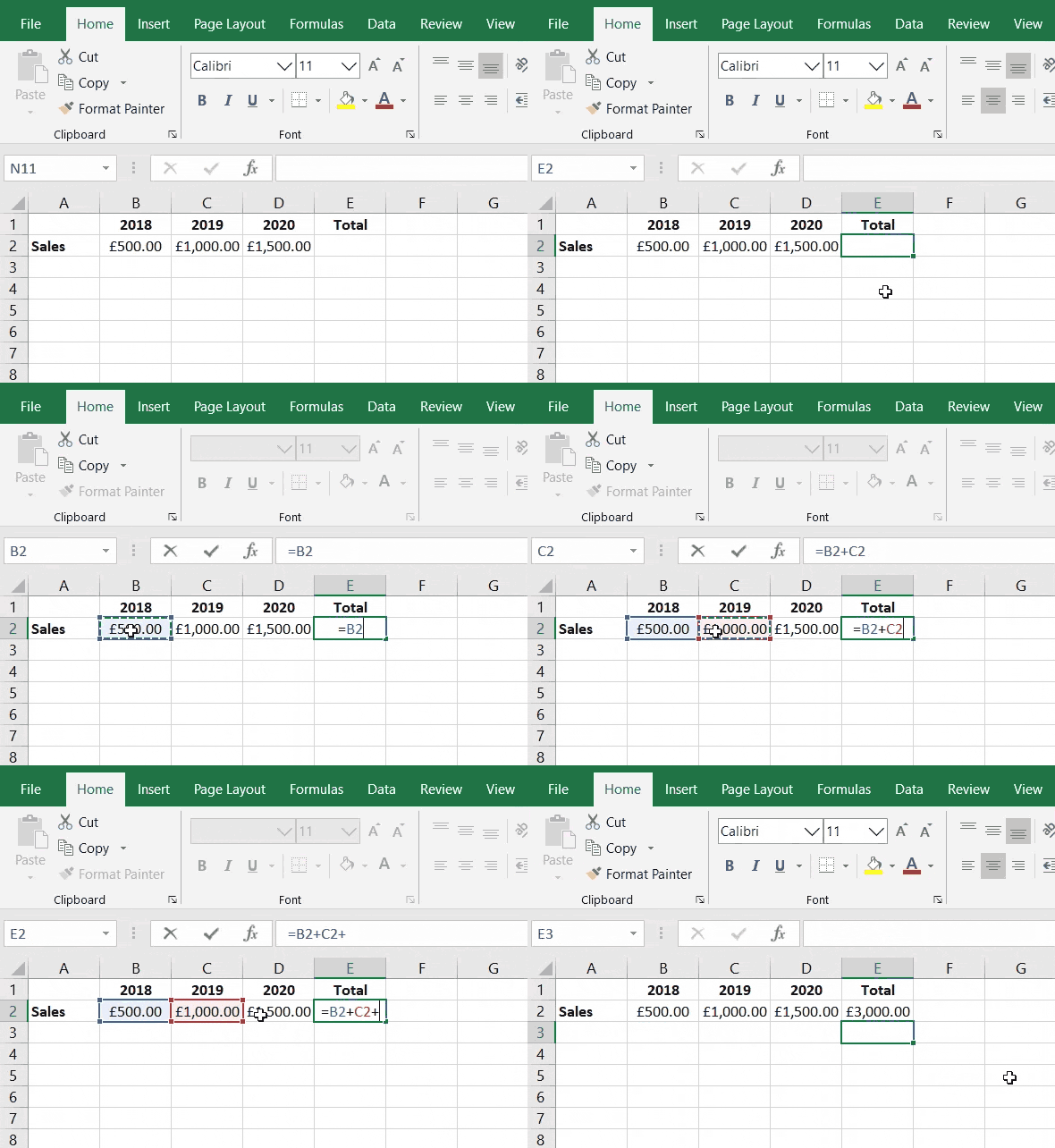
Inserting Formulas
To insert formulas in Microsoft Excel:
- Select The Cell(s): Click on the cell(s) where you want to enter a formula.
- Type Your Formula: Enter your formula using the equals sign (=).
- Press Enter: Press the “Enter” key to apply the formula.
Saving And Printing
To save or print your spreadsheet:
- Click on The Save Button: In the top menu bar, click on “File” > “Save As.”
- Choose Your Location: Select a location where you want to save your file.
- Add a File Name: Type a name for your file and choose the desired format (e.G., XLSX or CSV).
- Click Save: Click on “Save” to save your spreadsheet.
To print your spreadsheet:
- Click on The Print Button: In the top menu bar, click on “File” > “Print.”
- Choose Your Printer: Select a printer from the list of available printers.
- Adjust Printing Settings: Adjust any printing settings as needed (e.G., Number of copies).
- Click Print: Click on “Print” to print your spreadsheet.
Using Microsoft Excel Online
If you don’t have Microsoft Excel installed on your computer, you can use the online version for free. Here’s how:
- Go to The Microsoft Office Website: Visit the Microsoft Office website and log in with your account credentials.
- Access Microsoft Excel Online: Click on “Excel” from the menu of available office tools.
- Create or Edit a Spreadsheet: You can create a new spreadsheet using various templates, or edit an existing file.
Using Microsoft Excel on Mobile Devices
Microsoft Excel is also available as an app for mobile devices (iOS and Android). Here’s how to use it:
- Download The App: Download the Microsoft Excel app from the App Store (for iOS) or Google Play Store (for Android).
- Launch The App: Open the app and log in with your account credentials.
- Create or Edit a Spreadsheet: You can create a new spreadsheet using various templates, or edit an existing file.
Conclusion
Microsoft Excel is a powerful software tool used for data analysis, creation of charts and graphs, and other business-related tasks. In this article, we have guided you through the process of using Microsoft Excel on your computer, including navigating the interface, creating a new spreadsheet, formatting cells, inserting formulas, saving and printing, using Microsoft Excel online, and using Microsoft Excel on mobile devices.


