
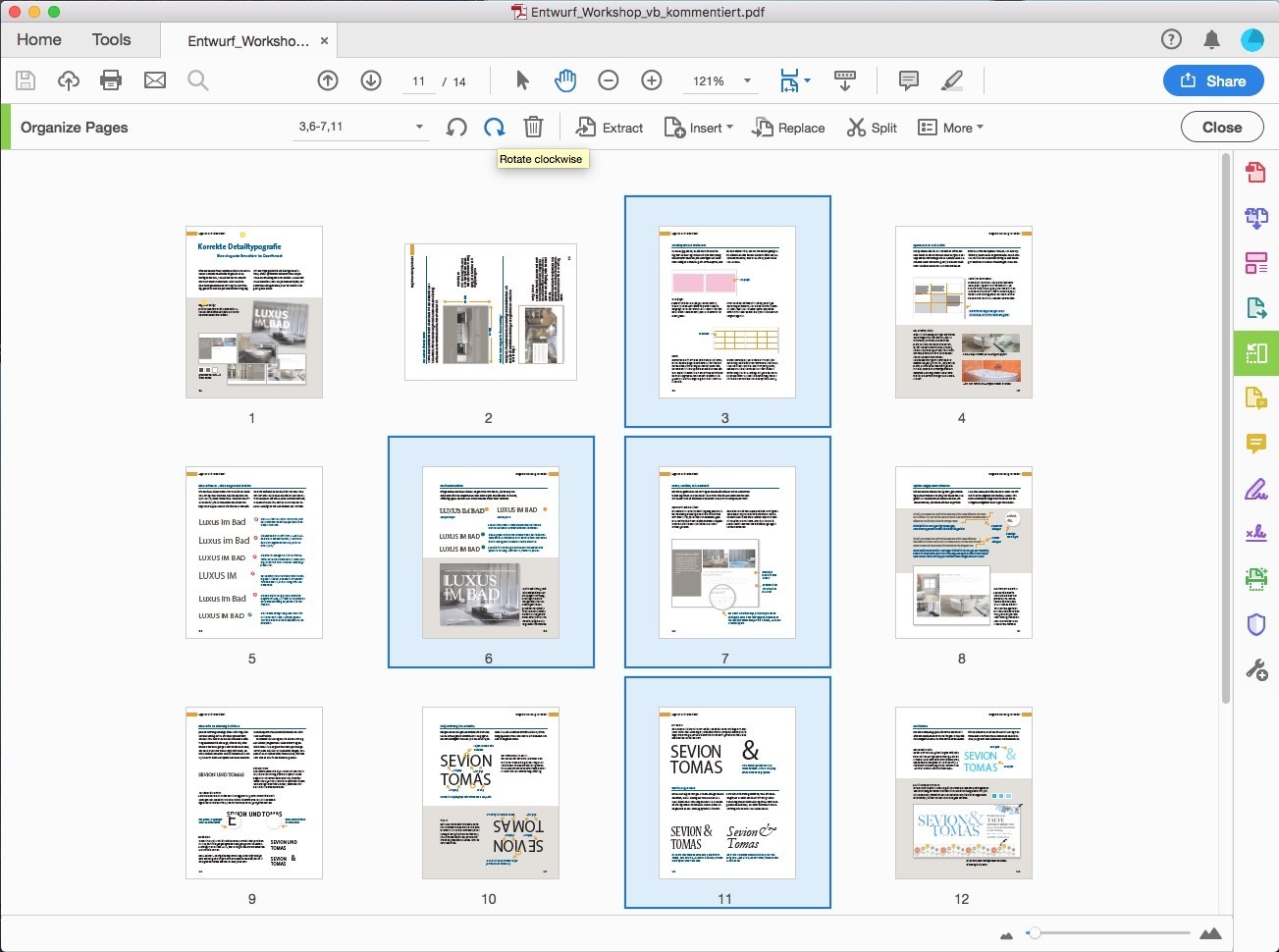
How to Rotate a Pdf File: A Step-by-step Guide
Are you tired of dealing with PDF files that are not oriented correctly? Do you want to learn how to rotate a PDF file without using complicated software or services? Look no further! In this article, we will show you how to rotate a PDF file on Windows 10, Mac, and online.
Understanding The Basics
Before we dive into the step-by-step guide, let’s understand the basics of rotating a PDF file. A PDF (Portable Document Format) file is a type of document that contains text, images, and other elements. Rotating a PDF file means changing its orientation from portrait to landscape or vice versa.
Windows 10: How to Rotate a Pdf File
If you’re using Windows 10, there are several ways to rotate a PDF file. One of the most popular methods is by using the free software called PDFill PDF Tools.
Step-by-step Guide:
- Download And Install Pdfill Pdf Tools: Go to the official website of PDFill PDF Tools and download the software. Follow the installation instructions to install it on your computer.
- Launch Pdfill Pdf Tools: Once installed, launch PDFill PDF Tools by double-clicking on its icon.
- Select The Pdf File: Click on the “Rotate now” button in the top menu bar and select the PDF file you want to rotate.
- Choose Rotation Options: In the new window that opens, choose the rotation options you desire (90 degrees clockwise, 180 degrees clockwise, or counterclockwise).
- Save The Rotated Pdf File: Click on the “Save” button to save the rotated PDF file.
Mac: How to Rotate a Pdf File
If you’re using a Mac, you can rotate a PDF file by using the built-in utility called Preview.
Step-by-step Guide:
- Launch Preview: Launch the Preview app by double-clicking on its icon.
- Open The Pdf File: Open the PDF file you want to rotate by clicking on it in the Finder.
- Use The Hand Tool: Click on the hand tool in the top menu bar and select “Rotate” from the drop-down menu.
- Choose Rotation Options: Choose the rotation options you desire (90 degrees clockwise, 180 degrees clockwise, or counterclockwise).
- Save The Rotated Pdf File: Click on the “File” menu and select “Save As…” To save the rotated PDF file.
Online: How to Rotate a Pdf File
If you don’t have access to a computer or prefer not to download software, there are several online services that allow you to rotate a PDF file. One of the most popular services is called RotatePDF (online).
Step-by-step Guide:
- Visit Rotatepdf (Online): Visit the official website of RotatePDF (online) and click on the “Select PDF” button.
- Choose Rotation Options: Choose the rotation options you desire (90 degrees clockwise, 180 degrees clockwise, or counterclockwise).
- Save The Rotated Pdf File: Click on the “Download” button to save the rotated PDF file.
Other Services For Rotating a Pdf File
There are several other services available online that allow you to rotate a PDF file. Some of these services include:
- PDFill.Net: A free online service that allows you to rotate, crop, and merge PDF files.
- ILovePDF: A free online service that allows you to rotate, compress, and convert PDF files.
Tips And Tricks
Here are some tips and tricks for rotating a PDF file:
- Make sure the PDF file is not locked or protected before attempting to rotate it.
- If you’re using software, make sure it’s compatible with your operating system.
- Online services may have limitations on file size and type.
Conclusion
Rotating a PDF file is a simple process that can be done using various methods. Whether you’re using Windows 10, Mac, or online services, the steps are similar. Remember to choose the rotation options carefully and save the rotated PDF file accordingly.


