
How to Rip a CD on PC or Mac: A Step-by-step Guide
Are you tired of listening to music from old CDs? Do you want to transform your favorite albums into digital copies that can be played on any device? Look no further! In this article, we’ll guide you through the process of ripping a CD on both PC and Mac.
Why Rip a Cd?
Ripping a CD allows you to digitize your music collection, making it easily accessible on any device. You can enjoy your favorite albums without having to physically insert a CD into a player, and you can also share them with friends and family.
Tools Needed For Ripping a CD on PC or Mac
For ripping CDs on Windows, you’ll need:
- ImgBurn (a free software)
- Windows Media Player (built-in software)
- Other alternatives like Black Burning ROM, VLC, and CDBurnerXP
For ripping CDs on macOS, you’ll need:
- Burn (a free software)
- Music or iTunes (built-in applications)
Step-by-step Guide For Ripping a CD on PC
Using Imgburn
- Download and install ImgBurn on your Windows PC.
- Connect your CD to the computer via a USB drive or CD player.
- Launch ImgBurn and select “Create image of a disc” from the menu.
- Choose the correct drive letter for the CD and select the destination folder where you want to save the file.
- Click on the burn button and wait for the process to complete.
Using Windows Media Player
- Connect your CD to the computer via a USB drive or CD player.
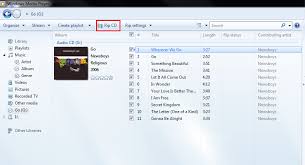
- Launch Windows Media Player and insert the CD into the disc tray.
- Select the album title from the left-hand menu.
- Click on the “Settings” button for copy of CD and select the desired format (e.G., FLAC, MP3).
- Choose the quality of audio you prefer (320 Kbps is recommended).
- Check the box beside the song titles and click on the “Copy” button to initiate the process.
Other Alternatives For Ripping a CD on Pc
- Black Burning ROM: A historical software that can rip CDs, but it’s paid.
- VLC: A free media player that can also rip CDs.
- CDBurnerXP: Another free software that can burn and rip CDs.
Step-by-step Guide For Ripping a CD on Mac
Using Burn
- Download and install Burn on your macOS device.
- Connect your CD to the Mac via a USB drive or CD player.
- Launch Burn and select “Copy” from the menu.
- Choose the correct drive letter for the CD and select the destination folder where you want to save the file.
- Click on the burn button and wait for the process to complete.
Using Music or Itunes
- Connect your CD to the Mac via a USB drive or CD player.
- Launch Music or iTunes and insert the CD into the disc tray.
- Select the album title from the left-hand menu.
- Click on the “Add” button and select the songs you want to rip.
- Choose the format (e.G., MP3, AAC) and quality of audio you prefer.
- Click on the “Import” button to initiate the process.
Other Alternatives For Ripping a CD on Mac
- HandBrake: A free software that can rip CDs, but it’s compatible with various formats.
- Express Burn: Another program that can burn and rip CDs, but it’s paid.
- Toast Titanium: A famous software for mastering discs on macOS.
Conclusion
Ripping a CD is a straightforward process that can be completed using various software options. Whether you’re using PC or Mac, there are plenty of tools available to help you digitize your music collection. By following the step-by-step guides provided in this article, you’ll be able to rip your favorite CDs and enjoy them on any device.
Frequently Asked Questions (FAQs)
- Q: What is CD Ripping?
A: CD ripping involves copying the content of a CD onto a computer or other digital device. - Q: Why do I Need Special Software For Ripping Cds?
A: Special software is required to bypass copyright protection and ensure accurate audio quality. - Q: Can I Rip Protected Cds?
A: Yes, but it’s essential to own the original CD and only make a backup copy for personal use. - Q: What Are Some Common Software Options For Ripping Cds on PC or Mac?
A: ImgBurn, Windows Media Player (on PC), Burn, Music, or iTunes (on Mac) are popular choices. - Q: Can I Rip Cds Using Other Software Alternatives?
A: Yes, there are numerous free and paid software options available for both PC and Mac, such as Black Burning ROM, VLC, CDBurnerXP, HandBrake, Express Burn, and Toast Titanium.


