
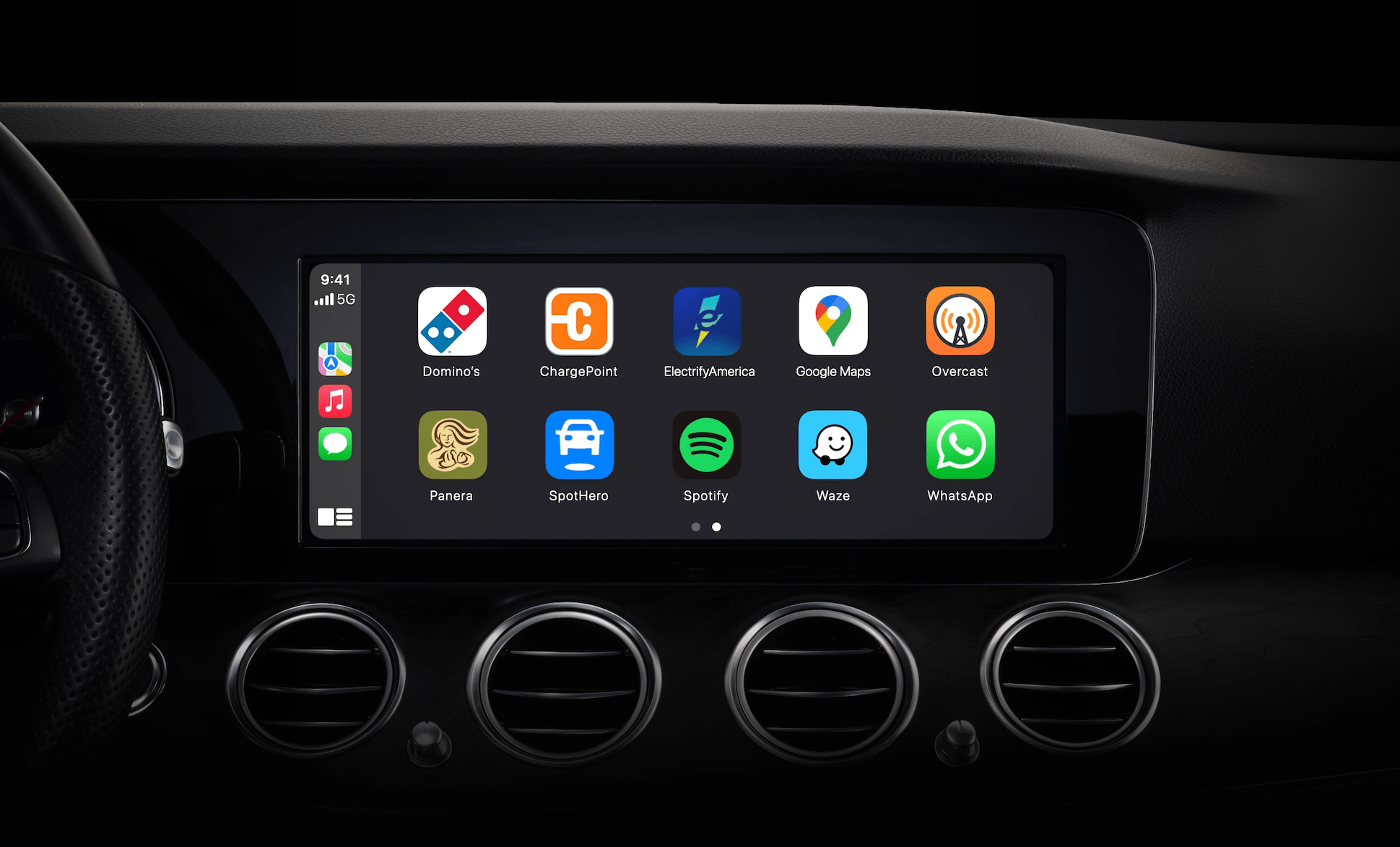
How to Use Apple Carplay: A Step-by-step Guide
Are you tired of navigating through your car’s infotainment system while driving? Do you wish you could use your iPhone’s features safely while on the road? Look no further than Apple CarPlay! With this revolutionary technology, you can enjoy a seamless and convenient experience while driving. In this article, we will guide you through the process of setting up and using Apple CarPlay in your car.
Understanding Apple Carplay
Before we dive into the setup process, let’s take a moment to understand what Apple CarPlay is all about. This innovative technology allows you to connect your iPhone to your car’s infotainment system wirelessly or via cable. Once connected, you can access various features and apps on your phone, including music, navigation, messaging, and more.
Checking Compatibility
To ensure that your car and iPhone are compatible with Apple CarPlay, follow these simple steps:
- Check if your car has a compatible infotainment system. You can find the list of compatible vehicles on Apple’s official website.
- Make sure you have an iPhone 5 or later model.
Setting Up Apple Carplay
Now that we’ve covered compatibility, let’s move on to setting up Apple CarPlay in your car:
- Connect your iPhone to the car’s infotainment system using a cable (if wireless connectivity is not available).
- Open the CarPlay app on your phone and select “CarPlay” from the menu.
- Follow the on-screen instructions to pair your iPhone with the car’s system.
Wireless Connection
If you have a compatible car, you can enjoy Apple CarPlay wirelessly without the need for cables:
- Ensure that both your iPhone and car have Bluetooth and Wi-Fi enabled.
- Open the Settings app on your phone and select “Bluetooth” to ensure it is turned on.
- Select your car’s name from the list of available devices.
Using Apple Carplay
Now that you’ve set up Apple CarPlay, let’s explore some of its features:
- Music: Access your favorite music streaming services, such as Spotify or Apple Music, directly through CarPlay.
- Navigation: Use Google Maps or Waze to get directions and turn-by-turn instructions while driving.
- Messaging: Send messages and make hands-free calls using Siri.
- Other Apps: Access various other apps, including podcasts, audiobooks, and more.
Troubleshooting
If you encounter any issues during setup or use, here are some troubleshooting tips:
- Check that your car’s infotainment system is updated to the latest software version.
- Ensure that your iPhone is running the latest operating system version.
- Restart both your phone and car’s system if you experience connectivity problems.
Conclusion
Apple CarPlay offers a convenient and safe way to use your iPhone while driving. By following these simple steps, you can set up and enjoy this revolutionary technology in your car. Remember to always follow safety guidelines while using CarPlay or any other feature that requires your attention while driving.
Frequently Asked Questions (FAQs)
- Q: What is Apple Carplay?
A: Apple CarPlay is a wireless or cable-based technology that allows you to connect your iPhone to your car’s infotainment system and access various features and apps. - Q: Which Cars Are Compatible With Apple Carplay?
A: You can find the list of compatible vehicles on Apple’s official website. - Q: Do I Need a Specific Iphone Model For Apple Carplay?
A: Yes, you will need an iPhone 5 or later model to use Apple CarPlay. - Q: Can I Use Apple Carplay Wirelessly?
A: Yes, if your car has compatible wireless connectivity, you can enjoy Apple CarPlay without the need for cables. - Q: How do I Troubleshoot Issues With Apple Carplay?
A: Check that your car’s infotainment system and iPhone are updated to the latest software versions, and restart both devices if you experience connectivity problems. - Q: Can I Use Other Apps on Apple Carplay?
A: Yes, in addition to music, navigation, and messaging, you can access various other apps, including podcasts, audiobooks, and more. - Q: Is Apple Carplay Safe to Use While Driving?
A: Yes, Apple CarPlay is designed with safety in mind. Always follow safety guidelines when using the feature or any other app that requires your attention while driving. - Q: Can I Disconnect my Iphone From Apple Carplay at Any Time?
A: Yes, you can disable Apple CarPlay on your phone and car’s system by going to the Settings app and selecting “CarPlay” from the menu.


