
How to Modify a Pdf on Mac: A Comprehensive Guide
Are you looking for ways to modify a PDF file on your Mac? You’re not alone! With the rise of digital documents, it’s becoming increasingly common to need to edit or customize PDFs. In this article, we’ll show you how to modify a PDF on Mac using various methods and tools.
Introduction
Modifying a PDF on Mac can be a bit tricky, but with the right tools and techniques, it’s entirely possible. Whether you want to add text, images, or other elements to an existing PDF or edit its layout and design, we’ve got you covered. In this article, we’ll explore different ways to modify a PDF on Mac using various software and online services.
Method 1: Using Preview
Before diving into more advanced tools, let’s take a look at the built-in Preview app that comes with your Mac. This free and intuitive app allows you to view, edit, and annotate PDFs.
- Open the Preview app by searching for it in Spotlight or finding it in your Applications folder.
- Select the PDF file you want to modify by clicking on it.
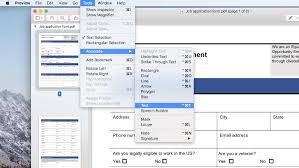
- Click on the “Edit” menu and choose “Add Text” to add text to your PDF. You can also use the built-in font selection, size adjustment, and color picker to customize your text.
Method 2: Using Libreoffice
LibreOffice is a free, open-source office suite that’s available for Mac. It includes a word processor, spreadsheet, presentation program, and database management system. To modify a PDF using LibreOffice:
- Download and install LibreOffice from the official website.
- Open LibreOffice by clicking on its icon in the Dock or finding it in your Applications folder.
- Select “Draw” as the application to edit your PDF.
- Click on the “File” menu and choose “Open…” To select the PDF file you want to modify.
- Use the tools provided in Draw to edit your PDF, such as adding text, images, shapes, and more.
Method 3: Using Adobe Acrobat
Adobe Acrobat is a powerful tool for creating, editing, and managing PDFs. While it’s not free, it offers advanced features that make it worth considering:
- Download and install Adobe Acrobat from the official website.
- Open Adobe Acrobat by clicking on its icon in the Dock or finding it in your Applications folder.
- Select “Edit” as the mode to modify your PDF.
- Use the tools provided in Edit to add text, images, shapes, and more to your PDF.
Method 4: Using Online Services
If you prefer not to install software on your Mac, there are several online services that allow you to modify PDFs directly from your browser:
- Pdfescape: This free online service allows you to edit PDFs by adding text, images, and shapes. You can also convert PDFs to other formats.
- Pdf Candy: Another online service that enables you to edit PDFs, add text, images, and more, and even convert PDFs to other formats.
- Ilovepdf: A popular online service that offers a range of tools for editing PDFs, including adding text, images, shapes, and more.
Method 5: Using Other Tools
There are many other software and services available for modifying PDFs on Mac. Some popular options include:
- Nitro Pro: A powerful tool for creating, editing, and managing PDFs.
- Pdf Toolkit+: A compact application that enables you to edit PDFs by compressing files, extracting text and images, and more.
- Notability: An excellent note-taking app that also allows you to create editable PDFs.
Conclusion
As you can see, modifying a PDF on Mac is easier than ever. Whether you prefer to use built-in apps like Preview or online services like PDFescape, there’s a solution for everyone. We hope this article has been helpful in showing you how to modify a PDF on your Mac using various methods and tools.
Frequently Asked Questions
- Q: Can I Edit The Layout of a Pdf?
A: Yes, most software and online services allow you to edit the layout of a PDF by adding text, images, shapes, and more. - Q: How do I Add Text to a Pdf?
A: You can add text to a PDF using various methods, including Preview, LibreOffice, Adobe Acrobat, and online services like PDFescape and PDF Candy. - Q: Can I Convert a Pdf to Another Format?
A: Yes, many software and online services allow you to convert PDFs to other formats, such as Word documents or images. - Q: Is There a Free Version of Adobe Acrobat?
A: No, Adobe Acrobat is not free. However, it does offer a trial version that you can use for a limited time. - Q: Can I Edit The Content of a Pdf Online?
A: Yes, many online services allow you to edit the content of a PDF directly from your browser. - Q: Are There Any Other Tools Available For Modifying Pdfs on Mac?
A: Yes, there are many other software and services available that can be used to modify PDFs on Mac.
Additional Resources
If you’re looking for more information or resources on modifying PDFs on Mac, we recommend checking out the following:
- Apple Support: The official Apple support website offers a range of tutorials and guides on using Preview and other built-in apps.
- Libreoffice Community: The LibreOffice community website provides extensive documentation and resources on using LibreOffice to edit PDFs.
- Adobe Acrobat User Guide: Adobe’s user guide for Acrobat offers in-depth information on using the software to create, edit, and manage PDFs.


