
Installing Windows 10: A Step-by-step Guide
Are you ready to upgrade your computer to the latest operating system from Microsoft? Installing Windows 10 can seem like a daunting task, but with this guide, you’ll be able to navigate the process with ease.
What You Need to Know Before Installing Windows 10
Before we dive into the installation process, there are a few things you need to know:
- System Requirements: Make sure your computer meets the minimum system requirements for Windows 10. This includes having at least 2 GB of RAM and 20 GB of free space on the hard drive.
- Backup Your Data: Before installing Windows 10, make sure to backup all your important files and data.
- Choose The Right Edition: Decide which edition of Windows 10 you want to install. There are several options available, including Home, Pro, and Enterprise.
Installing Windows 10: A Step-by-step Guide
- Create a Bootable Usb Drive: To start the installation process, you’ll need to create a bootable USB drive using the Media Creation Tool.
- Download The Media Creation Tool: Download the Media Creation Tool from Microsoft’s official website.
- Run The Tool And Create a Bootable Usb Drive: Run the tool and follow the instructions to create a bootable USB drive.
- Insert The Usb Drive Into Your Computer: Insert the USB drive into your computer and restart it.
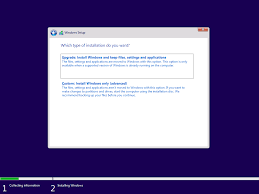
- Follow The On-screen Instructions: Follow the on-screen instructions to complete the installation process.
Troubleshooting Common Issues
If you encounter any issues during the installation process, don’t panic! Here are some common issues and their solutions:
- The Installation Process Gets Stuck: If the installation process gets stuck, try restarting your computer and trying again.
- You Get an Error Message: If you get an error message, try checking the Microsoft support website for a solution.
Other Useful Information
Here are some other useful things to know when installing Windows 10:
- Free Update to Windows 10: If you’re currently using Windows 7 or Windows 8, you can upgrade to Windows 10 for free.
- Recovery Options: If you need to recover your system after installing Windows 10, you can use the recovery options in the Settings app.
Conclusion
Installing Windows 10 is a straightforward process that requires some basic computer knowledge. By following this guide, you’ll be able to install the latest operating system from Microsoft and enjoy its many features and benefits.
Frequently Asked Questions (FAQs)
Here are some frequently asked questions about installing Windows 10:
- Q: What Are The Minimum System Requirements For Windows 10?
A: The minimum system requirements for Windows 10 include having at least 2 GB of RAM and 20 GB of free space on the hard drive. - Q: How do I backup my data before installing Windows 10?
A: You can backup your data by using an external hard drive or cloud storage service like OneDrive. - Q: What are the different editions of Windows 10 available?
A: There are several editions of Windows 10 available, including Home, Pro, and Enterprise.
Conclusion
Installing Windows 10 is a great way to upgrade your computer and enjoy the latest features and benefits from Microsoft. By following this guide, you’ll be able to navigate the installation process with ease and get started with using Windows 10.


