
Free Sms Forwarding: A Guide to Sending Messages Without a Phone Bill
Are you tired of running out of mobile credit just when you need it most? Do you want to send messages to your friends or loved ones without incurring any additional costs? Look no further! In this article, we will explore the world of free SMS forwarding, and guide you through the process of sending messages without a phone bill.
What Are Free Sms Forwarding Services?
Free SMS forwarding services allow users to send text messages to mobile phones without incurring any charges. These services use various methods to forward messages, such as using internet connections or accessing phone networks directly. Some popular free SMS forwarding services include Link to the Phone, Messages (macOS), WhatsApp, Telegram, and Facebook Messenger.
Link to The Phone: A Free Sms Forwarding Service For PC
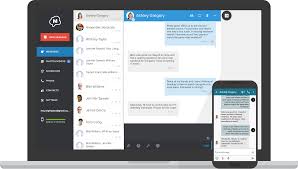
If you have a Windows 10/11 PC and an Android smartphone, you can use the Link to the Phone application to forward SMS messages directly from your computer. This service allows you to send messages, make calls, and even receive notifications on your PC.
To set up Link to the Phone, follow these steps:
- Download the app from the Microsoft Store or access it through Windows.
- Open the app and click on “Link to the phone.”
- Scan the QR code displayed on your PC using your smartphone’s camera.
- Grant the necessary permissions for the app to work.
- Start sending messages, making calls, and receiving notifications directly from your computer.
Messages (macOS): Forwarding Sms Messages With Your Mac
If you have a Mac and an iPhone, you can use the Messages application to forward SMS messages directly from your computer. This service allows you to send messages, make calls, and even receive notifications on your Mac.
To set up Messages, follow these steps:
- Open the Settings app on your iPhone.
- Go to Messages > Inoltro SMS: Turn ON the lever next to your Mac’s name.
- Open the Messages app on your Mac and click on “iMessage.”
- Grant the necessary permissions for the app to work.
- Start sending messages, making calls, and receiving notifications directly from your computer.
Whatsapp: A Free Sms Forwarding Service With End-to-end Encryption
WhatsApp is a popular messaging service that allows users to send text messages, make voice and video calls, and even share files. This service uses end-to-end encryption to ensure that all communications are secure.
To set up WhatsApp on your PC or online, follow these steps:
- Download the app from the Microsoft Store or access it through Windows.
- Open the app and sign in with your phone number.
- Grant the necessary permissions for the app to work.
- Start sending messages, making calls, and receiving notifications directly from your computer.
Telegram: A Free Sms Forwarding Service With Secret Chats
Telegram is another popular messaging service that allows users to send text messages, make voice and video calls, and even share files. This service uses end-to-end encryption for secret chats.
To set up Telegram on your PC or online, follow these steps:
- Download the app from the Microsoft Store or access it through Windows.
- Open the app and sign in with your phone number.
- Grant the necessary permissions for the app to work.
- Start sending messages, making calls, and receiving notifications directly from your computer.
Facebook Messenger: A Free Sms Forwarding Service With Video Calling
Facebook Messenger is a popular messaging service that allows users to send text messages, make voice and video calls, and even share files. This service uses end-to-end encryption for secure communications.
To set up Facebook Messenger on your PC or online, follow these steps:
- Download the app from the Microsoft Store or access it through Windows.
- Open the app and sign in with your phone number.
- Grant the necessary permissions for the app to work.
- Start sending messages, making calls, and receiving notifications directly from your computer.
Conclusion
Free SMS forwarding services have made it possible to send text messages without a phone bill. With various options available, including Link to the Phone, Messages (macOS), WhatsApp, Telegram, and Facebook Messenger, users can choose the service that best suits their needs. By following these simple steps, you can start sending messages directly from your PC or online.
Faqs
Q: What is free SMS forwarding?
A: Free SMS forwarding refers to services that allow users to send text messages without incurring any charges.
Q: Which services offer free SMS forwarding?
A: Some popular services include Link to the Phone, Messages (macOS), WhatsApp, Telegram, and Facebook Messenger.
Q: How do I set up Link to the Phone on my PC?
A: To set up Link to the Phone, download the app from the Microsoft Store or access it through Windows. Scan the QR code displayed on your PC using your smartphone’s camera, grant the necessary permissions, and start sending messages directly from your computer.
Q: Can I use Messages (macOS) to forward SMS messages?
A: Yes, you can use Messages (macOS) to forward SMS messages directly from your Mac. Open the Settings app on your iPhone, turn ON the lever next to your Mac’s name, grant the necessary permissions for the app to work, and start sending messages directly from your computer.
Q: Is WhatsApp a secure messaging service?
A: Yes, WhatsApp uses end-to-end encryption to ensure that all communications are secure. To set up WhatsApp on your PC or online, download the app from the Microsoft Store or access it through Windows, sign in with your phone number, grant the necessary permissions for the app to work, and start sending messages directly from your computer.
Q: Can I use Telegram to forward SMS messages?
A: Yes, you can use Telegram to forward SMS messages directly from your PC or online. Download the app from the Microsoft Store or access it through Windows, sign in with your phone number, grant the necessary permissions for the app to work, and start sending messages directly from your computer.
Q: Is Facebook Messenger a secure messaging service?
A: Yes, Facebook Messenger uses end-to-end encryption for secure communications. To set up Facebook Messenger on your PC or online, download the app from the Microsoft Store or access it through Windows, sign in with your phone number, grant the necessary permissions for the app to work, and start sending messages directly from your computer.
Q: Can I use free SMS forwarding services on my Mac?
A: Yes, you can use various free SMS forwarding services on your Mac, including Messages (macOS), WhatsApp, Telegram, and Facebook Messenger.


