
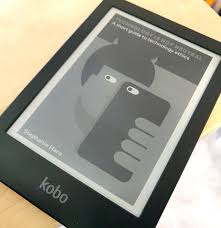
The Ultimate Guide to Transferring Ebooks on Kobo
Are you a bookworm looking to transfer your favorite eBooks onto your Kobo eReader? Look no further! In this comprehensive guide, we’ll walk you through the step-by-step process of transferring eBooks onto your Kobo device, whether they’re protected by DRM or not.
What You Need to Know Before Transferring Ebooks
Before we dive into the nitty-gritty details, it’s essential to understand the difference between eBooks with and without DRM (Digital Rights Management) protection. DRM-protected eBooks require a specific software to read them on your Kobo device, while eBooks without DRM can be transferred directly.
Transferring Ebooks From PC
If you’re looking to transfer eBooks from your PC, follow these steps:
Step 1: Prepare Your Kobo Device
Connect your Kobo eReader to your PC using the USB cable. Make sure it’s turned on and visible in the Device Manager.
Step 2: Download And Install Koboereader
Download and install the KOBOeReader software from the official website. This software allows you to transfer eBooks onto your Kobo device.
Step 3: Transfer Ebooks Without Drm
Drag and drop the eBook file into the KOBOeReader software window. The eBook will be transferred directly onto your Kobo device.
Step 4: Synchronize Your Kobo Device
Once the transfer is complete, synchronize your Kobo device by tapping on the circular arrows icon in the Home menu.
Transferring Ebooks From Google Drive or Dropbox
If you’re looking to transfer eBooks from Google Drive or Dropbox, follow these steps:
Step 1: Connect Your Kobo Device to Google Drive or Dropbox
Connect your Kobo device to Google Drive or Dropbox using the respective apps. This will enable syncing between your cloud storage and Kobo device.
Step 2: Transfer Ebooks Without Drm
Transfer your eBooks onto Google Drive or Dropbox, and they’ll automatically sync with your Kobo device.
Transferring Ebooks From Adobe Digital Editions
If you’re looking to transfer eBooks protected by DRM using Adobe Digital Editions, follow these steps:
Step 1: Download And Install Adobe Digital Editions
Download and install the Adobe Digital Editions software from the official website.
Step 2: Authorize Your Kobo Device
Authorize your Kobo device within the Adobe Digital Editions software. This will enable you to transfer DRM-protected eBooks onto your Kobo device.
Step 3: Transfer Ebooks With Drm
Transfer your eBook file into the Adobe Digital Editions software window, and it’ll be transferred directly onto your Kobo device.
Transferring Ebooks From Other Platforms
If you’re looking to transfer eBooks from other platforms, such as MLOL (Mondadori Library Online), follow these steps:
Step 1: Download And Install Adobe Digital Editions
Download and install the Adobe Digital Editions software from the official website.
Step 2: Transfer Ebooks With Drm
Transfer your eBook file into the Adobe Digital Editions software window, and it’ll be transferred directly onto your Kobo device.
Tips And Tricks
- Make sure your Kobo device is connected to the internet for seamless syncing.
- Use the KOBOeReader software to transfer eBooks without DRM for a hassle-free experience.
- Authorize your Kobo device within Adobe Digital Editions for transferring DRM-protected eBooks.
- Synchronize your Kobo device regularly to ensure all transferred eBooks are visible.
Conclusion
Transferring eBooks onto your Kobo eReader is a breeze, thanks to the step-by-step guide provided above. Whether you’re looking to transfer eBooks from PC, Google Drive, Dropbox, or Adobe Digital Editions, this comprehensive guide has got you covered. Happy reading!
Frequently Asked Questions (FAQs)
Q: What is DRM protection?
A: DRM protection is a security feature that prevents unauthorized access to digital content.
Q: How do I transfer eBooks without DRM onto my Kobo device?
A: Use the KOBOeReader software to transfer eBooks directly onto your Kobo device.
Q: Can I transfer eBooks from Google Drive or Dropbox onto my Kobo device?
A: Yes, connect your Kobo device to Google Drive or Dropbox using the respective apps for seamless syncing.
Q: How do I transfer eBooks protected by DRM using Adobe Digital Editions?
A: Download and install Adobe Digital Editions software, authorize your Kobo device, and transfer your eBook file into the software window.
Q: Can I transfer eBooks from other platforms onto my Kobo device?
A: Yes, follow the steps provided above for transferring eBooks from MLOL or other platforms.
Q: How often should I synchronize my Kobo device?
A: Synchronize your Kobo device regularly to ensure all transferred eBooks are visible.
Q: What if I encounter issues during the transfer process?
A: Contact Kobo customer support or visit their official website for troubleshooting assistance.


