
How to Rotate a Video on Iphone: A Step-by-step Guide
Are you tired of watching videos on your iPhone that are spinning in the wrong direction? Do you want to know how to rotate a video on your iPhone without losing any quality? Look no further! In this article, we will guide you through the process of rotating a video on your iPhone using various apps and software.
Why Rotate a Video on Iphone?
Rotating a video on your iPhone can be useful in several situations. For example, if you record a video while holding your phone horizontally, but want to watch it vertically, rotating the video will make it easier to view. Similarly, if you edit a video using iMovie or other video editing apps and accidentally rotate the footage, you’ll need to rotate it back to its original orientation.
Method 1: Using The Iphone App “Photo”
The first method to rotate a video on your iPhone is by using the built-in app called “Photo”. This app allows you to view, edit, and share photos and videos. Here’s how to do it:
- Open the Photo app on your iPhone.
- Select the video you want to rotate from your photo library or camera roll.
- Tap on the video to open it in full-screen mode.
- Swipe left or right on the screen to access the editing menu.
- Tap on the “Edit” button at the bottom of the screen.
- In the editing menu, tap on the “Modification” icon (looks like a pencil).
- Select the “Rotate” option from the drop-down menu.
- Choose the desired rotation angle and tap on “Save” to save the changes.
Method 2: Using Imovie
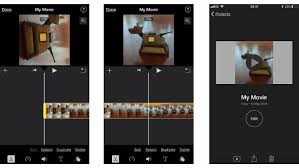
Another way to rotate a video on your iPhone is by using the iMovie app. This powerful video editing software allows you to edit, add effects, and even color correct your videos. Here’s how to do it:
- Open the iMovie app on your iPhone.
- Tap on the “Start new project” button at the bottom of the screen.
- Select the video you want to rotate from your photo library or camera roll.
- Drag and drop the video into the timeline.
- Select the video in the timeline by tapping on it.
- Swipe left or right on the screen to access the editing menu.
- Tap on the “Rotate” button at the top of the screen.
- Choose the desired rotation angle and tap on “Save” to save the changes.
Method 3: Using Third-party Apps
If you’re not satisfied with the built-in apps, there are several third-party apps that can help you rotate a video on your iPhone. Some popular options include:
- Vlc: A free, open-source media player that allows you to play and edit videos.
- Inshot: A powerful video editing app that offers advanced features like color correction and audio ducking.
- Adobe Premiere Rush: A mobile version of Adobe’s professional video editing software.
These apps can be downloaded from the App Store or Google Play store, depending on your device.
Method 4: Using Computer Software
If you prefer to rotate a video using computer software, here are some options:
- Avidemux: A free and open-source video editing software that supports Windows, macOS, and Linux.
- Davinci Resolve: A professional-grade video editing software that offers advanced features like color correction and audio ducking.
Tips And Tricks
Here are some additional tips to keep in mind when rotating a video on your iPhone:
- Make sure you’re using the correct app or software for the job. Some apps may have specific requirements or limitations.
- Be careful not to over-rotate the video, as this can result in distorted footage or poor quality.
- Experiment with different rotation angles and settings to find the one that works best for your needs.
Conclusion
Rotating a video on your iPhone is a straightforward process that can be completed using various apps and software. Whether you’re using the built-in Photo app, iMovie, or third-party apps like VLC or InShot, the steps are relatively similar. Just remember to choose the correct method based on your needs and experiment with different settings to achieve the best results.
Frequently Asked Questions (FAQs)
Q: Can I rotate a video on my iPhone without losing quality?
A: Yes, if you use the correct app or software, you can rotate a video on your iPhone without losing any quality.
Q: How do I rotate a video using iMovie?
A: To rotate a video in iMovie, select the video from your photo library or camera roll and drag it into the timeline. Select the video in the timeline by tapping on it and swipe left or right to access the editing menu.
Q: Can I use third-party apps to rotate a video on my iPhone?
A: Yes, there are several third-party apps available that can help you rotate a video on your iPhone, such as VLC or InShot.
Q: How do I rotate a video using computer software?
A: To rotate a video using computer software like Avidemux or DaVinci Resolve, select the video from your computer and follow the instructions in the app.
Q: Can I rotate multiple videos at once?
A: Yes, most apps allow you to rotate multiple videos at once.


