
How to Block Unwanted Emails on Gmail
Are you tired of receiving spam emails on your Gmail account? Do you want to know how to block unwanted messages from reaching your inbox? In this article, we will guide you through the steps to block unwanted emails on Gmail, whether you’re using the web version or the mobile app.
What Are Unwanted Emails?
Unwanted emails are messages that you didn’t ask for and often contain spam, junk, or phishing content. These emails can clutter your inbox and waste your time. Blocking them is an easy way to keep your email account clean and secure.
Blocking Unwanted Emails on Gmail (Web)
To block unwanted emails on Gmail’s web version, follow these steps:
- Open Gmail: Go to the Gmail website and sign in with your Google account.
- Select The Message: Find the spam email you want to block and select it by clicking on the checkbox beside the message.
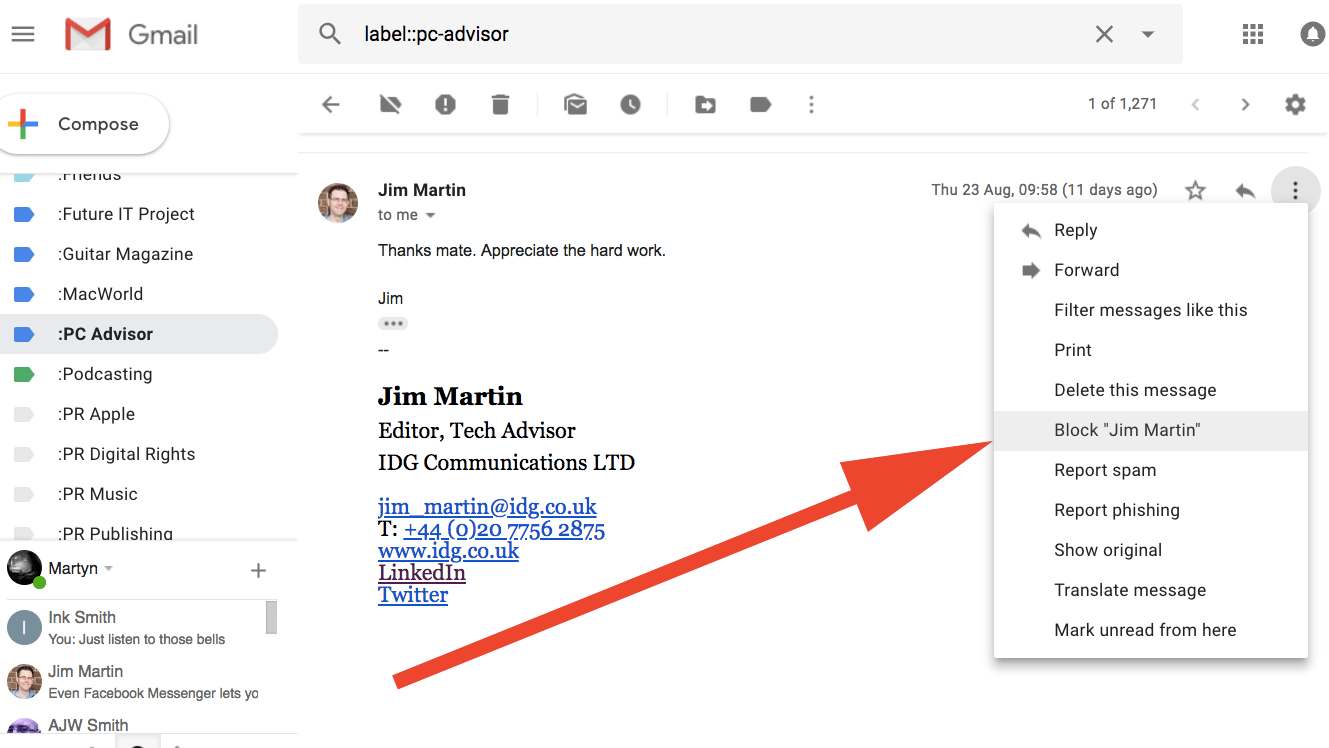
- Click on “More”: Click on the three dots (⋯) at the top of the page, next to the sender’s name.
- Choose “Block [Name]”: Select the option to block the sender from sending you emails.
- Confirm Block: Confirm that you want to block the sender by clicking on the “Block” button.
Blocking Unwanted Emails on Gmail (Mobile App)
To block unwanted emails on the mobile app, follow these steps:
- Open Gmail: Open the Gmail app on your Android or iOS device.
- Select The Message: Find the spam email you want to block and select it by tapping on the checkbox beside the message.
- Tap on “More”: Tap on the three dots (⋯) at the top of the screen, next to the sender’s name.
- Choose “Block [Name]”: Select the option to block the sender from sending you emails.
- Confirm Block: Confirm that you want to block the sender by tapping on the “Block” button.
How to Block an Address on Gmail
To block a specific email address, follow these steps:
- Open Gmail: Open Gmail and select the message from the blocked address.
- Click on “More”: Click on the three dots (⋯) at the top of the page, next to the sender’s name.
- Choose “Block [Name]”: Select the option to block the sender from sending you emails.
- Confirm Block: Confirm that you want to block the sender by clicking on the “Block” button.
How to Unblock an Address on Gmail
To unblock a specific email address, follow these steps:
- Open Gmail: Open Gmail and select the message from the blocked address.
- Click on “More”: Click on the three dots (⋯) at the top of the page, next to the sender’s name.
- Choose “Unblock [Name]”: Select the option to unblock the sender from sending you emails.
- Confirm Unblock: Confirm that you want to unblock the sender by clicking on the “Unblock” button.
Blocking Email Advertising on Gmail
To block email advertising, follow these steps:
- Open Gmail: Open Gmail and select the message from the advertiser.
- Click on “Cancel Registration”: Click on the link to cancel your subscription to their newsletter.
- Confirm Cancel: Confirm that you want to cancel your subscription by clicking on the “Cancel” button.
Conclusion
Blocking unwanted emails on Gmail is a simple process that can be done using either the web version or the mobile app. By following these steps, you can keep your email account clean and secure from spam and junk messages. Remember to always be cautious when receiving emails from unknown senders and report any suspicious activity to Google.
Faqs
- How do I Block an Address on Gmail?
To block an address on Gmail, select the message from the blocked address, click on “More”, choose “Block [Name]”, and confirm by clicking on the “Block” button. - How do I Unblock an Address on Gmail?
To unblock an address on Gmail, select the message from the blocked address, click on “More”, choose “Unblock [Name]”, and confirm by clicking on the “Unblock” button. - How do I Block Email Advertising on Gmail?
To block email advertising on Gmail, open Gmail, select the message from the advertiser, click on “Cancel registration”, and confirm by clicking on the “Cancel” button. - What Happens When I Block an Address on Gmail?
When you block an address on Gmail, you will no longer receive emails from that sender. - How do I Unblock a Blocked Address on Gmail?
To unblock a blocked address on Gmail, follow the steps outlined in the “Unblocking an Address” section above. - Can I Block Multiple Addresses at Once on Gmail?
Yes, you can block multiple addresses at once on Gmail by selecting the messages from the blocked addresses and following the steps outlined in the “Blocking Unwanted Emails” section above. - How do I Report Spam or Junk Emails to Google?
To report spam or junk emails to Google, select the message and click on the “Report as spam” button. - Can I Block a Specific Email Address From Sending me Emails on Gmail?
Yes, you can block a specific email address from sending you emails on Gmail by following the steps outlined in the “Blocking an Address” section above.


