
How to Block Someone on Instagram: A Step-by-step Guide
Are you tired of dealing with a toxic person on Instagram? Do you want to block someone who is harassing or annoying you, but don’t know how? Look no further! In this article, we will guide you through the simple process of blocking someone on Instagram.
Why Block Someone on Instagram?
Blocking someone on Instagram is a great way to take control of your online experience and protect yourself from harassment or unwanted interactions. When you block someone, they won’t be able to see your posts, stories, or profile, and you won’t receive any notifications from them.
What Happens When You Block Someone on Instagram?
When you block someone on Instagram, the following things happen:
- They won’t be able to see your posts, stories, or profile.
- You won’t receive any notifications from them.
- They won’t be able to interact with you in any way.
- You will still be able to see their posts and stories, but they won’t be able to see yours.
How to Block Someone on Instagram: A Step-by-step Guide
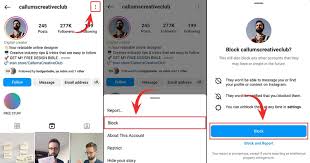
Blocking someone on Instagram is a simple process that can be completed from your smartphone or computer. Here’s how:
From Your Smartphone (Android or Ios)
- Open the Instagram app and go to the person’s profile.
- Tap on the three dots in the top-right corner of their profile picture.
- Select “Block” from the menu.
- Confirm that you want to block them by tapping “Block”.
From Your Computer
- Go to instagram.Com and log in to your account.
- Click on the person’s profile picture.
- Click on the three dots in the top-right corner of their profile picture.
- Select “Block” from the menu.
- Confirm that you want to block them by clicking “Block”.
What If I Think Someone Has Blocked Me?
If you think someone has blocked you, here are some signs to look out for:
- You can’t see their posts or stories.
- They don’t respond to your messages.
- Their profile picture is visible, but their profile information is not.
If you’re still unsure, try searching for their profile on Instagram. If it doesn’t come up, it’s likely that they have blocked you.
How to Check if Someone Has Blocked You
To check if someone has blocked you, follow these steps:
- Search for their profile on Instagram.
- If their profile appears in the search results, but you can’t see any posts or stories, it’s likely that they have blocked you.
Tips And Tricks
- Make sure to block someone from your smartphone or computer, not just from the Instagram app.
- If you’re blocking someone who has been harassing or annoying you, make sure to also report them to Instagram.
- Blocking someone on Instagram won’t delete their account, but it will prevent them from interacting with you.
Conclusion
Blocking someone on Instagram is a simple process that can be completed in just a few steps. Remember to always take care of yourself online and don’t hesitate to block someone if they’re making you feel uncomfortable or harassed.
How to Block Someone on Instagram: Frequently Asked Questions
- Q: Will Blocking Someone on Instagram Delete Their Account?
A: No, blocking someone on Instagram won’t delete their account. It will simply prevent them from interacting with you. - Q: Can I Block Someone Who Has Blocked Me?
A: Yes, if someone has blocked you and you want to block them back, you can do so by following the same steps as above. - Q: Will Blocking Someone on Instagram Affect Their Online Presence?
A: No, blocking someone on Instagram won’t affect their online presence or influence in any way.
How to Block Someone on Instagram: A Word of Caution
Remember that blocking someone on Instagram is a personal choice and should be used as a last resort. If someone is making you feel uncomfortable or harassed, please report them to Instagram instead of blocking them.


