
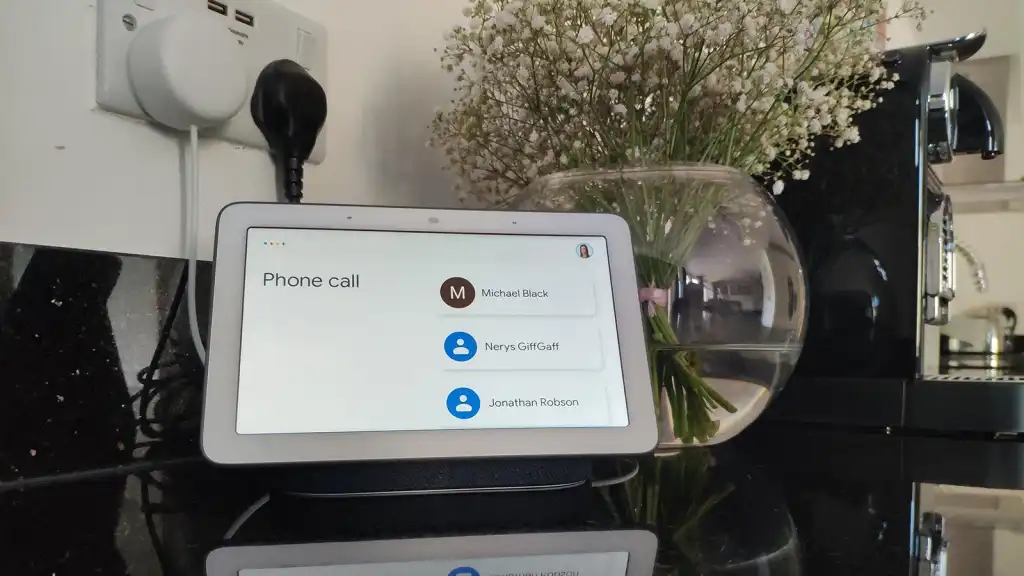
How to Call With Google Home: A Step-by-step Guide
Are you curious about how to call with Google Home? Look no further! In this article, we’ll guide you through the process of configuring your Google Home device to make calls and video calls using Google Duo.
Understanding How Google Home Calls Work
Before we dive into the step-by-step instructions, it’s essential to understand how Google Home calls work. Google Home uses Google Duo to facilitate voice and video calls between users. This means that you can only call people who have a Google account and have configured their Google Home device to receive calls.
Setting Up Google Home For Calls
To set up your Google Home device for calls, follow these steps:
- Connect Your Google Home Device to Google Duo: Open the Google Home app on your Android or iOS device, tap on the gear icon (Settings), and select the “Services” option. Then, tap on “Call and video call,” and select “Google Duo.” This will link your Google Home device to your Google account.
- Configure Your Phone Number: Tap on the “Start with a call” button, select your country’s phone prefix (+1 for the US, +44 for the UK, etc.), And enter the phone number of the person you want to call using Google Duo. You’ll receive an SMS with a 6-digit code; enter this code in the app to verify your phone number.
- Authorize Google Home to Access Your Contacts: In the “App vocal and video” section, tap on “Charge contacts,” and authorize Google Home to access your contacts. If you don’t want Google Home to access your contacts, select “No.”
- Enable Device Connection: Tap on the devices connected section, and toggle the switch next to “Google Home” from OFF to ON.
Making a Call With Google Home
Now that you’ve set up your Google Home device for calls, follow these steps:
- Activate The Voice Assistant: Say “OK Google” or “Hey Google,” and tell your Google Home device to call someone.
- Specify The Contact’s Name or Number: If you want to call a contact saved in your phonebook, say the contact’s name. Alternatively, specify the phone number directly.
- End The Call: To conclude the call, say “OK Google, hang up” or “Hey Google, end the call.”
How to Call Google Home From Your Phone
If you want to call your Google Home device from your phone, follow these steps:
- Open The Google Duo App: Open the Google Duo app on your Android or iOS device.
- Select a Contact: Select the contact that has associated their Google account with their Google Home device.
- Make a Call: Tap on the “Call” button to initiate the call.
Using Google Home’s Announcement Feature
Google Home also allows you to leave voice messages for your family members or guests using the Announcement feature. To use this feature:
- Open The Google Home App: Open the Google Home app on your phone.
- Tap on The House Icon: Tap on the house icon, and select the “Announcement” option.
- Record a Message: Record a message for the people in the room using your voice.
Conclusion
In conclusion, calling with Google Home is a straightforward process that requires configuring your device to use Google Duo. With these step-by-step instructions, you should be able to set up your Google Home device and make calls and video calls with ease.
Frequently Asked Questions (FAQs)
- Q: Can I Call Anyone Using Google Home?
A: No, you can only call people who have a Google account and have configured their Google Home device to receive calls. - Q: Do I Need to Download Any Additional Apps to Use Google Home’s Calling Feature?
A: No, the calling feature is built into the Google Home app. - Q: Can I Make Video Calls Using Google Home?
A: Yes, you can make video calls using Google Home if you have a Google account and have configured your device for video calls. - Q: Can I Use Google Home to Call my Phone Number From my Phone?
A: No, the calling feature only works in one direction – from your Google Home device to your phone. - Q: How do I Enable The Announcement Feature on my Google Home Device?
A: Open the Google Home app, tap on the house icon, and select the “Announcement” option.


