
Optimizing Your Windows 10 Experience: The Importance of Disk Defragmentation
Are you tired of experiencing slow performance on your Windows 10 device? Do you find yourself waiting unnecessarily for files to open or applications to launch? If so, it’s likely that your hard disk is fragmented. In this article, we’ll explore the concept of disk defragmentation and how it can improve your overall computing experience.
What is Disk Defragmentation?
Disk defragmentation is a process that involves analyzing and rearranging data on a hard disk to improve access times and overall system performance. Over time, files and data become fragmented across different locations on the hard disk, leading to slower loading times and reduced productivity. A disk defragmenter utility examines the hard disk and reassembles the data in contiguous blocks, allowing for faster access and improved performance.
Is Disk Defragmentation Still Relevant With Ssds?
With the rise of Solid-State Drives (SSDs), some users have questioned whether disk defragmentation is still necessary. The answer lies in understanding how SSDs work differently from traditional hard disks. While SSDs do not require manual defragmentation, using a utility to optimize and maintain their performance can still be beneficial.
Using The Built-in Disk Defragmenter in Windows 10
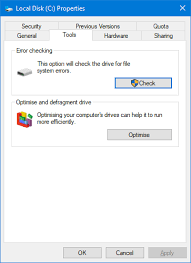
Fortunately, Windows 10 includes an integrated disk defragmentation tool that performs admirably well for most users. To access this feature:
- Click on the Start button (the Windows icon) located in the bottom left corner of your screen.
- Search for “defrag” and select the Defragment and Optimize Drives utility from the results.
- If the utility is already active, you’ll see a message indicating that it’s running; otherwise, follow the prompts to activate it.
Modifying Settings And Scheduling Automatic Optimizations
To modify settings or schedule automatic optimizations:
- Click on the Modify settings button in the bottom right corner of the window.
- Choose when to execute the optimization (e.G., Every week or month).
- Select which drives to optimize.
Checking Disk Fragmentation Manually
If you want to check the fragmentation level manually:
- Open the Defragment and Optimize Drives utility.
- Look for a column called “Last Run” in the disk properties; this will show when the last defragmentation occurred.
- If it’s been a while, consider running a manual optimization.
Alternative Disk Defragmentation Software: Defraggler
For those seeking more control over their system or additional features:
- Download and install Defraggler from Piriform.Com.
- Follow the installation instructions to set up Defraggler.
Configuring Advanced Settings in Defraggler
To configure advanced settings, such as scheduling automatic defragmentation or customizing options:
- Open Defraggler and select Options from the menu.
- Navigate to the Planning section and tick the box beside “Plan defragmentation of the volume chosen.”
- Customize your preferences for scheduled defragmentations.
When to Use Alternative Disk Defragmentation Software
Only consider using alternative software, like Defraggler, in exceptional circumstances:
- If the built-in utility is not functioning properly.
- When seeking additional features or greater control over system optimization.
Tips For a Smoother Computing Experience
To maintain optimal performance and prevent fragmentation issues:
- Regularly run manual defragmentations (e.G., Every month).
- Schedule automatic optimizations using Defraggler’s built-in planning feature.
- Monitor your disk’s health by regularly checking its fragmentation level.
Conclusion
Disk defragmentation is an essential process for maintaining optimal system performance on Windows 10 devices, especially when using traditional hard disks or mechanical storage solutions. While SSDs don’t require manual defragmentation, optimizing their performance can still be beneficial. By understanding how to use the built-in utility and alternative software like Defraggler, you’ll be well-equipped to keep your computing experience smooth and efficient.
Frequently Asked Questions (FAQs)
- Q: Do I Need to Defragment my Ssd?
A: While not necessary for SSDs, optimizing their performance can still improve overall system speed. - Q: How Often Should I Run a Manual Defragmentation?
A: Run manual defragmentations every 3-6 months or as needed based on your usage patterns. - Q: What is The Best Disk Defragmentation Software For Windows 10?
A: The built-in utility works well for most users; alternative software like Defraggler offers additional features and flexibility. - Q: Can I Schedule Automatic Defragmentations in Defraggler?
A: Yes, you can customize settings to schedule automatic defragmentations based on your preferences. - Q: Will Using Defraggler Replace The Built-in Utility?
A: No, it’s recommended to use both utilities together for optimal performance; only switch to Defraggler if necessary.
By understanding these concepts and implementing the tips provided, you’ll be able to maintain a smooth computing experience on your Windows 10 device.


