
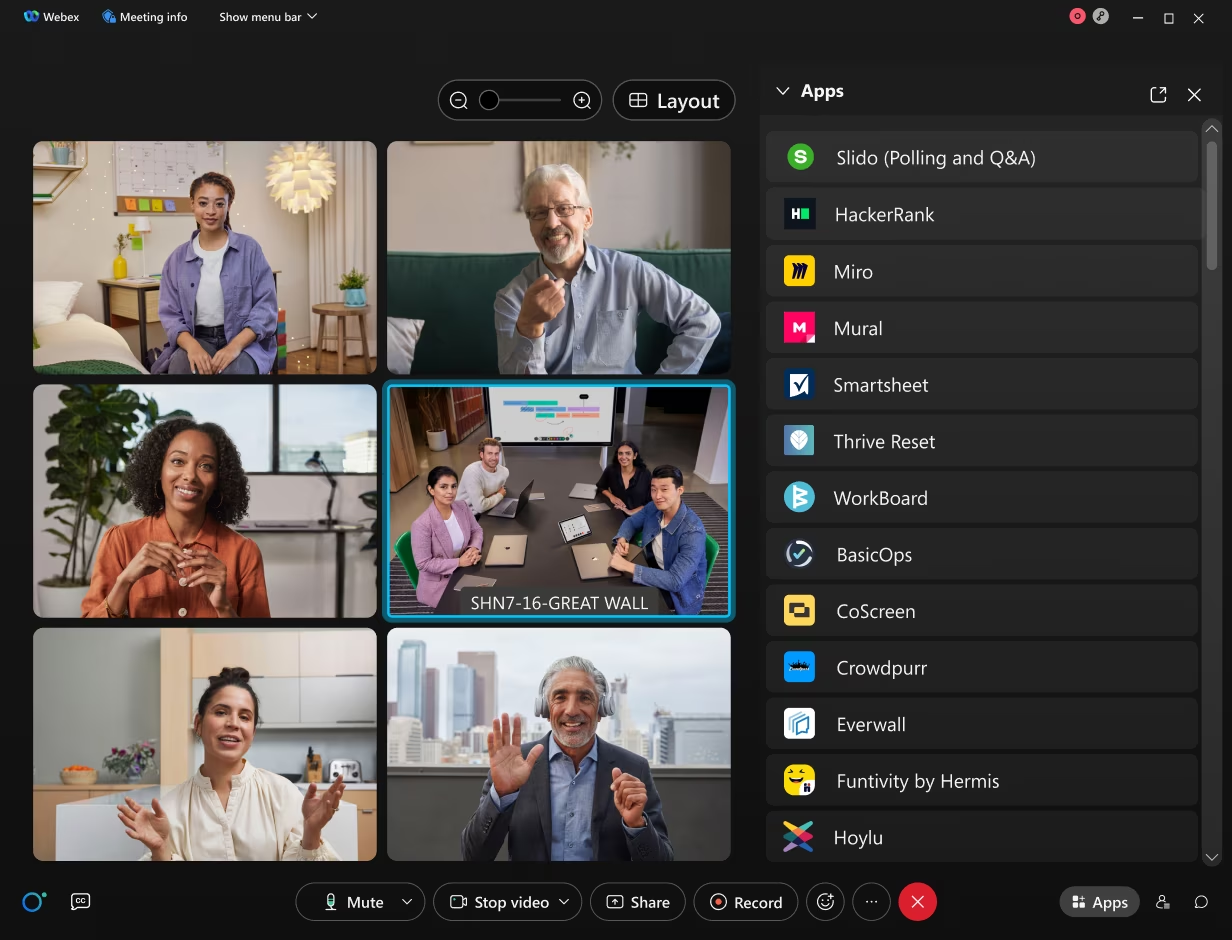
How to Use Webex: A Comprehensive Guide
Are you looking for a reliable platform to organize meetings, video conferences, and collaborate on projects? Look no further than Webex! In this article, we’ll take a closer look at the features and functionalities of Webex, including its pricing plans, how to use it on various devices, and more.
What is Webex?
Webex is a web-based service that allows users to organize meetings, video conferences, and collaborate on projects. It’s a popular platform used by individuals, businesses, and organizations worldwide.
Pricing Plans
Before we dive into the features of Webex, let’s take a look at its pricing plans:
- Webex Free: This plan is free and allows users to organize meetings with up to 100 participants for a maximum duration of 40 minutes.
- Webex Starter: This plan costs $13.50/Month or $132/year and offers additional features such as the ability to record meetings, create surveys, and more.
- Webex Business: This plan costs $19/month or $192.50/Year and offers all the features of the Webex Starter plan, plus additional features such as the ability to host meetings with up to 200 participants.
- Webex Enterprise: This is the most advanced plan, which costs $25/month or $250/year and offers all the features of the Webex Business plan, plus additional features such as the ability to host meetings with up to 1,000 participants.
Creating a New Meeting
To create a new meeting on Webex, follow these steps:
- Log in to your Webex account using your email address and password.
- Click on the “Meetings” tab in the top navigation bar.
- Click on the “New Meeting” button.
- Choose the type of meeting you want to create (e.G., Video conference, audio conference).
- Add the meeting title, description, and schedule.
- Invite participants by adding their email addresses or names.
Using Webex on a Computer
To use Webex on a computer, follow these steps:
- Log in to your Webex account using your email address and password.
- Click on the “Meetings” tab in the top navigation bar.
- Choose the type of meeting you want to create or join (e.G., Video conference, audio conference).
- Follow the prompts to add participants, schedule the meeting, and more.
Using Webex on a Smartphone
To use Webex on a smartphone, follow these steps:
- Download the Webex app from the App Store (for iOS devices) or Google Play Store (for Android devices).
- Log in to your Webex account using your email address and password.
- Tap on the “Meetings” tab at the bottom of the screen.
- Choose the type of meeting you want to create or join (e.G., Video conference, audio conference).
- Follow the prompts to add participants, schedule the meeting, and more.
How to Record a Meeting
To record a meeting on Webex, follow these steps:
- Log in to your Webex account using your email address and password.
- Click on the “Meetings” tab in the top navigation bar.
- Choose the meeting you want to record.
- Click on the “Record” button.
How to Share a Meeting
To share a meeting with others, follow these steps:
- Log in to your Webex account using your email address and password.
- Click on the “Meetings” tab in the top navigation bar.
- Choose the meeting you want to share.
- Click on the “Share” button.
How to Create a Team
To create a team on Webex, follow these steps:
- Log in to your Webex account using your email address and password.
- Click on the “Teams” tab in the top navigation bar.
- Choose the type of team you want to create (e.G., Project team).
- Add members by adding their email addresses or names.
How to Use The Chat Feature
To use the chat feature on Webex, follow these steps:
- Log in to your Webex account using your email address and password.
- Click on the “Chat” tab at the bottom of the screen.
- Type a message in the chat box.
- Press Enter to send the message.
Frequently Asked Questions (FAQs)
Here are some frequently asked questions about Webex:
- What is The Difference Between Webex Free And Webex Starter?
Webex Free allows users to organize meetings with up to 100 participants for a maximum duration of 40 minutes, while Webex Starter offers additional features such as recording meetings, creating surveys, and more.
- How do I Record a Meeting on Webex?
To record a meeting on Webex, log in to your account, click on the “Meetings” tab, choose the meeting you want to record, and click on the “Record” button.
- Can I Share a Meeting With Others on Webex?
Yes, you can share a meeting with others by logging in to your account, clicking on the “Meetings” tab, choosing the meeting you want to share, and clicking on the “Share” button.
- How do I Create a Team on Webex?
To create a team on Webex, log in to your account, click on the “Teams” tab, choose the type of team you want to create (e.G., Project team), add members by adding their email addresses or names, and click on the “Create” button.
- What is The Difference Between Webex Business And Webex Enterprise?
Webex Business offers all the features of Webex Starter, plus additional features such as hosting meetings with up to 200 participants, while Webex Enterprise offers all the features of Webex Business, plus additional features such as hosting meetings with up to 1,000 participants.
- Can I Use Webex on a Smartphone?
Yes, you can use Webex on a smartphone by downloading the Webex app from the App Store (for iOS devices) or Google Play Store (for Android devices).
- How do I Cancel a Meeting on Webex?
To cancel a meeting on Webex, log in to your account, click on the “Meetings” tab, choose the meeting you want to cancel, and click on the “Cancel” button.
- Can I Use Webex For Free?
Yes, you can use Webex for free by signing up for the Webex Free plan, which allows users to organize meetings with up to 100 participants for a maximum duration of 40 minutes.


