
How to Connect a Camera to Your Pc: A Step-by-step Guide
Connecting a camera to your PC can be a daunting task, especially if you’re not familiar with the process. However, with this guide, you’ll learn how to connect a webcam, a videocamera, and an IP camera to your computer in no time.
Preliminary Information
Before we dive into the instructions, let’s clarify some key concepts. When we refer to a “camera,” we’re talking about any type of device that captures video or images, such as a webcam, videocamera, or IP camera.
How to Connect a Webcam to Your PC
Connecting a webcam to your PC is usually a straightforward process. Simply plug the USB cable into the computer and wait for the operating system to recognize the device. If you’re using a Windows computer, you may be prompted to install drivers or software to enable the webcam’s functionality.
If you encounter any issues, refer to our guide on how to connect a webcam to your PC for step-by-step instructions.
How to Connect a Videocamera to Your PC
Connecting a videocamera to your PC is slightly more complex than connecting a webcam. First, determine if your videocamera has an analog or digital connection. If it’s an older model with an analog connection, you may need to use an adapter to convert the signal to digital.
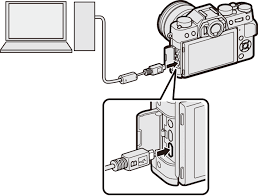
If your videocamera has a digital connection, simply plug it into the computer using a USB cable and wait for the operating system to recognize the device.
How to Connect an IP Camera to Your PC
Connecting an IP camera to your PC is similar to connecting a webcam. First, ensure you have the correct software installed on your computer. Then, follow these steps:
- Connect the IP camera to your local network (LAN).
- Install and configure the IP camera’s software.
- Configure the camera settings to match your computer’s specifications.
How to Connect a Camera to a Monitor PC
If you want to connect a camera directly to a monitor PC, you’ll need a specific adapter that matches the type of connection on both devices. For example, if your videocamera has a BNC connector and your monitor has an HDMI input, you’ll need a BNC-to-HDMI converter.
Conclusion
Connecting a camera to your PC is no longer a mystery. With this guide, you’ve learned how to connect various types of cameras, from webcams to IP cameras, to your computer. Whether you’re using a webcam for video conferencing or an IP camera for surveillance, we hope this guide has been helpful.
Frequently Asked Questions
- What is The Difference Between a Webcam And a Videocamera?
A webcam is a small, lightweight device that captures images or videos, usually used for video conferencing or social media. A videocamera, on the other hand, is a more advanced device that can capture high-quality video and audio. - How do I Connect my IP Camera to my Pc?
To connect your IP camera to your PC, first ensure you have the correct software installed on your computer. Then, follow these steps: Connect the IP camera to your local network (LAN), install and configure the IP camera’s software, and configure the camera settings to match your computer’s specifications. - What is The Purpose of a Bnc-to-hdmi Converter?
A BNC-to-HDMI converter is used to connect an analog signal from a videocamera to a digital input on a monitor or computer. - Can I Use my Old Vhs Player as a Camera?
While it’s technically possible, using an old VHS player as a camera would require significant modifications and adapters to convert the analog signal to digital. - What is The Best Software For Connecting a Webcam to my Pc?
The best software for connecting a webcam to your PC depends on the specific model of your webcam and your computer’s operating system. Refer to our guide on how to connect a webcam to your PC for more information.
We hope this guide has been helpful in demystifying the process of connecting cameras to your PC!


