
How to Temporarily Disable Instagram
Are you tired of Instagram being a source of distraction? Do you want to take a break from social media without deleting your account permanently? Look no further! In this article, we will guide you through the steps on how to temporarily disable your Instagram account.
Why Temporarily Disable Instagram?
Before we dive into the process, let’s discuss why you might want to temporarily disable your Instagram account. Perhaps you’re feeling overwhelmed with notifications, or maybe you need a break from social media for personal reasons. Whatever your reason may be, disabling your account temporarily can give you the space you need without losing access to your profile and photos.
How to Temporarily Disable Instagram on Your Smartphone or Tablet
To disable your Instagram account temporarily using your smartphone or tablet, follow these steps:
- Open The Instagram App: First, open the Instagram app on your device.
- Go to Your Profile: Tap on the profile icon in the bottom right corner of the screen.
- Tap on The Three Horizontal Lines: In the top right corner of the screen, tap on the three horizontal lines.
- Select Settings: From the menu that appears, select “Settings”.
- Scroll Down to Account: Scroll down to the “Account” section and tap on it.
- Tap on Deactivate My Account: Tap on the “Deactivate my account” option.
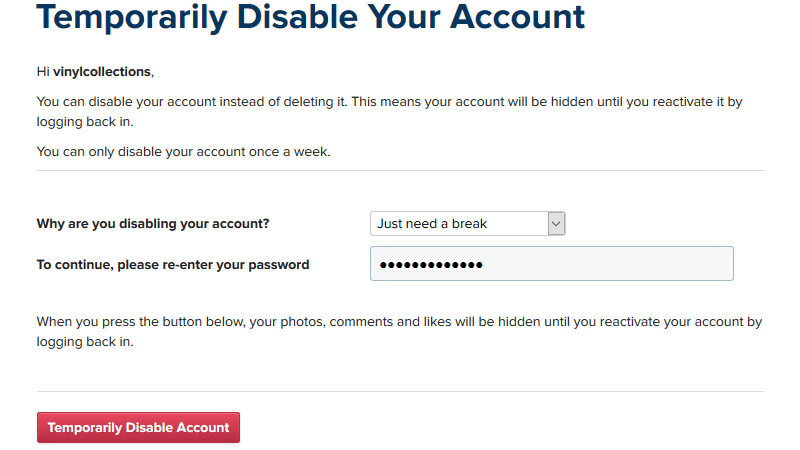
- Enter Your Password: Enter your Instagram password to confirm you want to deactivate your account.
- Choose a Reason (Optional): If you’d like, choose a reason for deactivating your account from the provided options.
- Tap Deactivate Account: Tap “Deactivate Account” to complete the process.
How to Temporarily Disable Instagram on Your Computer
To disable your Instagram account temporarily using your computer, follow these steps:
- Log in to Your Account: Log in to your Instagram account using a web browser.
- Click on The Profile Icon: Click on the profile icon in the top right corner of the screen.
- Select Settings: From the menu that appears, select “Settings”.
- Scroll Down to Account: Scroll down to the “Account” section and click on it.
- Tap on Deactivate My Account: Tap on the “Deactivate my account” option.
- Enter Your Password: Enter your Instagram password to confirm you want to deactivate your account.
- Choose a Reason (Optional): If you’d like, choose a reason for deactivating your account from the provided options.
- Tap Deactivate Account: Tap “Deactivate Account” to complete the process.
How to Reactivate Your Instagram Account
If you decide you want to reactivate your Instagram account after temporarily disabling it, simply follow these steps:
- Open The Instagram App: Open the Instagram app on your device.
- Tap on The Profile Icon: Tap on the profile icon in the bottom right corner of the screen.
- Tap on Sign Up: From the login screen, tap “Sign up”.
- Enter Your Email And Password: Enter your email and password to log back into your account.
Temporary Deactivation Vs. Permanent Deletion
When you temporarily disable your Instagram account, it’s essential to note that your profile will be unavailable to others during this time. However, your account will not be deleted, and you can reactivate it whenever you’re ready.
If you want to delete your Instagram account permanently, follow the steps outlined in our article on “How to Delete Your Instagram Account”.
Conclusion
In conclusion, temporarily disabling your Instagram account is a straightforward process that allows you to take a break from social media without losing access to your profile and photos. By following these steps, you can disable your account temporarily using either your smartphone or tablet or computer.
Do you have any questions about this process? Feel free to ask in the comments below!


