
How to Erase The History of Websites Visited on Your Browser
Are you worried about your browser storing a record of all the websites you’ve visited? Do you want to erase the history of websites visited on your browser? You’re not alone! Many people are concerned about their online privacy and want to know how to delete their browsing history. In this article, we’ll show you how to erase the history of websites visited on popular browsers like Google Chrome, Mozilla Firefox, Microsoft Edge, and Safari.
Why Erase Browsing History?
Before we dive into the steps, let’s briefly discuss why erasing browsing history is important. When you visit a website, your browser stores information about the site, including its URL, search queries, and other details. This information can be sensitive and may compromise your online security. By erasing your browsing history, you can:
- Protect your personal data
- Avoid targeted advertising
- Reduce the risk of identity theft
Erase Browsing History on Google Chrome
Here’s how to erase browsing history on Google Chrome:
On Pc:
- Open Google Chrome and click on the three vertical dots in the top right corner.
- Click on “Settings” from the dropdown menu.
- Scroll down to the “Privacy and security” section.
- Click on “Clear browsing data.”
- Choose the type of data you want to delete (e.G., Browsing history, cookies, etc.).
- Set the time range for which you want to delete the data.
- Click on “Clear data.”
On Smartphone/tablet:
- Open Google Chrome and tap on the three dots in the top right corner.
- Tap on “Settings.”
- Scroll down to the “Privacy and security” section.
- Tap on “Clear browsing data.”
- Choose the type of data you want to delete (e.G., Browsing history, cookies, etc.).
- Set the time range for which you want to delete the data.
- Tap on “Clear data.”
Erase Browsing History on Mozilla Firefox
Here’s how to erase browsing history on Mozilla Firefox:
On Pc:
- Open Mozilla Firefox and click on the three horizontal lines in the top right corner.
- Click on “Options” from the dropdown menu.
- Scroll down to the “Privacy & Security” section.
- Click on “Clear your recent history.”
- Choose the type of data you want to delete (e.G., Browsing history, cookies, etc.).
- Set the time range for which you want to delete the data.
- Click on “OK.”
On Smartphone/tablet:
- Open Mozilla Firefox and tap on the three horizontal lines in the top right corner.
- Tap on “Options.”
- Scroll down to the “Privacy & Security” section.
- Tap on “Clear your recent history.”
- Choose the type of data you want to delete (e.G., Browsing history, cookies, etc.).
- Set the time range for which you want to delete the data.
- Tap on “OK.”
Erase Browsing History on Microsoft Edge
Here’s how to erase browsing history on Microsoft Edge:
On Pc:
- Open Microsoft Edge and click on the three horizontal lines in the top right corner.
- Click on “Settings” from the dropdown menu.
- Scroll down to the “Privacy, search, and services” section.
- Click on “Clear browsing data.”
- Choose the type of data you want to delete (e.G., Browsing history, cookies, etc.).
- Set the time range for which you want to delete the data.
- Click on “Clear.”
On Smartphone/tablet:
- Open Microsoft Edge and tap on the three horizontal lines in the top right corner.
- Tap on “Settings.”
- Scroll down to the “Privacy, search, and services” section.
- Tap on “Clear browsing data.”
- Choose the type of data you want to delete (e.G., Browsing history, cookies, etc.).
- Set the time range for which you want to delete the data.
- Tap on “Clear.”
Erase Browsing History on Safari
Here’s how to erase browsing history on Safari:
On Mac:
- Open Safari and click on the three horizontal lines in the top right corner.
- Click on “Safari” from the dropdown menu.
- Click on “Preferences.”
- Scroll down to the “Privacy” section.
- Click on the “Manage Website Data” button.
- Choose the type of data you want to delete (e.G., Browsing history, cookies, etc.).
- Set the time range for which you want to delete the data.
- Click on “Remove Now.”
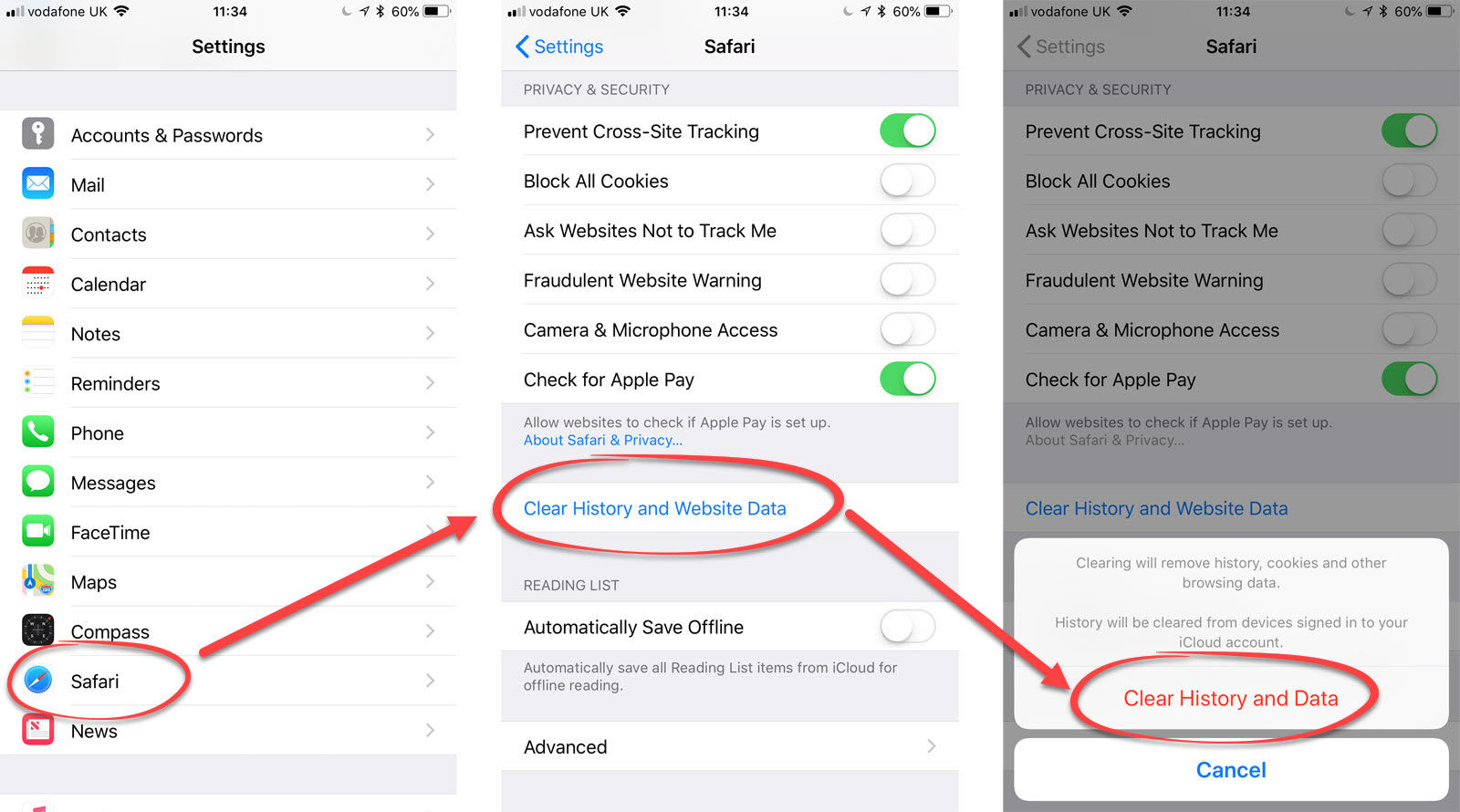
On Iphone/ipad:
- Open Safari and tap on the three horizontal lines in the top right corner.
- Tap on “Safari.”
- Tap on “Settings.”
- Scroll down to the “Privacy” section.
- Tap on “Clear History and Website Data.”
- Choose the type of data you want to delete (e.G., Browsing history, cookies, etc.).
- Set the time range for which you want to delete the data.
- Tap on “Clear.”
Software to Erase Browsing History
If you’re looking for software to erase browsing history, there are several options available:
- Bleachbit: A free and open-source software that scans your system and removes unnecessary files, including browser history.
- Cleanmymac X: A paid software specifically designed for Macs, which can clean up your browser history, as well as other data.
By following these steps, you can easily erase the history of websites visited on your browser. Remember to always check the settings of your browser and operating system to ensure that your online privacy is protected.


