
Capsize Engine of Enquiry: A Comprehensive Guide
In today’s digital age, having control over your online search experience is crucial. Whether you’re using a computer or mobile device, being able to customize your engine of enquiry can make a significant difference in how you navigate the internet. In this article, we’ll explore the process of capsize engine of enquiry on various browsers, including Chrome, Firefox, Safari, and Edge.
Why Capsize Engine of Enquiry?
Capsize engine of enquiry is the process of changing or customizing your default search engine to suit your preferences. This can be done on various devices, including computers, smartphones, and tablets. By capsize engine of enquiry, you can:
- Choose a more suitable search engine for your needs
- Improve your online search experience
- Access features and functionalities not available on the default search engine
Capsize Engine of Enquiry on Chrome
If you’re using Chrome as your browser, modifying the engine of enquiry is relatively straightforward. Here’s how to do it:
- Initiate The Browser: First, initiate the Chrome browser on your computer or mobile device.
- Access Settings: Click on the three vertical dots in the upper right corner of the browser window and select “Settings” from the dropdown menu.
- Engine of Enquiry: In the settings page, click on the “Search engine” option in the left-hand menu.
- Choose a New Engine: Select the new search engine you want to use from the list provided.
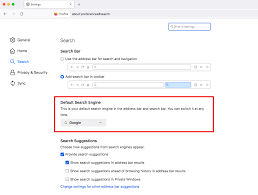
Capsize Engine of Enquiry on Firefox
To capsize engine of enquiry on Firefox, follow these steps:
- Initiate The Browser: Open the Firefox browser on your computer or mobile device.
- Access Settings: Click on the three horizontal lines in the upper right corner of the browser window and select “Options” from the dropdown menu (on Windows) or “Preferences” (on Mac).
- Search Engine: In the options/preferences page, click on the “Search engine” option in the left-hand menu.
- Choose a New Engine: Select the new search engine you want to use from the list provided.
Capsize Engine of Enquiry on Safari
To capsize engine of enquiry on Safari, follow these steps:
- Initiate The Browser: Open the Safari browser on your Mac or iOS device.
- Access Settings: Click on the “Safari” menu in the top left corner and select “Preferences.”
- Search Engine: In the preferences window, click on the “Search” tab.
- Choose a New Engine: Select the new search engine you want to use from the list provided.
Capsize Engine of Enquiry on Edge
To capsize engine of enquiry on Edge, follow these steps:
- Initiate The Browser: Open the Microsoft Edge browser on your Windows or mobile device.
- Access Settings: Click on the three dots in the upper right corner of the browser window and select “Settings” from the dropdown menu.
- Search Engine: In the settings page, click on the “Privacy, search, and services” option.
- Choose a New Engine: Select the new search engine you want to use from the list provided.
Conclusion
Capsize engine of enquiry is an essential process for any internet user who wants to customize their online search experience. By following these simple steps, you can choose a more suitable search engine for your needs and improve your overall browsing experience.
Faqs
- Q: Why Should I Capsize my Engine of Enquiry?
A: Capsize engine of enquiry allows you to choose a more suitable search engine for your needs. - Q: How do I Capsize Engine of Enquiry on Chrome?
A: To capsize engine of enquiry on Chrome, follow the steps outlined in this article. - Q: Can I Add a New Search Engine Not Listed in my Browser Settings?
A: Yes, you can add a new search engine by following the instructions provided for each browser. - Q: How do I Reset my Engine of Enquiry to Its Default Setting?
A: To reset your engine of enquiry to its default setting, follow the instructions provided for each browser. - Q: Can I Use Multiple Engines of Enquiry Simultaneously?
A: Yes, you can use multiple engines of enquiry simultaneously by adding them as shortcuts or bookmarks in your browser. - Q: How do I Remove a Search Engine From my List?
A: To remove a search engine from your list, follow the instructions provided for each browser. - Q: Can I Customize my Search Engine Settings Further?
A: Yes, you can customize your search engine settings further by exploring the advanced options provided for each browser. - Q: Why Are Some Engines of Enquiry Not Working as Expected on my Device?
A: There may be compatibility issues with certain search engines and devices. Try clearing your cache or updating your browser to resolve any technical issues.


