
How to Copy Phone Numbers to Sim: A Step-by-step Guide
Are you tired of manually transferring phone numbers from your smartphone to your SIM card? Do you want to simplify the process and have all your contacts in one place? Look no further! In this article, we will guide you through the steps to copy phone numbers to SIM on various smartphones, including Android, Samsung, Huawei, Xiaomi, and iPhone.
Why Copy Phone Numbers to Sim?
Copying phone numbers to SIM is a convenient way to transfer your contacts from one device to another. Whether you’re switching from an old phone to a new one or want to backup your contacts in case of an emergency, copying phone numbers to SIM is a must-do task.
Method 1: Copying Phone Numbers to Sim on Android Devices
If you have an Android device, you can use the “Copy to SIM” app available on Google Play Store. This app allows you to transfer your contacts from your smartphone to your SIM card in just a few steps.
Here’s how to do it:
- Download and install the “Copy to SIM” app on your Android device.
- Open the app and grant permission for access to your contacts.
- Select the contacts you want to copy to your SIM card.
- Tap on the “Export” button and choose the SIM card as the destination.
- Confirm the operation, and your contacts will be transferred to your SIM card.
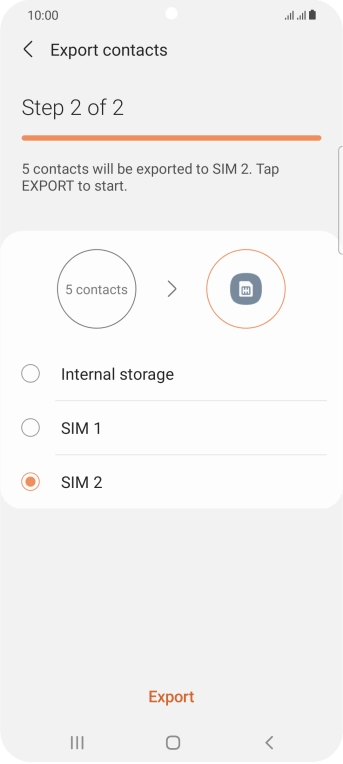
Method 2: Copying Phone Numbers to Sim on Samsung Devices
If you have a Samsung device, you can use the native “Contacts” app to transfer your contacts to your SIM card.
Here’s how to do it:
- Open the “Contacts” app and select the contact you want to export.
- Tap on the three dots at the top right corner of the screen and select “Export”.
- Choose the SIM card as the destination.
- Confirm the operation, and your contact will be transferred to your SIM card.
Method 3: Copying Phone Numbers to Sim on Huawei Devices
If you have a Huawei device, you can use the native “Contacts” app to transfer your contacts to your SIM card.
Here’s how to do it:
- Open the “Contacts” app and select the contact you want to export.
- Tap on the four dots at the top right corner of the screen and select “Settings”.
- Choose the SIM card as the destination.
- Confirm the operation, and your contact will be transferred to your SIM card.
Method 4: Copying Phone Numbers to Sim on Xiaomi Devices
If you have an Xiaomi device, you can use the native “Contacts” app to transfer your contacts to your SIM card.
Here’s how to do it:
- Open the “Contacts” app and select the contact you want to export.
- Tap on the three horizontal lines at the top left corner of the screen and select “Management contacts”.
- Choose the SIM card as the destination.
- Confirm the operation, and your contact will be transferred to your SIM card.
Method 5: Copying Phone Numbers to Sim on Iphone Devices
Unfortunately, copying phone numbers to SIM is not possible directly from an iPhone device. However, you can use iCloud or Google Drive to backup your contacts and then transfer them to another device.
Here’s how to do it:
- Open the “Settings” app on your iPhone and go to “iCloud”.
- Turn on the “Contacts” option.
- Go to the “iCloud” website on your computer and sign in with your Apple ID.
- Select the contacts you want to export and choose the format (VCF or CSV).
- Save the file to your computer.
How to Synchronize Contacts With Cloud Services
If you have an iPhone device, you can use iCloud or Google Drive to synchronize your contacts across all your devices. This way, you can access your contacts from any device without having to transfer them manually.
Here’s how to do it:
- Open the “Settings” app on your iPhone and go to “iCloud”.
- Turn on the “Contacts” option.
- Go to the Google Drive website on your computer and sign in with your Google account.
- Select the contacts you want to synchronize and choose the format (VCF or CSV).
- Save the file to your computer.
How to Export Contacts
If you prefer to export your contacts in a format that can be easily transferred to another device, you can use an app like “My Contacts Backup” (available on iOS devices).
Here’s how to do it:
- Download and install the “My Contacts Backup” app on your iOS device.
- Open the app and grant permission for access to your contacts.
- Select the format (VCF or CSV) and choose the destination (e.G., Email).
- Save the file to your computer.
Conclusion
Copying phone numbers to SIM is a straightforward process that can be done on various smartphone devices. Whether you’re using Android, Samsung, Huawei, Xiaomi, or iPhone, there are methods available to transfer your contacts to your SIM card. We hope this article has helped you understand how to copy phone numbers to SIM and synchronize them with cloud services.
Frequently Asked Questions (FAQs)
- How do I Copy Phone Numbers to Sim on my Android Device?
- You can use the “Copy to SIM” app available on Google Play Store.
- Can I Transfer Contacts From an Iphone to a Samsung Device?
- Yes, you can use iCloud or Google Drive to backup your contacts and then transfer them to another device.
- How do I Synchronize Contacts Across All my Devices?
- You can use cloud services like iCloud or Google Drive to synchronize your contacts across all your devices.
- Can I Export my Contacts in a Format That Can be Easily Transferred to Another Device?
- Yes, you can use an app like “My Contacts Backup” (available on iOS devices) to export your contacts in VCF or CSV format.
We hope this article has provided you with the information and guidance you need to copy phone numbers to SIM. Happy transfer!


