
Protecting Your Digital Assets: A Comprehensive Guide
As technology advances, our digital lives become increasingly intertwined with our physical ones. Protecting your personal data and sensitive information has never been more crucial. In this article, we’ll delve into the world of password-protected folders, exploring various methods to safeguard your digital assets.
Understanding Password-protection
Password-protection is a simple yet effective way to secure your files and folders from unauthorized access. By assigning a strong password to a folder, you create an additional layer of security that requires users to enter the correct password before accessing its contents.
Method 1: Using Veracrypt on Windows
VeraCrypt is a popular, open-source encryption software available for Windows, macOS, and Linux. This powerful tool allows you to create encrypted containers (volumes) where you can store sensitive files and folders. Here’s how to use it:
- Download And Install: Visit the official VeraCrypt website and download the executable file (.Exe).
- Setup And Accept License Terms: Run the installer, click “Yes” to accept the license terms, and follow the prompts to complete the installation.
- Create a Volume: Launch VeraCrypt, select the “Create a volume…” Option, choose the “VeraCrypt standard” format, and set the desired capacity for your encrypted container.
- Choose File System And Encryption Algorithm: Select the file system (FAT, exFAT, NTFS, etc.) And encryption algorithm (AES-256) that suits your needs.
- Set Password And Confirm: Enter a strong password to protect your volume, confirm it in the “Confirm” field, and click “OK.”
- Format And Mount The Volume: Format the volume with the selected file system, and mount it as a drive letter (e.G., G:).
Method 2: Using 7-Zip on Windows
7-Zip is another popular tool for managing compressed files. You can use it to create password-protected archives of your folders:
- Download And Install: Visit the official 7-Zip website and download the executable file (.Exe).
- Select Files to Archive: Choose the folder you want to protect and select “Add to archive…” From the context menu.
- Set Password And Encryption Options: Enter a strong password, select the AES-256 encryption algorithm, and check the box to encrypt filenames if desired.
- Save And Extract: Save the archived file with the .7Z extension, and then extract it by double-clicking on it.
Method 3: Using Utility Disk on Macos
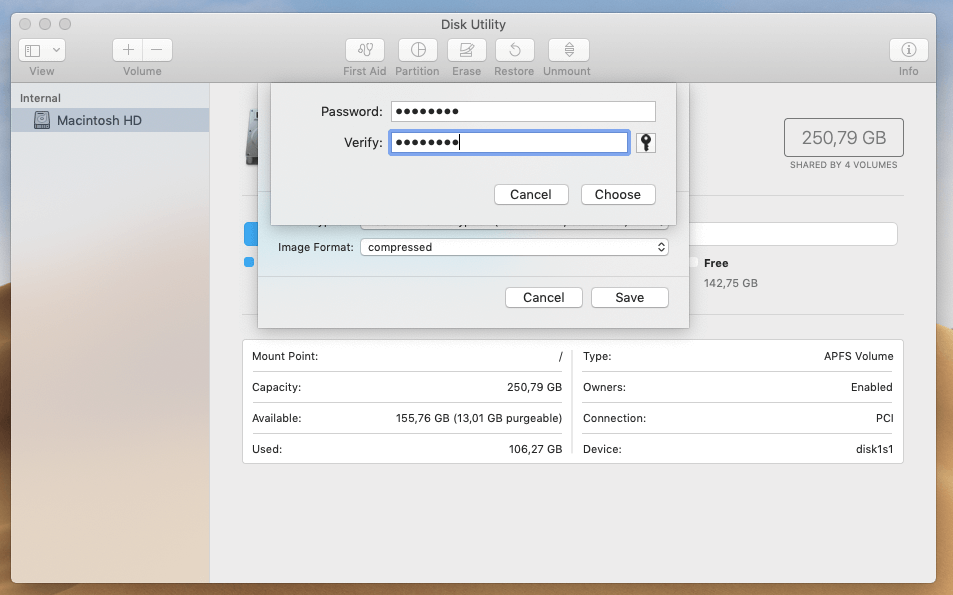
Utility Disk is a built-in tool on macOS that allows you to create encrypted containers:
- Launch Utility Disk: Open the Launchpad, select “Another,” and choose “Disk Utility.”
- Create a New Image: Click the “New” button, select the desired capacity and file system (Mac OS extended), and choose an encryption algorithm (128-bit AES).
- Set Password And Confirm: Enter a strong password to protect your container, confirm it in the “Confirm” field, and click “Save.”
- Mount And Access Your Encrypted Container: Double-click on the newly created image to mount it as a drive, access its contents, and use them as you would with any other disk.
Protecting Folders on Android
While Android devices don’t have built-in folder encryption, some file managers offer this feature. For instance, Google’s Files app allows you to create password-protected folders:
- Download And Install: Get the Files app from the Play Store.
- Enable Folder Encryption: Tap on the “Folder” icon in the top-right corner, select “Settings,” and toggle on “Folder encryption.”
- Set Password And Confirm: Choose a strong password, confirm it in the “Confirm” field, and tap “Save.”
Protecting Folders on Ios
Unfortunately, iOS doesn’t natively support folder encryption. However, you can use third-party apps like Deprive Photo Vault to create encrypted containers:
- Download And Install: Get Deprive Photo Vault from the App Store.
- Create a New Vault: Tap on the “+” icon in the top-right corner, select “New vault,” and choose an encryption method (e.G., AES-256).
- Set Password And Confirm: Enter a strong password to protect your vault, confirm it in the “Confirm” field, and tap “Save.”
Protecting Apps With Passwords on Ios
While you can’t encrypt folders directly on iOS, you can use the built-in feature to protect apps with passwords:
- Go to Settings: Open the Settings app.
- Choose General > Restrictions: Select “Enable Restrictions” and set a passcode to unlock the restrictions mode.
- Tap on Passwords & Accounts: Enable the “Require Password” option for each app you want to password-protect.
Conclusion
Protecting your digital assets is crucial in today’s world of increasing cyber threats. By using VeraCrypt, 7-Zip, Utility Disk, or other tools and methods outlined above, you can safeguard your sensitive files and folders from unauthorized access. Always remember to use strong passwords, enable two-factor authentication whenever possible, and keep your software up-to-date to maintain the highest level of security.
Frequently Asked Questions (FAQs)
- Q: What Are The Benefits of Using Password-protection For my Digital Assets?
A: Password-protection adds an additional layer of security to your files and folders, making it more difficult for unauthorized individuals to access them. - Q: How do I Create a Strong Password?
A: Choose a password that is at least 12 characters long, includes uppercase and lowercase letters, numbers, and special characters. Avoid using easily guessable information like your name or birthdate. - Q: Can I Use The Same Password For All my Digital Assets?
A: It’s recommended to use unique passwords for each of your digital assets to prevent a single breach from compromising multiple accounts. - Q: How do I Protect my Sensitive Files on Android Devices?
A: Use file managers like Google Files, which allows you to create password-protected folders. - Q: Can I Use Veracrypt or Other Encryption Software on Ios Devices?
A: Unfortunately, native folder encryption is not available on iOS devices. However, you can use third-party apps like Deprive Photo Vault to create encrypted containers.
Disclaimer: The information provided in this article is for educational purposes only and should not be considered as professional advice. Always consult the official documentation and support resources for any software or service mentioned herein.


