
How to Open Msg Files: A Step-by-step Guide
Are you struggling to open and view MSG files on your computer or mobile device? Look no further! This article will guide you through the process of opening MSG files using various programs and apps, both for Windows and macOS users.
What Are Msg Files?
Before we dive into the tutorial, let’s briefly discuss what MSG files are. An MSG file is a type of email message file that is generated by Microsoft Outlook or other email clients. These files contain information such as the sender’s and recipient’s email addresses, the subject line, and the body of the email.
Opening Msg Files on Windows
If you’re using a Windows computer, you can open an MSG file using Microsoft Outlook or other compatible programs.
Using Microsoft Outlook
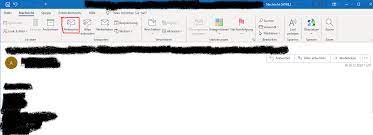
- Launch Microsoft Outlook: If you have Microsoft Outlook installed on your computer, you can launch it and click on the “File” tab.
- Click on “Open & Export”: In the File menu, click on “Open & Export.”
- Select The Msg File: Choose the MSG file you want to open from the dialog box that appears.
- Click on “OK”: Click on “OK” to view the contents of the MSG file.
Using Wordpad
- Launch Wordpad: You can also use the built-in WordPad program to open an MSG file.
- Right-click on The Msg File: Right-click on the MSG file and select “Open with.”
- Choose Wordpad: Choose WordPad from the list of programs that appears.
Opening Msg Files on Macos
If you’re using a Mac, you can open an MSG file using Microsoft Outlook or other compatible apps.
Using Microsoft Outlook (macOS)
- Launch Microsoft Outlook: If you have Microsoft Outlook installed on your Mac, you can launch it and click on the “File” tab.
- Click on “Open & Export”: In the File menu, click on “Open & Export.”
- Select The Msg File: Choose the MSG file you want to open from the dialog box that appears.
- Click on “OK”: Click on “OK” to view the contents of the MSG file.
Using Textedit
- Launch Textedit: You can also use the built-in TextEdit program to open an MSG file.
- Right-click on The Msg File: Right-click on the MSG file and select “Open with.”
- Choose Textedit: Choose TextEdit from the list of programs that appears.
Opening Msg Files on Mobile Devices
If you’re using a mobile device, you can download specific apps to open and view MSG files.
Using Msg Files Reader (Android)
- Download Msg Files Reader: Download the MSG Files Reader app from the Google Play Store.
- Launch The App: Launch the app and select the MSG file you want to open.
- View The Contents: View the contents of the MSG file in the app.
Using Msg Rows Viewer (iOS)
- Download Msg Rows Viewer: Download the MSG Rows Viewer app from the App Store.
- Launch The App: Launch the app and select the MSG file you want to open.
- View The Contents: View the contents of the MSG file in the app.
Converting Msg Files Online
If you’re unable to install any apps or software, you can use online services to convert your MSG files to other formats.
Using Coolutils
- Visit Coolutils Website: Visit the Coolutils website and select the “Select Files” option.
- Choose The Msg File: Choose the MSG file you want to convert from your computer.
- Choose The Output Format: Choose the output format (e.G., PDF) for the converted file.
- Download The Converted File: Download the converted file in the chosen format.
Conclusion
Opening and viewing MSG files can be a straightforward process if you have the right tools and software installed on your device. Whether you’re using Windows or macOS, or mobile devices like Android or iOS, there are various apps and programs that can help you view the contents of these email message files.


