
How to Delete a Post on Instagram: A Step-by-step Guide
Are you wondering how to delete a post on Instagram? Maybe you’ve posted something that, in hindsight, you wouldn’t have shared or it’s just not aligning with your brand anymore. Don’t worry; we’ve got you covered! In this article, we’ll show you exactly how to delete a post on Instagram using both your smartphone and computer.
Understanding The Basics
Before we dive into the step-by-step guide, let’s quickly understand the basics of deleting a post on Instagram. There are several scenarios where you might want to delete a post:
- Individual Post: You’ve posted something and now want to remove it from your feed.
- Multiple Posts: You’ve posted multiple photos or videos together and now want to delete them all at once.
- Saved Post: You’ve saved a post to revisit later, but now you’re ready to delete it.
- Post in Loading: Unfortunately, Instagram doesn’t have a built-in feature to cancel a post that’s in the process of uploading.
Deleting an Individual Post on Smartphone
To delete an individual post on your smartphone:
- Open the Instagram app and navigate to the post you want to delete.
- Tap on the three dots (⋯) icon located at the top-right corner of the post.
- Select “Delete” from the menu.
- Confirm that you want to delete the post by tapping “Delete Again.”
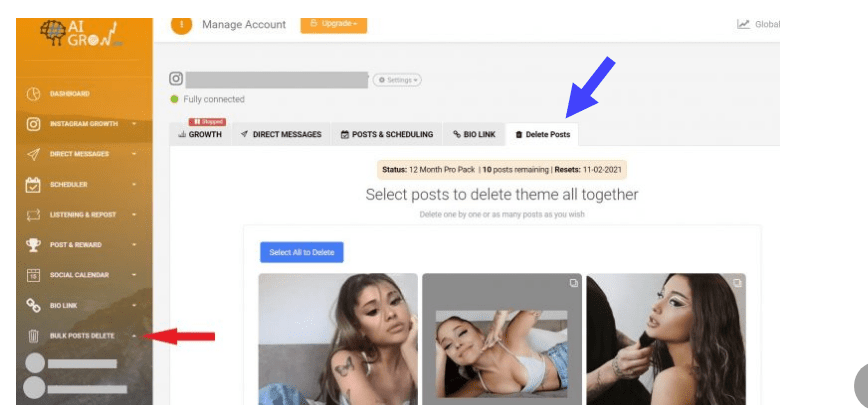
Deleting Multiple Posts on Smartphone
If you’ve posted multiple photos or videos together and now want to delete them all at once:
- Open the Instagram app and navigate to your profile page.
- Tap on the three dots (⋯) icon located at the top-right corner of the screen.
- Select “Your Activity” from the menu.
- Tap on “Post” in the section “Contain what you’ve shared.”
- Select the posts you want to delete and tap on the trash can icon.
- Confirm that you want to delete the selected posts by tapping “Delete.”
Deleting a Saved Post on Smartphone
If you’ve saved a post to revisit later and now want to delete it:
- Open the Instagram app and navigate to your profile page.
- Tap on the three dots (⋯) icon located at the top-right corner of the screen.
- Select “Your Activity” from the menu.
- Scroll down and tap on “Saved” in the section “Contain what you’ve shared.”
- Select the saved post you want to delete and tap on the trash can icon.
- Confirm that you want to delete the post by tapping “Delete.”
Deleting a Post on Computer
To delete a post on your computer:
- Log in to your Instagram account using a web browser (e.G., Google Chrome, Mozilla Firefox).
- Navigate to your profile page and click on the three dots (⋯) icon located at the top-right corner of the screen.
- Select “Your Activity” from the menu.
- Scroll down and click on “Post” in the section “Contain what you’ve shared.”
- Select the post you want to delete and click on the trash can icon.
- Confirm that you want to delete the post by clicking “Delete.”
Deleting a Post Saved on Computer
If you’ve saved a post on your computer:
- Log in to your Instagram account using a web browser (e.G., Google Chrome, Mozilla Firefox).
- Navigate to your profile page and click on the three dots (⋯) icon located at the top-right corner of the screen.
- Select “Your Activity” from the menu.
- Scroll down and click on “Elements Saved” in the section “Contain what you’ve shared.”
- Select the saved post you want to delete and click on the trash can icon.
- Confirm that you want to delete the post by clicking “Delete.”
Deleting a Post in Loading
Unfortunately, Instagram doesn’t have a built-in feature to cancel a post that’s in the process of uploading. If this happens:
- Click on the “Share” button again and try to upload the post again.
- If you’ve already uploaded some content (e.G., Photo or video), cancel the upload by clicking the rotary arrow icon (⏪) located at the top-right corner of the screen.
Conclusion
Deleting a post on Instagram is relatively straightforward, whether you’re using your smartphone or computer. By following these steps, you can remove unwanted posts from your feed and maintain a consistent brand image.
Frequently Asked Questions:
- Can I delete multiple posts at once?
- How do I delete a saved post?
Additional Resources:
- For more information on Instagram’s features and settings, visit the official Instagram Help Center.
- If you’re experiencing issues with deleting posts or have questions about Instagram’s policies, contact their support team at [email protected].


