
Unlocking Whatsapp on Your Pc: A Step-by-step Guide
Are you tired of using WhatsApp only on your smartphone? Do you want to enjoy the same experience on your PC? Look no further! In this article, we will guide you through the process of unlocking WhatsApp on your computer.
What is Whatsapp Web?
Before we dive into the instructions, let’s briefly explain what WhatsApp Web is. WhatsApp Web is a feature that allows you to use WhatsApp on your PC or laptop by scanning a QR code using your smartphone’s camera. This way, you can access your WhatsApp conversations and messages on a larger screen.
How to Use Whatsapp on Your PC
Using WhatsApp on your PC is a straightforward process. Here are the steps:
Step 1: Open Whatsapp Web on Your Pc
First, open a web browser on your PC (such as Google Chrome or Mozilla Firefox) and navigate to the WhatsApp Web website (https://Web.Whatsapp.Com).
Step 2: Scan The QR Code With Your Smartphone
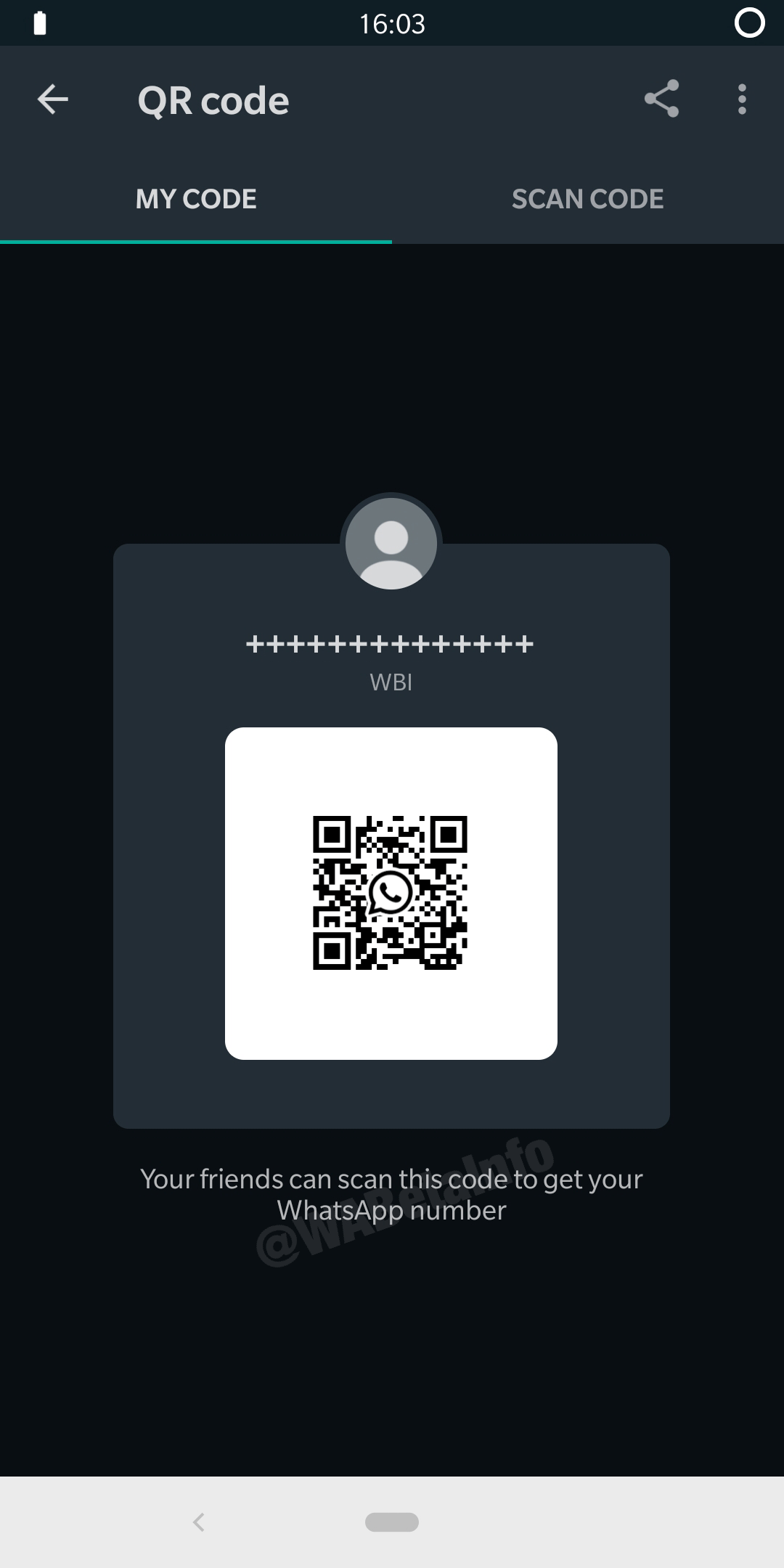
Next, open WhatsApp on your smartphone and go to the Settings menu. Tap on “WhatsApp Web” and then tap on the “QR code” icon. This will generate a unique QR code that you need to scan using your PC’s camera.
Note: Make sure your smartphone and PC are connected to the same Wi-Fi network for this process to work smoothly.
Step 3: Authenticate Your Account
Once you have scanned the QR code, WhatsApp Web will authenticate your account. You may be asked to enter your phone number or provide additional verification if necessary.
How to Access Whatsapp on Your Iphone
If you’re using an iPhone, follow these steps:
- Open the WhatsApp app on your iPhone.
- Tap on the Settings icon (gear wheel).
- Scroll down and tap on “WhatsApp Web”.
- Scan the QR code with your PC’s camera using the Face ID or Touch ID feature.
Tips For Using Whatsapp on Your PC
Here are some additional tips to keep in mind when using WhatsApp on your PC:
- Use a Stable Internet Connection: Make sure your PC is connected to a stable and fast internet connection for smooth performance.
- Close Unnecessary Apps: Close any unnecessary browser tabs or apps running in the background to ensure optimal performance.
- Use a Large Enough Display: Use a monitor with a good resolution (at least 1080p) to get the best experience out of WhatsApp on your PC.
Troubleshooting Common Issues
If you encounter any issues while trying to access WhatsApp on your PC, here are some common solutions:
Issue: QR Code Not Scanning Correctly
Solution: Try scanning the QR code again or restart your smartphone and PC. If the issue persists, contact WhatsApp support for further assistance.
Issue: Authentication Failed
Solution: Check that you’re using the correct phone number or verification method. Contact WhatsApp support if you still encounter issues.
Conclusion
Using WhatsApp on your PC is a straightforward process that requires minimal technical expertise. By following these steps and tips, you can enjoy a seamless experience of using this popular messaging app on a larger screen.
Frequently Asked Questions (FAQs)
Here are some frequently asked questions related to using WhatsApp on your PC:
Q: What do I Need to Use Whatsapp Web?
A: You’ll need a smartphone with WhatsApp installed and a stable internet connection for smooth performance.
Q: Can I Use Whatsapp on Multiple Devices at The Same Time?
A: Yes, you can use WhatsApp on multiple devices simultaneously. Just make sure each device has its own unique QR code.
Q: How do I Log Out of Whatsapp Web?
A: To log out of WhatsApp Web, simply close the browser tab or app and restart your PC.
Q: Can I Use Whatsapp on my Tablet?
A: Yes, you can use WhatsApp on your tablet by scanning the QR code using your smartphone’s camera.
Q: What if I Encounter Technical Issues While Using Whatsapp on my Pc?
A: Contact WhatsApp support for further assistance with any technical issues or problems you may encounter.
Additional Tips And Tricks
Here are some additional tips and tricks to help you get the most out of using WhatsApp on your PC:
- Use a headset or external speakers for better audio quality.
- Take advantage of keyboard shortcuts for faster navigation within WhatsApp.
- Experiment with different display settings to find the perfect balance between image clarity and battery life.


