
How to Delete Icloud Backup: A Step-by-step Guide
Are you tired of receiving continuous notifications on your device about the storage space being occupied by your iCloud backup? Do you want to free up some space on your account without any hassle? Look no further! In this article, we will guide you through a step-by-step process on how to delete your iCloud backup and regain control over your storage space.
Why Delete Icloud Backup?
Before we dive into the process of deleting your iCloud backup, let’s understand why it’s essential to do so. When you enable iCloud on your device, it automatically creates backups of all your data, including photos, videos, messages, and more. While this feature is convenient, it can also consume a significant amount of storage space on your account. If you’re running low on storage, deleting old backups can help free up some space.
Iphone And Ipad
If you’re using an iPhone or iPad, follow these steps to delete your iCloud backup:
- Go to Settings: Open the Settings app on your device.
- Tap on Your Name: Tap on your name at the top of the screen.
- Select Icloud: Select “iCloud” from the list of options.
- Tap on Manage Storage: Tap on “Manage Storage” under the iCloud section.
- Delete Old Backups: Scroll through the list of backups and select the ones you want to delete.
- Confirm Deletion: Confirm that you want to delete the selected backup(s).
PC
If you’re using a PC, follow these steps to delete your iCloud backup:
- Launch Icloud For Windows: Open the iCloud for Windows app on your PC.
- Go to Manage Storage: Select “Manage Storage” from the left-hand menu.
- Delete Old Backups: Scroll through the list of backups and select the ones you want to delete.
- Confirm Deletion: Confirm that you want to delete the selected backup(s).
Mac
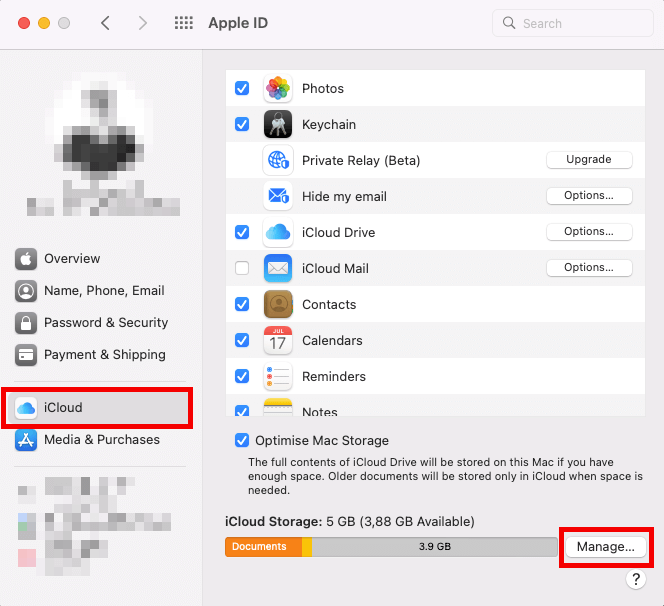
If you’re using a Mac, follow these steps to delete your iCloud backup:
- Go to System Preferences: Open System Preferences on your Mac.
- Select Apple ID: Select “Apple ID” from the top row of options.
- Click on Manage: Click on “Manage” under the Apple ID section.
- Delete Old Backups: Scroll through the list of backups and select the ones you want to delete.
- Confirm Deletion: Confirm that you want to delete the selected backup(s).
How to Disable Automatic Backup
Before deleting your iCloud backup, it’s essential to disable automatic backup for devices you no longer actively use. To do this:
- Go to Settings: Open the Settings app on your device.
- Tap on Your Name: Tap on your name at the top of the screen.
- Select Icloud: Select “iCloud” from the list of options.
- Tap on Manage Storage: Tap on “Manage Storage” under the iCloud section.
- Disable Automatic Backup: Disable automatic backup for devices you no longer actively use.
What Happens When I Delete My Icloud Backup?
When you delete your iCloud backup, all associated data will be removed from your account. This includes photos, videos, messages, and more. Make sure to back up any important data before deleting your old backups.
Conclusion
Deleting your iCloud backup is a straightforward process that can help free up storage space on your account. By following the steps outlined in this article, you can easily delete old backups and regain control over your storage space. Remember to disable automatic backup for devices you no longer actively use to avoid repeating the same operations in the future.
Frequently Asked Questions (FAQs)
- Q: Why do I Need to Delete my Icloud Backup?
A: Deleting your iCloud backup helps free up storage space on your account. - Q: How do I Disable Automatic Backup For Devices I no Longer Use?
A: Go to Settings > Your Name > iCloud > Manage Storage, and disable automatic backup for devices you no longer actively use. - Q: What Happens When I Delete my Icloud Backup?
A: All associated data will be removed from your account. - Q: Can I Recover Deleted Backups?
A: No, once a backup is deleted, it cannot be recovered. - Q: How Often Should I Delete Old Backups?
A: It’s recommended to delete old backups every 3-6 months to free up storage space and maintain your account’s health.
I hope this article has helped you understand the process of deleting your iCloud backup. If you have any further questions or concerns, feel free to ask!


