
The Ultimate Guide to Contacting a Link on Instagram
Are you tired of not knowing how to contact a link on Instagram? Look no further! In this comprehensive guide, we’ll show you how to add links to your Instagram stories, posts, bio, and even other social media platforms.
Why Add Links to Your Instagram Profile?
Adding links to your Instagram profile can increase engagement, drive website traffic, and boost sales. With a link in your bio, you can share a link to your website, online store, or any other relevant content.
How to Contact a Link on Instagram Stories
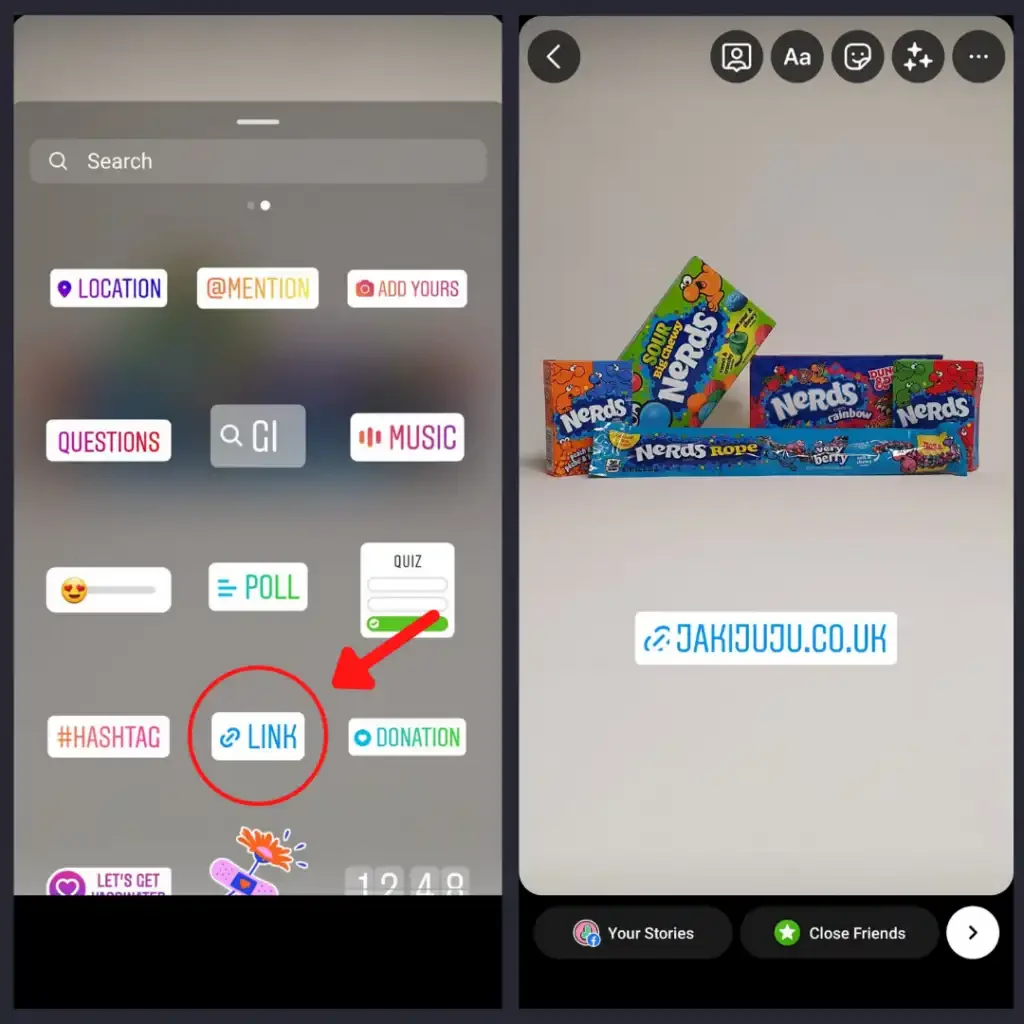
To add a link to your Instagram stories, follow these steps:
- Open the Instagram app and navigate to the “Camera” tab.
- Swipe left to access the “swipe-up” feature.
- Tap on the “Link” icon (a chain link) in the bottom toolbar.
- Enter the URL you want to share and add a title (optional).
- Tap on the “Share” button to post your story with the linked content.
How to Contact a Link on Instagram Posts
To add a link to your Instagram posts, follow these steps:
- Open the Instagram app and navigate to the “New Post” screen.
- Tap on the “+” icon to start creating a new post.
- Select an image or video from your gallery or record one.
- Tap on the “Add Link” icon (a chain link) below the caption field.
- Enter the URL you want to share and add a title (optional).
- Tap on the “Share” button to post your story with the linked content.
How to Contact a Link in Your Instagram Bio
To add a link to your Instagram bio, follow these steps:
- Open the Instagram app and navigate to your profile.
- Tap on the three horizontal lines (≡) in the top right corner.
- Select “Settings” and then tap on “Edit Profile”.
- Scroll down to the “Bio” section.
- Tap on the “Add Link” icon (a chain link).
- Enter the URL you want to share.
How to Add Multiple Links to Your Instagram Bio
To add multiple links to your Instagram bio, follow these steps:
- Open the app and navigate to your profile.
- Tap on the three horizontal lines (≡) in the top right corner.
- Select “Settings” and then tap on “Edit Profile”.
- Scroll down to the “Bio” section.
- Tap on the “+” icon to add a new link.
- Enter the URL you want to share and add a title (optional).
How to Contact a Link on Other Social Media Platforms
To contact a link from your Instagram profile on other social media platforms, follow these steps:
- Facebook: To add a link to your Facebook profile, navigate to your profile and select “About” > “Contact and Basic Info”. Tap on the “Add Link” icon (a chain link) to enter the URL.
- Youtube: To add a link to your YouTube channel, navigate to YouTube Studio. Select “Settings” > “Basic Information” > “Links”. Enter the URL you want to share.
- Twitter: To add a link to your Twitter profile, navigate to your profile and select “Edit Profile”. Scroll down to the “Additional Info” section. Tap on the “+” icon to add a new link.
How to Insert a Link in Your Instagram Bio Using Linktree
To insert multiple links into your Instagram bio using Linktree, follow these steps:
- Download the Linktree app or visit their website.
- Create an account and add a new collection of URLs.
- Enter the title and URL for each link.
- Share the Linktree link in your Instagram bio.
Frequently Asked Questions (FAQs)
Q: Can I add multiple links to my Instagram bio?
A: Yes, you can add up to 5 links to your Instagram bio.
Q: How do I contact a link on other social media platforms from my Instagram profile?
A: You can contact a link from your Instagram profile on Facebook by adding the link in your “About” section. On YouTube, navigate to YouTube Studio and select “Basic Information” > “Links”. For Twitter, add the link in the “Additional Info” section.
Q: Can I use Linktree to insert multiple links into my Instagram bio?
A: Yes, you can use Linktree to create a collection of URLs and share them in your Instagram bio.
Q: How do I add a link to my Instagram story using the swipe-up feature?
A: To add a link to your Instagram story, open the app, navigate to the “Camera” tab, and swipe left. Tap on the “Link” icon (a chain link) to enter the URL.
Q: Can I share a link in my Instagram post caption?
A: Yes, you can share a link in your Instagram post caption by tapping on the “Add Link” icon below the caption field.
Conclusion
Contacting a link on Instagram is easier than ever! By following these steps, you can add links to your stories, posts, bio, and even other social media platforms. Remember to use Linktree to insert multiple links into your Instagram bio for maximum convenience. Happy linking!
Appendix: Additional Tips And Tricks
- Use a link shortener like bit.Ly to shorten long URLs.
- Make sure to add a title or description to each link in your Instagram bio.
- Experiment with different link colors and icons to make them stand out.
- Consider using a third-party app like Linktree to manage multiple links in one place.
References
- Instagram Help Center: “How do I add a link to my story?”
- Instagram Help Center: “How do I add a link to my post caption?”
- Linktree Website: “Getting started with Linktree”
- YouTube Studio Help: “Adding links to your channel”
Note: The content of this article is based on publicly available information and may be subject to change.


